Hosting storage is the amount of disk space your hosting plan gives you.
It holds everything your website needs: the core files, your images and videos, the database that runs your content, your email inboxes, and whatever backups or logs pile up along the way.
When that space fills up, you may experience upload failures, emails bounce, and your site can stop loading altogether.
Your storage isn’t just for website files. On shared hosting, your website, databases, and email accounts all share one disk quota. A mailbox full of old attachments can eat the same space your site needs for product photos.
That’s why two sites that look identical can have very different storage needs once you factor in email, backups, and everything else that piles up over time.
Different websites also have different appetites. A text-heavy blog with a handful of images might live comfortably in a couple of gigabytes.
A photography portfolio with hundreds of high-resolution shots can burn through 20 GB without trying.
How Much Hosting Storage Do You Need?
| Website Type | Storage |
| Simple Blog / Small Site | 1–10 GB |
| Small Business / Brochure Site | 1–10 GB |
| Photography / Portfolio | 15–50 GB |
| Small E-commerce Store | 20–50 GB |
| Large E-commerce / Media Site | 100 GB+ |
What Consumes Website Storage?
a) Website Files and Media Uploads
Your website files include the content management system itself, the theme you are using, and every plugin you have installed.
For a typical WordPress site, those three things combined usually land around 1 GB. The heavyweight in this category is your uploads folder. Every image, video, and audio file you add to your site lives there.
If you run a blog with a few photos per post, this stays manageable.
If you run a store with multiple photos per product, or a portfolio with full-resolution images, the uploads folder becomes the single biggest consumer of your storage.
b) Databases and Email Accounts
Your database stores the content that makes your site work: posts, pages, comments, settings, and for stores, order information and customer records.
An average WordPress database is around 85 MB, though busy stores with years of orders will be larger.
It is rarely the first thing to fill your disk, but it grows steadily and never shrinks on its own.
With email, every message in every inbox, sent folder, draft, and trash folder counts against your hosting quota.
If you create email accounts at your domain and use them for business, those inboxes accumulate attachments, newsletters you never deleted, and spam that sits in the junk folder.
One email account active for a few years can easily hold several gigabytes of data you forgot existed.
c) Backups, Logs, and Cache Files
Backups are essential, but storing them on the same server as your website means they count against your storage.
A full backup of a site with a moderate media library can run from a few hundred megabytes to several gigabytes.
If your host or a plugin keeps daily backups on your account, those files stack up fast.
Logs and cache files are the silent accumulators. Error logs, access logs, and cache files generated by plugins or your hosting environment build up in the background.
A misconfigured plugin can generate thousands of temporary files without you ever noticing until your disk is full.
d) Unoptimized or Duplicate Media
When you upload an image to WordPress, the system often automatically generates multiple sizes of that same image: thumbnail, medium, large, and so on.
Those extra sizes are convenient, but they multiply your storage use. Upload a 4 MB photo, and you might end up with three or four versions of it on your disk.
Duplicates are another common problem. Site migrations, plugin conflicts, and manual re-uploads can leave you with the same file stored two or three times in different folders.
Uncompressed images straight from a camera or phone are also far larger than they need to be for the web.
e) Plugin and Theme Bloat
Every plugin you install adds files to your site. When you deactivate a plugin, those files usually stay right where they are.
When you delete a plugin through WordPress, some plugins clean up after themselves, and some leave folders and files behind.
Over time, a site that has tried twenty different plugins can carry the leftovers of a dozen abandoned ones.
Heavy page builders and caching plugins are their own category. Some generate thousands of temporary files, CSS files, and cached versions of your pages.
They make your site faster for visitors, but they also consume storage in the background.
f) Email Attachments and Trash
Every attachment someone sends you sits in your inbox until you delete it. Every attachment you send sits in your sent folder.
Every message you delete remains in trash until you empty it. If you use IMAP to check email on your phone and computer, all those messages stay on the server rather than downloading and disappearing.
A business email account that has been receiving invoices, PDFs, and photos for two years can hold more data than the website itself.
How to Tell How Much Storage Your Website is Using
1) Start with Your Hosting Control Panel
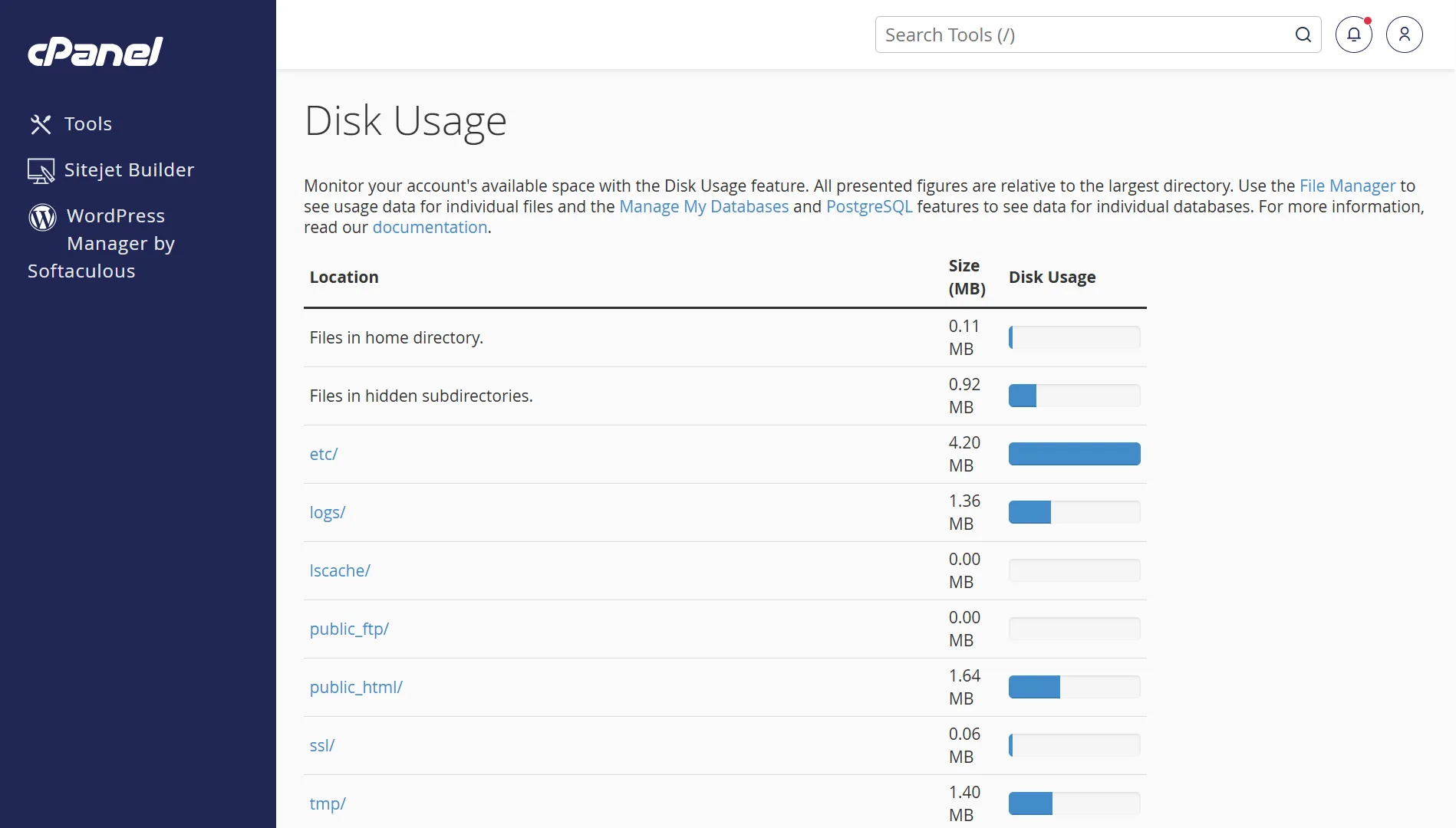
Log in to your hosting account and look for the disk usage summary. In cPanel, you will find a Statistics section in the sidebar that shows total disk usage at a glance.
Your host’s client area or dashboard will have something similar, whether they use cPanel, hPanel, Plesk, or a custom panel.
The summary tells you how much you are using overall, but most panels also let you drill down.
In cPanel, the Disk Usage tool breaks your storage down by folder so you can see exactly where the space is going: website files, databases, email, logs, and temporary files.
This is the fastest way to spot the one folder that is eating half your quota.
2) Use WordPress’s Built-in Tool
If you run WordPress, go to Tools, then Site Health, then the Info tab, and look for Directories and Sizes.
This shows you the size of your WordPress folders (uploads, themes, plugins) and your database. It is quick and requires no extra plugins.
The limitation is that it only covers what is inside your WordPress installation.
It will not show email storage, backups stored outside the WordPress folder, or anything else in your hosting account. Use it to understand your site’s footprint, not your entire hosting usage.
3) Check Folder Sizes in File Manager
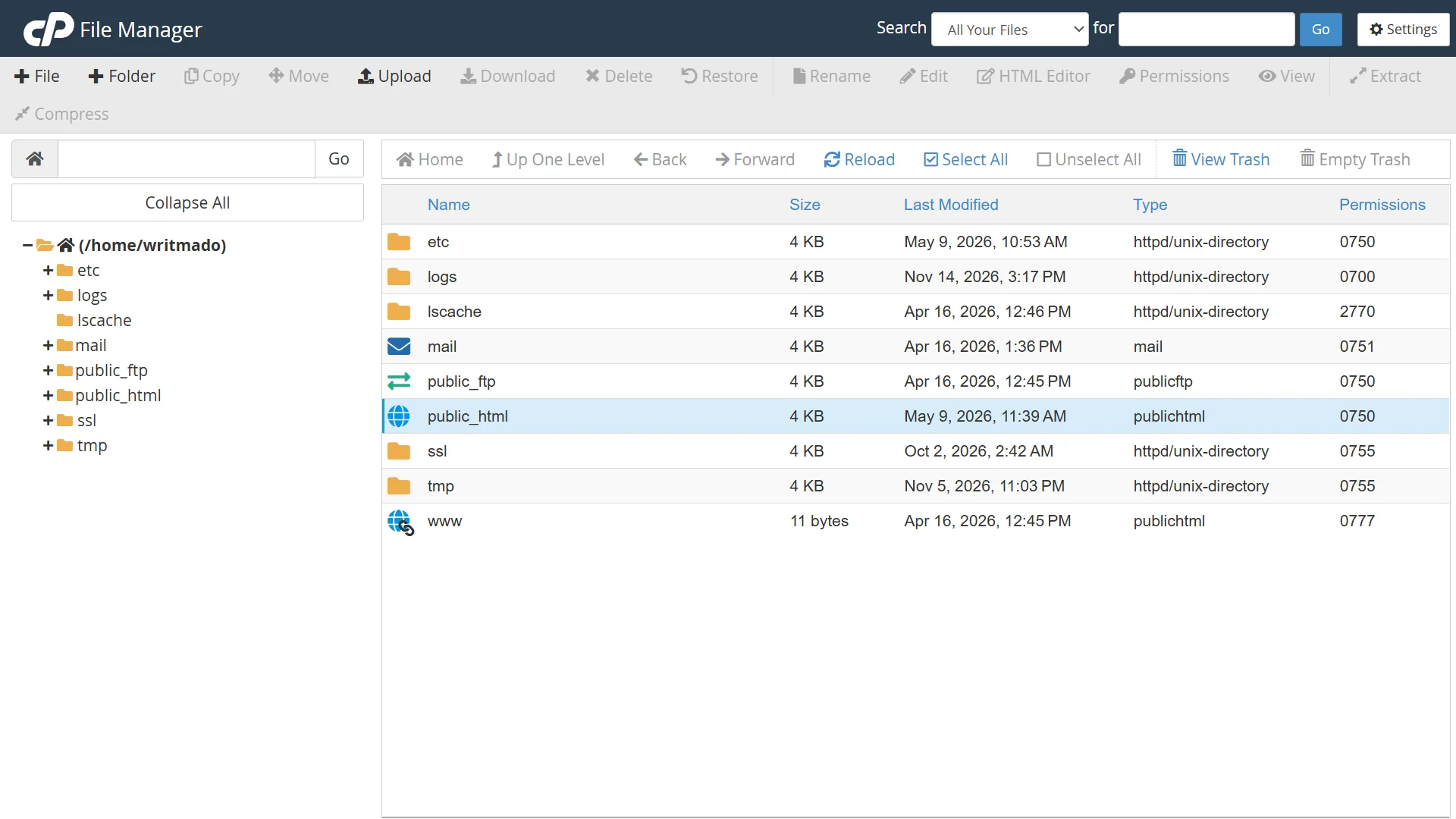
Your control panel’s File Manager lets you see folder sizes without needing SSH access.
Navigate to your website’s root folder, usually called public_html, right-click it, and look for a size, info, or properties option. The exact wording depends on your host, but the idea is the same everywhere.
From there, you can open subfolders like wp-content/uploads and check their sizes individually.
This is useful when you suspect a specific folder, like your media library or a backups directory, is the problem.
4) Try a Plugin for a Detailed Breakdown
Several WordPress plugins, such as Disk Usage Sunburst are built specifically to show you what is taking up space on your site.
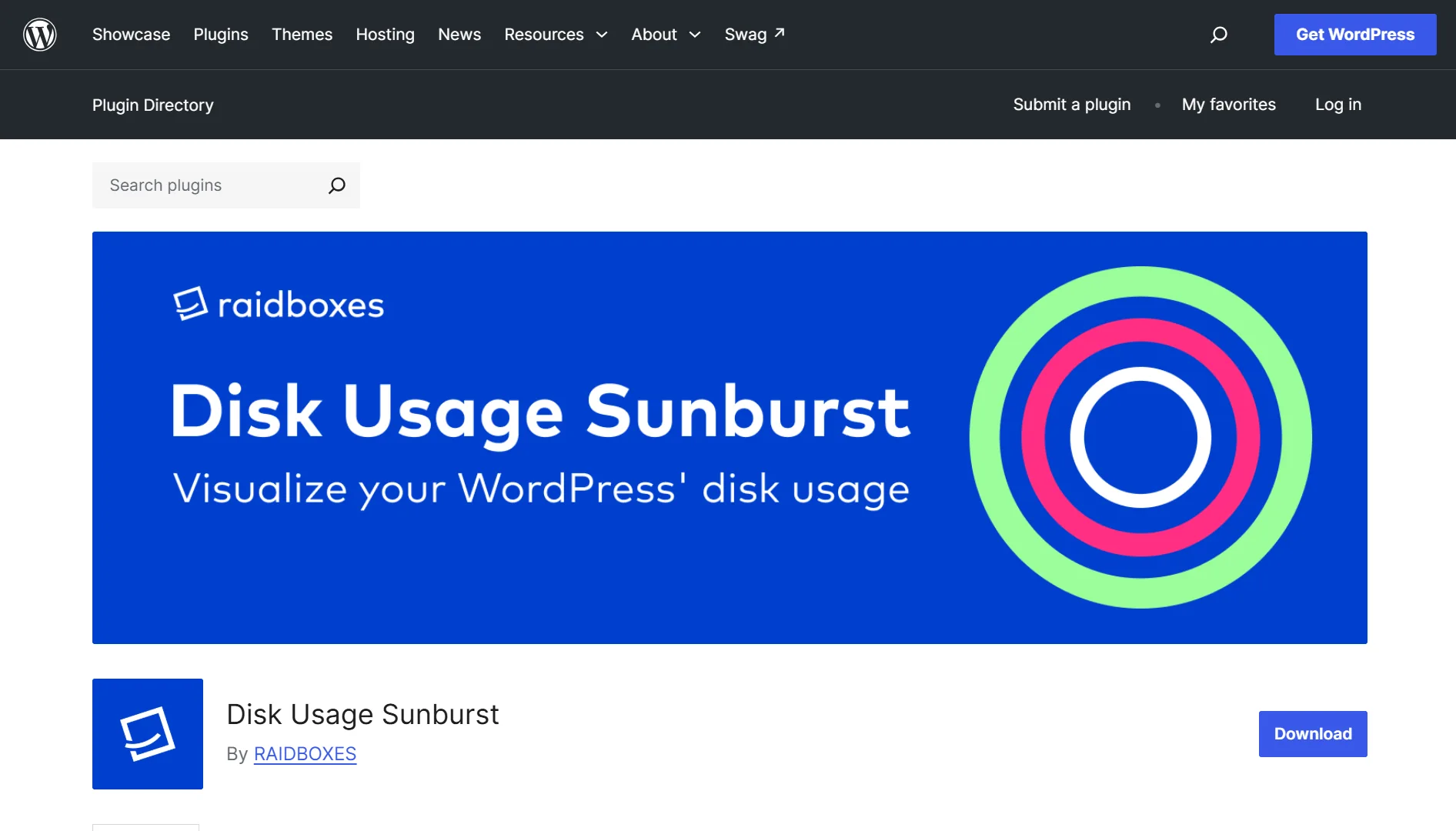
They list your largest folders and files directly from the WordPress dashboard, which saves you from clicking through File Manager.
If you go this route, check the plugin directory for something that has been updated recently and is compatible with your WordPress version.
An abandoned disk-usage plugin can cause more problems than it solves.
5) Check Databases and Email Separately
Website files are only part of the picture. In cPanel, database usage is listed separately from file usage, and email accounts have their own usage indicators.
Look at all three categories before you decide you need more storage or that you have plenty of room.
If your website files are small but your total usage is high, the culprit is almost certainly email or backups.
That changes what you should do about it. Deleting a few unused images will not help if your sent folder is holding three years of attachments.
When Do You Need Extra Storage?
- You keep hitting storage warnings: frequent “disk full” or quota notifications mean you are outgrowing your plan
- You constantly delete files to make room: if you must remove media or backups just to keep the site running, it is time to upgrade
- Your site grows media-heavy: adding lots of high-resolution images, videos, or product photos quickly eats space
- You are close to the limit after cleanup: if safe cleanup no longer frees enough room, extra storage is the practical next step
- You expect growth: planning a product launch, more content, or seasonal traffic means you should upgrade before you run out.
Tips to Optimize Hosting Storage
- Clean up your media library: delete unused images and orphaned files; each upload can generate multiple sizes.
- Offload large media externally: host videos, audio, and big PDFs on YouTube, Vimeo, or cloud storage (S3, Google Cloud).
- Compress images before upload: use compression tools or WebP format to cut file sizes.
- Delete unused plugins and themes: deactivated ones still take up space; keep only what’s active.
- Move backups off the server: save to cloud storage and delete old local copies.
- Purge cache and temp files: regularly clear cache folders and plugin-generated temporary files.
- Clean up your database: remove old post revisions, expired transients, and unused tables.
- Use a CDN: serve media from external servers to reduce storage and bandwidth load.
Find Your Perfect Storage Fit with Truehost
We know that picking a hosting plan can feel like guessing. You do not want to pay for space you will never use, but you also do not want to run out in six months and scramble to upgrade.
That is why our hosting plans are about real website needs rather than abstract numbers.
Our Starter plan gives you a comfortable home for a blog, a personal portfolio, or a student project.
If you are running a small business or a professional site with a steady stream of content, our Pro plan gives you more room to grow without overspending.
And for agencies, busy online shops, and developers managing multiple sites, our Unlimited plan removes the storage ceiling entirely.
All of our plans run on fast SSD storage, come with cPanel for straightforward site management, and include free SSL certificates and daily backups.
You get unlimited email accounts at your domain, which means you can create professional addresses without worrying that every inbox is eating your website’s storage.
Our Softaculous installer gets WordPress, Joomla, or Drupal running in a few clicks.
Pricing stays simple. Starter hosting comes to USh 8,905.00/month, Pro hosting is USh 3,740.10/month, and Unlimited hosting runs USh 52,296.10/month.
If you are not sure which plan fits, start with our Starter or Pro option and watch your usage. We would rather you grow into a bigger plan than pay for space you do not need yet.
When your site does outgrow its home, upgrading is straightforward, and our support team is here to help you move without downtime.
