A WordPress backup plugin creates and stores copies of your website so you can recover it if something goes wrong.
It protects your website’s content, images, pages, blog posts, database, settings, and other important files.
It’s just like having a spare copy of your website. If your original site gets hacked, crashes, develops an error after an update, or loses important data, you can use the backup to restore it instead of rebuilding everything from scratch.
Although most reliable WordPress hosting providers offer automatic backups, a backup plugin provides an additional layer of protection, especially when you want to store copies outside your hosting account or back up changes more frequently.
Let’s go through eight of the best WordPress backup plugins based on their features, free and paid plans, storage options, and reported restoration times to help you choose one that suits your website and budget.
Best WordPress Backup Plugins Comparison
| Plugin | Free version | Backup storage | Starting Price | Reported restore time |
|---|---|---|---|---|
| UpdraftPlus | Yes | Google Drive, Dropbox, S3, and more | $70/yr/2 sites | Under 3–5 minutes (user) |
| BlogVault | No | BlogVault cloud | $49.50/yr offer; $99/yr/site regular | Minutes (vendor claim) |
| Jetpack VaultPress | No | Jetpack cloud | $9.95/mo; $119.40/yr | About 5 minutes (vendor claim) |
| WPvivid | Yes | Seven destinations | $49/yr/2 domains | 5–20 minutes (users) |
| Duplicator | Yes | Local storage; cloud with paid plans | $69.30/yr offer; $99/yr/2 sites regular | A few minutes (vendor claim) |
| BackWPup | Yes | Dropbox, FTP, S3, Azure and more | $29/yr offer; $49/yr/2 domains regular | A few minutes (vendor claim) |
| All-in-One WP Migration | Yes | Local storage; cloud with Pro | $99 (Pro) | Over 30 minutes (Vendor claim) |
| Kadence Backups | No | Cloud | Included in Kadence plans | No recent timing |
Promotional prices may change, and renewal prices may differ. Check the provider’s pricing page before purchasing.
1) UpdraftPlus
UpdraftPlus is a popular WordPress backup plugin with more than four million active installations.
Its free version allows you to schedule website and database backups and send copies to external storage services such as Google Drive, Dropbox, and Amazon S3.
If you upgrade to Premium, you also get access to OneDrive, Backblaze B2, pCloud, and UpdraftVault, the company’s own storage service.
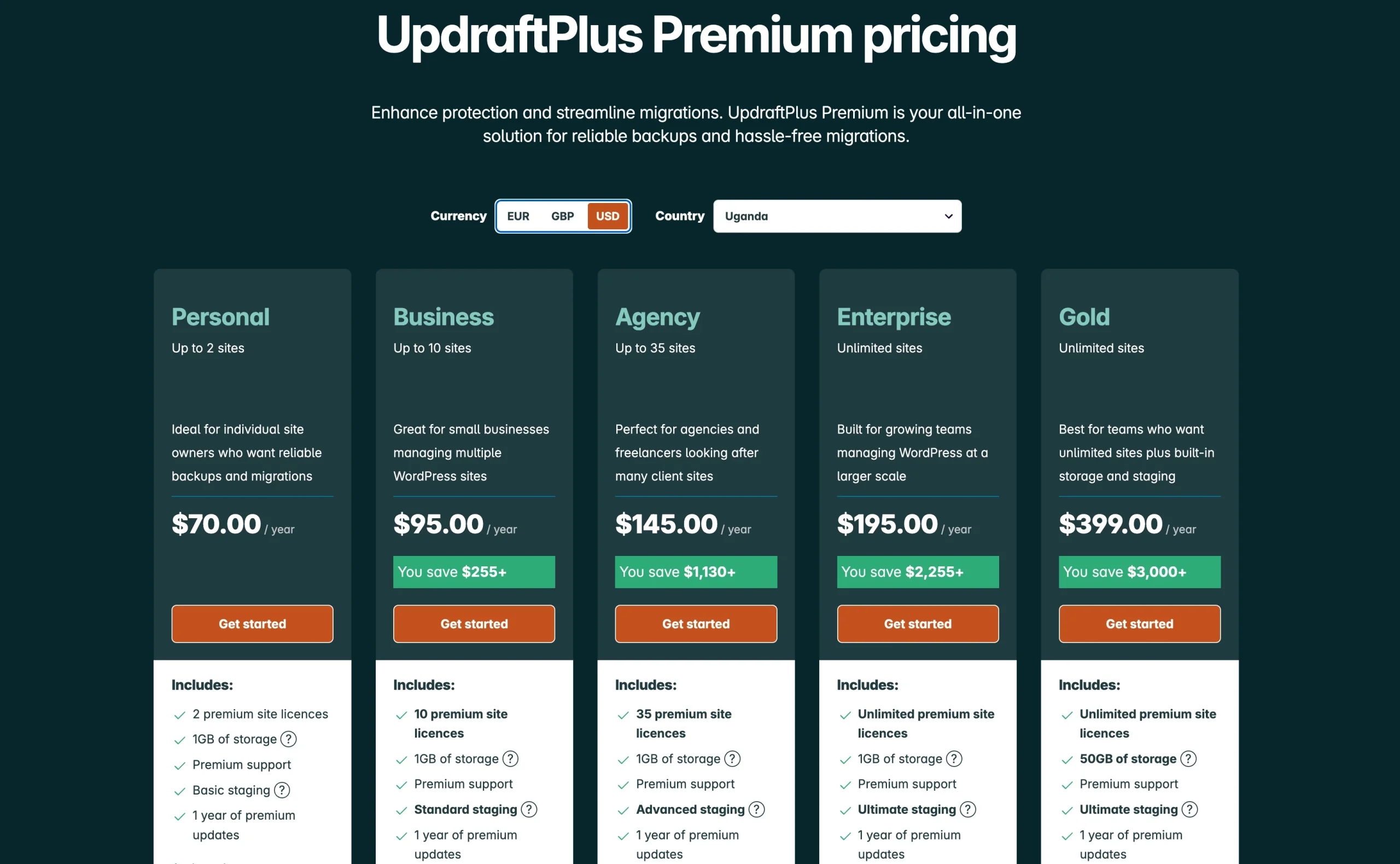
Paid plans in Uganda start at $70 per year for two websites and go up to $195 for unlimited sites. The Gold plan costs $399 per year and includes 50GB of UpdraftVault storage, while other plans include 1GB.
You can also schedule separate backups for website files and databases and choose how many copies to retain. Age-based retention rules and incremental backups are available with Premium.
Restoring a website is simple because you can recover the entire installation or select individual components, such as plugins, themes, uploads, and databases.
UpdraftPlus is a good starting point if you want a free backup plugin with several external storage options and the option to upgrade as your website grows.
2) BlogVault
BlogVault is a managed WordPress backup service that stores website copies on its own cloud servers.
Unlike plugins that require you to connect an external storage account, BlogVault manages the backup storage for you.
It also provides encrypted backups and automatic backup management, making it a convenient option if you don’t want to handle backup configurations yourself.
However, BlogVault doesn’t have a free plan or allow you to use your own Amazon S3 storage.
It offers three annual subscription plans, depending on your website size, backup frequency, and retention requirements.
| Plan | Promotional price (per year) | Regular price (per year) | Website size limit | Backup retention | Backup Frequency |
|---|---|---|---|---|---|
| Personal | $49.50 | $99 | 20GB | 30 days | Every 24 hours |
| Business | $149.50 | $299 | 50GB | 90 days | Every 12 hours |
| WooCommerce | $249.50 | $499 | 100GB | 365 days | Hourly (Customizable) |
The promotional prices reflect the 50% discount currently displayed on BlogVault’s official pricing page. Discounts and regular prices may change.
Restoration is another area where BlogVault focuses on simplicity. Rather than copying the entire website again, the service restores only the changes needed to bring your website back to its previous working state.
BlogVault is worth considering if you run a business website and prefer managed cloud backups without having to configure external storage yourself.
3) Jetpack VaultPress Backup
Jetpack VaultPress Backup is a WordPress backup solution that saves website changes as they happen. This makes it useful for websites that receive frequent updates, particularly WooCommerce stores processing customer orders throughout the day.
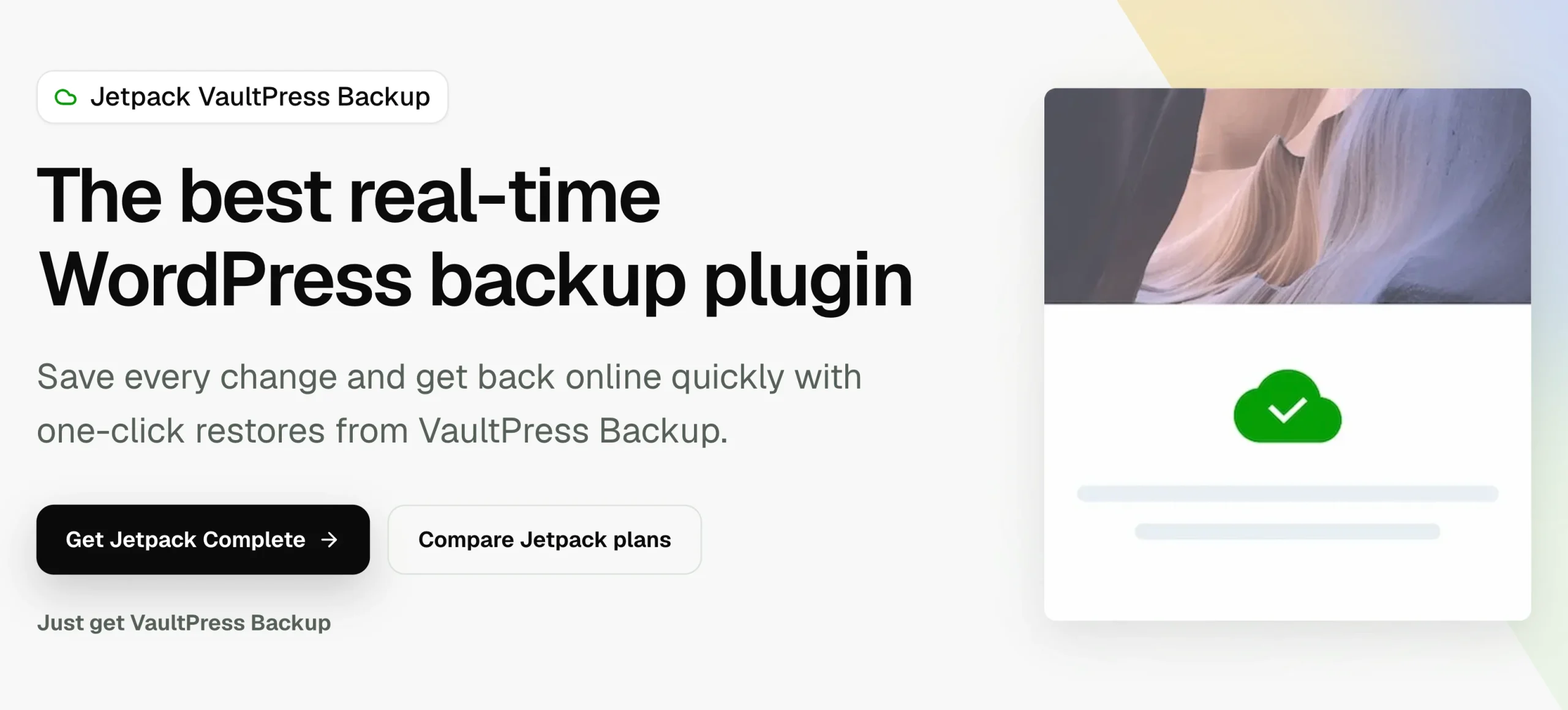
Backups are stored in Jetpack’s cloud, with 10-50GB of storage and a 30-day backup archive.
The service costs $9.95 per month when billed annually, or $119.40 per year. Their pro plan gives you $29.00 per month, billed at $348.00 yearly or $23.00 per month, billed $552.00 every two years.
Because VaultPress Backup records supported WordPress and WooCommerce changes in real time, you have recent copies of your website data, including supported order information and updates.
This reduces the risk of losing recent changes between scheduled backups.
You can select a previous backup point and restore your website with one click. Restoration is also available through the Jetpack mobile app.
There are a few limitations to consider. VaultPress Backup requires a paid plan, doesn’t offer direct backups to Google Drive or Dropbox, and doesn’t support WordPress multisite installations.
Jetpack VaultPress Backup is a suitable option for WooCommerce stores and other websites that need frequent backups of changing content and customer orders.
4) WPvivid
WPvivid is another WordPress backup plugin with a useful free version. It supports scheduled file and database backups, one-click restoration, and several external storage destinations.
The free version connects to Google Drive, Dropbox, Amazon S3, OneDrive, DigitalOcean Spaces, FTP, and SFTP. This gives you several ways to store website copies without paying for a premium subscription.
The paid plans include:
- Blogger: $49 per year or $99 for lifetime access. Supports up to 2 domains.
- Freelancer: $69 per year or $139 for lifetime access. Supports up to 10 domains.
- Small Business: $99 per year or $199 for lifetime access. Supports up to 50 domains.
- Ultimate: $149 per year or $299 for lifetime access. Supports unlimited domains.
The paid plans include additional features such as incremental backups, advanced scheduling, selective content backup, staging, multisite support, and priority support.
Restoring a website is relatively simple. Free users can restore backups with one click, including copies stored remotely. If you want to restore selected parts of your website rather than the entire installation, you’ll need the Pro version.
WPvivid is a good option if you’re working with a limited budget but still want several external storage options and useful backup features.
5) Duplicator
Duplicator is primarily a WordPress migration plugin, but it also provides website backup functionality. It helps you package an entire WordPress installation so you can move or restore it on another server.
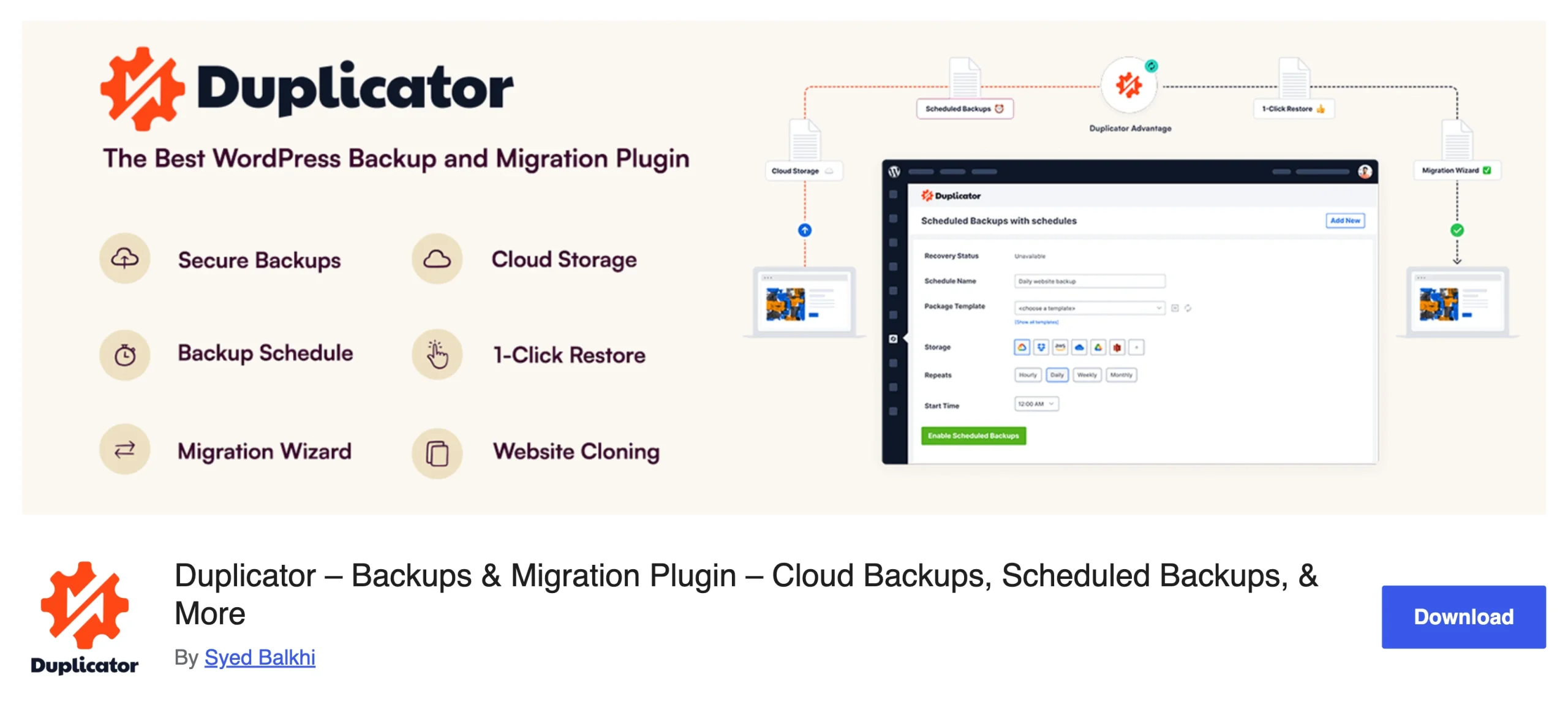
The free version supports local backups, while the paid version adds scheduled backups and cloud storage destinations such as Google Drive, Dropbox, OneDrive, Amazon S3, and FTP.
Duplicator Pro normally starts at $99 per year for two websites. Higher plans cover five, 20, and 100 websites. Promotional discounts may reduce the first-year cost, but renewals are charged at the regular price.
With Pro, you can schedule backups at hourly, daily, weekly, and monthly intervals. You can also set the maximum number of backup copies to retain for each storage destination. Incremental backups are available with a higher-tier subscription.
When restoring a website, Duplicator Pro supports one-click cloud restoration, although some storage destinations require you to download the backup first.
Another useful feature is the ability to deploy a backup to a new server without installing WordPress beforehand.
Duplicator is worth considering if you regularly migrate, clone, or move WordPress installations between hosting providers and want backup functionality alongside your migration tools.
6) BackWPup
BackWPup is a WordPress backup plugin that supports scheduled backups of website files and databases. Its free version connects to several storage destinations, including Dropbox, FTP, Amazon S3, and Microsoft Azure.
The Pro version adds more storage options, including Google Drive and OneDrive, and makes website restoration easier by allowing you to restore backups directly from remote storage.
Pro starts at $49 per year for two domains, $99 for five domains, and $199 for 20 domains.
You can create backup jobs, select the website files and database tables to include, choose a storage destination, and set how many backup copies to retain. This gives you control over what gets backed up and where the copies are stored.
The main difference between the free and paid versions becomes clear during restoration.
Free users need to download their backup files and upload them manually before restoring. Pro supports restoration directly from remote storage, reducing the number of manual steps involved.
BackWPup is a good choice if you want a free plugin with several storage options and don’t mind handling some restoration steps manually.
7) All-in-One WP Migration
All-in-One WP Migration is a WordPress plugin designed mainly for exporting and moving websites between hosting providers. It packages your website into a single file that you can download, transfer, and import into another WordPress installation.
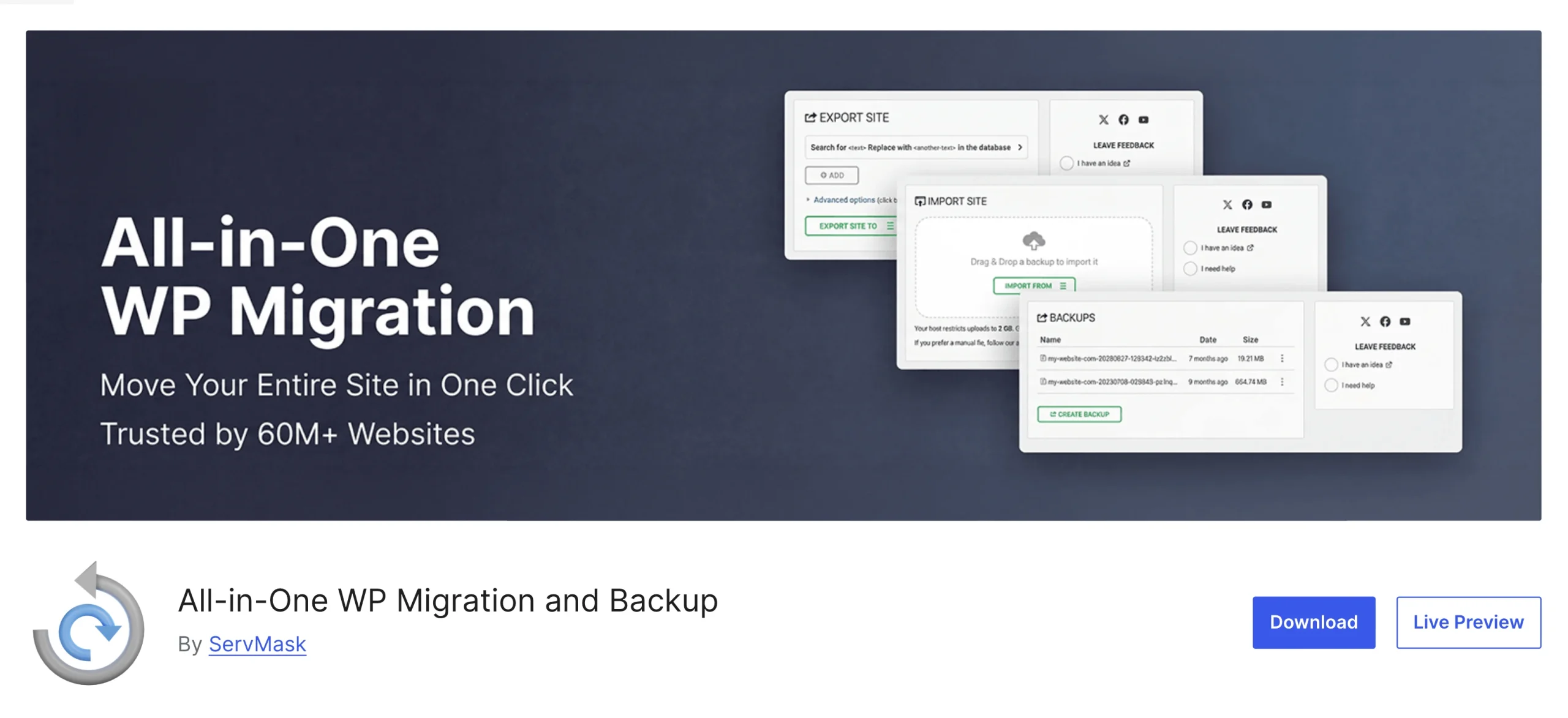
The free version supports local exports and imports, but it has an import size limit. Paid extensions provide additional storage and import capabilities.
The Unlimited Extension costs $69 per year for up to 50 websites, while the Pro plan costs $99 per year. The paid options also provide additional backup functionality, including scheduled and incremental backups and cloud storage options.
Backups are stored locally by default.
To restore a website, you import the backup file through the plugin. However, the free version is subject to its import size limit and your hosting account’s upload restrictions. Paid options provide additional restoration features.
All-in-One WP Migration is a suitable option if you primarily need to move WordPress installations between hosting providers. However, its migration-focused features make it less suitable as your only backup solution.
8) Kadence Backups
Kadence Backups was previously known as Solid Backups. The product moved into the Kadence portfolio and is now included in eligible Kadence subscription plans rather than being sold as a standalone plugin.
This makes it an option for existing Kadence customers who want backup functionality within their current subscription.
Kadence Backups is included in eligible Kadence Pro and Elite subscriptions.
The service supports remote WordPress backups. You can download your latest backup file and view the number of website edits made since the previous backup. This gives you a simple way to check if your website has changed since its last backup.
You can use the available backup files to recover your website.
Kadence Backups is worth considering if you already subscribe to Kadence and want website backup functionality included in your existing package.
Do Backup Plugins Clash With Your Hosting Provider’s Backups?
No. Using a WordPress backup plugin alongside your hosting provider’s backups gives your website an additional layer of protection.
Our Truehost WordPress hosting plans include free daily backups, while our WebHosting Unlimited plan also provides five days of incremental backups.
You can combine these hosting backups with an external plugin in a few simple steps:
- Keep your hosting backups enabled so you can recover your website if a plugin update, installation, or configuration change causes problems.
- Install a backup plugin such as UpdraftPlus or WPvivid to store another copy of your website on Google Drive, Dropbox, or another external destination.
- Schedule plugin backups at a different time from your hosting provider’s daily backups. This helps prevent multiple backup processes from using your hosting resources simultaneously.
- Retain enough backup copies to recover your website if you discover a problem several days or weeks after it first occurred.
- Test a restoration on a staging copy of your website before relying on the backup to recover your live site.
Which WordPress Backup Plugin Should You Choose?
Your choice depends on how frequently your website changes, where you want to store your backups, and how much you want to spend.
a. For free backups: Start with UpdraftPlus, WPvivid, or BackWPup. All three offer free backup functionality and external storage options.
b. For WooCommerce stores: Consider Jetpack VaultPress Backup or BlogVault. Both offer managed backup solutions, with Jetpack providing real-time backups for supported website changes.
c. For website migration: Choose Duplicator or All-in-One WP Migration. Both make it easier to package and transfer WordPress installations between hosting providers.
d. For managed cloud backups: Consider BlogVault if you prefer automatic backup management without configuring your own external storage.
e. For existing Kadence subscribers: Check the Kadence Backups features included in your subscription before purchasing another backup service.
Protect Your WordPress Website With Truehost Hosting
Choosing a backup plugin is only one part of protecting your WordPress website. You also need reliable hosting with regular backups and a simple restoration process.
Combining offsite plugin backups with your hosting provider’s daily backups gives you additional protection against data loss, failed updates, and website disruptions.
Our WordPress hosting plans include free daily backups, free SSL certificates, and website migration assistance. So if you’re looking for WordPress hosting in Uganda, choose a Truehost plan that provides the resources your website needs and includes daily backups.
You can then add a plugin such as UpdraftPlus or WPvivid for independent offsite storage.
Compare our Truehost WordPress hosting plans and select a package that suits your website’s storage, performance, and backup requirements.
