You’ve probably been there. You finish writing an email, hit attach, pick a file, and watch the upload bar crawl to a stop with an error message staring back at you.
Or worse, the email sends, but a while later you get a bounce notification saying the message was too large. It’s frustrating, especially when you just need to get a document, a set of photos, or a video to someone.
Most email providers keep a tight leash on attachment sizes. The moment you cross that line, things break. The upload stalls, the send fails, or the email vanishes into a black hole of delivery errors.
Here’s how the major providers stack up:
| Email Provider | Max Attachment Size |
| Gmail | 25 MB |
| Outlook.com | 25 MB |
| Yahoo Mail | 25 MB |
| iCloud Mail | 20 MB |
Luckily, you don’t have to give up and hand-deliver a flash drive. Several reliable ways let you send big files to their destination using the email address you already have.
5 Ways to Send Large Files by Mail
1) Use Your Email Provider’s Built-In Cloud Integration
If you use Gmail, Outlook.com, or Apple Mail, you already have a built-in escape hatch for oversized files.
These services are designed to detect when your attachment is too big and quietly move it to their cloud storage, replacing the bulky file with a simple link in your email.
In Gmail, if you attach something over 25 MB, you’ll see a prompt to send it via Google Drive. The file uploads to your Drive, and the recipient gets a link.
The same thing happens with Outlook.com and OneDrive, and Apple Mail uses a feature called Mail Drop that can handle attachments up to 5 GB. You just attach the file like you normally would, and the email client does the conversion for you.
This is the fastest option when you’re sending to someone who uses the same email ecosystem as you. A Gmail-to-Gmail transfer via Drive is seamless, and the recipient can usually access the file with one click.
The catch is that the file now lives in your cloud storage, so it counts against your quota. If your Drive or OneDrive is already full, this method won’t work until you clear some space.
2) Share a Link from a Cloud Storage Service
This is the simplest method if you already use Dropbox, Google Drive, OneDrive, or iCloud for storing files.
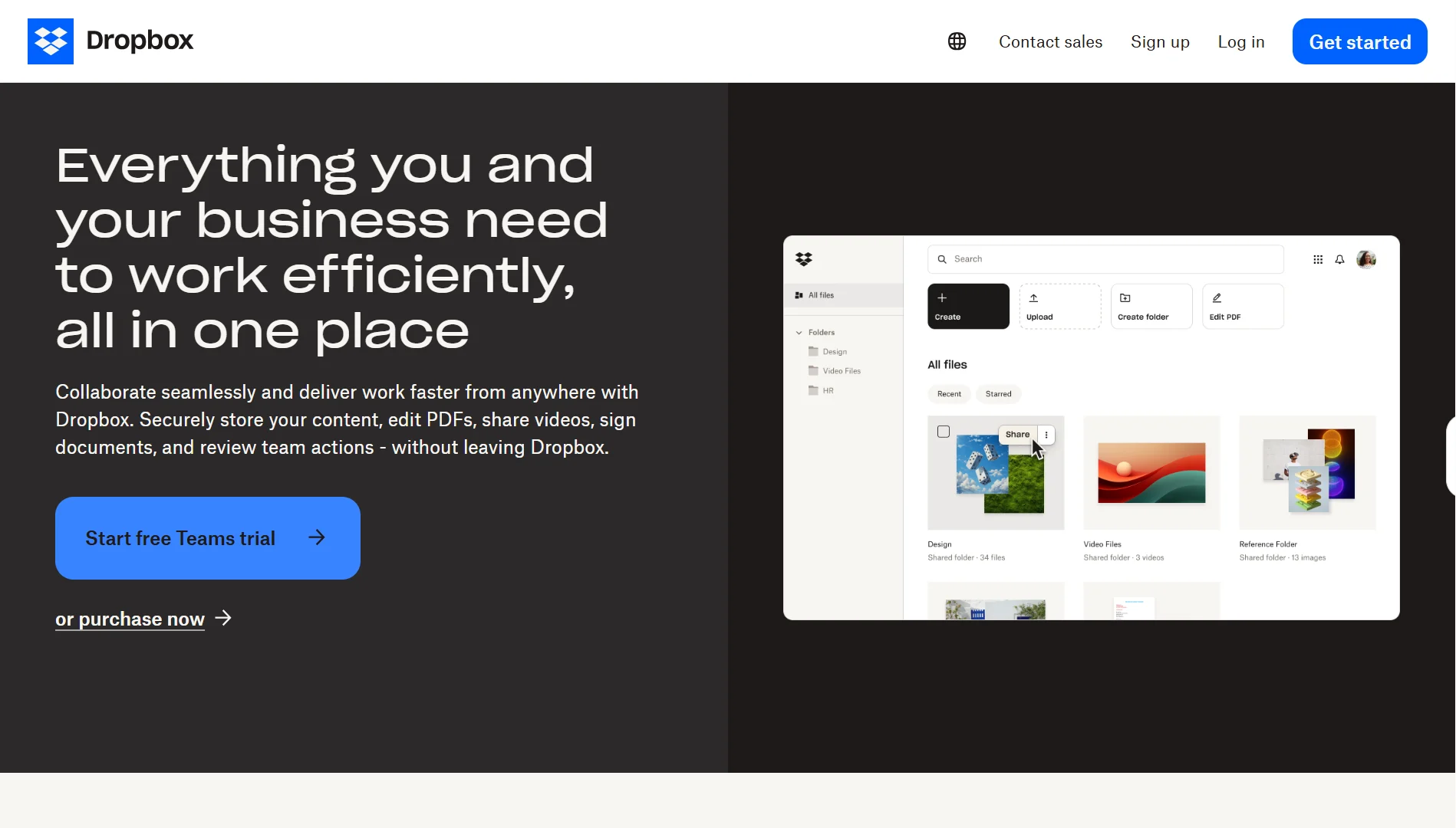
Instead of attaching anything, you upload the file to your cloud account, generate a shareable link, and paste that link into the body of your email.
The process is nearly identical across services. Upload the file, right-click or tap the share option, and set your permissions.
You can usually choose whether recipients can view only or edit, and many services let you set an expiration date or password-protect the link.
A link that never expires is convenient, but it also means anyone who ever gets hold of that URL can access the file indefinitely.
This method is best for ongoing sharing or collaboration. If you’re working on a business project with someone and you’ll be sending updated versions of the same file, keeping it in the cloud and sharing the link once saves you from repeating the upload every time.
Just remember that free storage tiers are limited; Google Drive gives you 15 GB, OneDrive offers 5 GB, and Dropbox starts you with 2 GB.
If you use cloud storage as a file-transfer relay, you’ll need to clean it out regularly or pay for more space.
3) Use a File Transfer Service
Sometimes you don’t want to sign into a cloud account, fiddle with permissions, or worry about storage quotas.
You just want to send a file and be done with it. That’s where services like WeTransfer, Smash, and Send Anywhere come in.
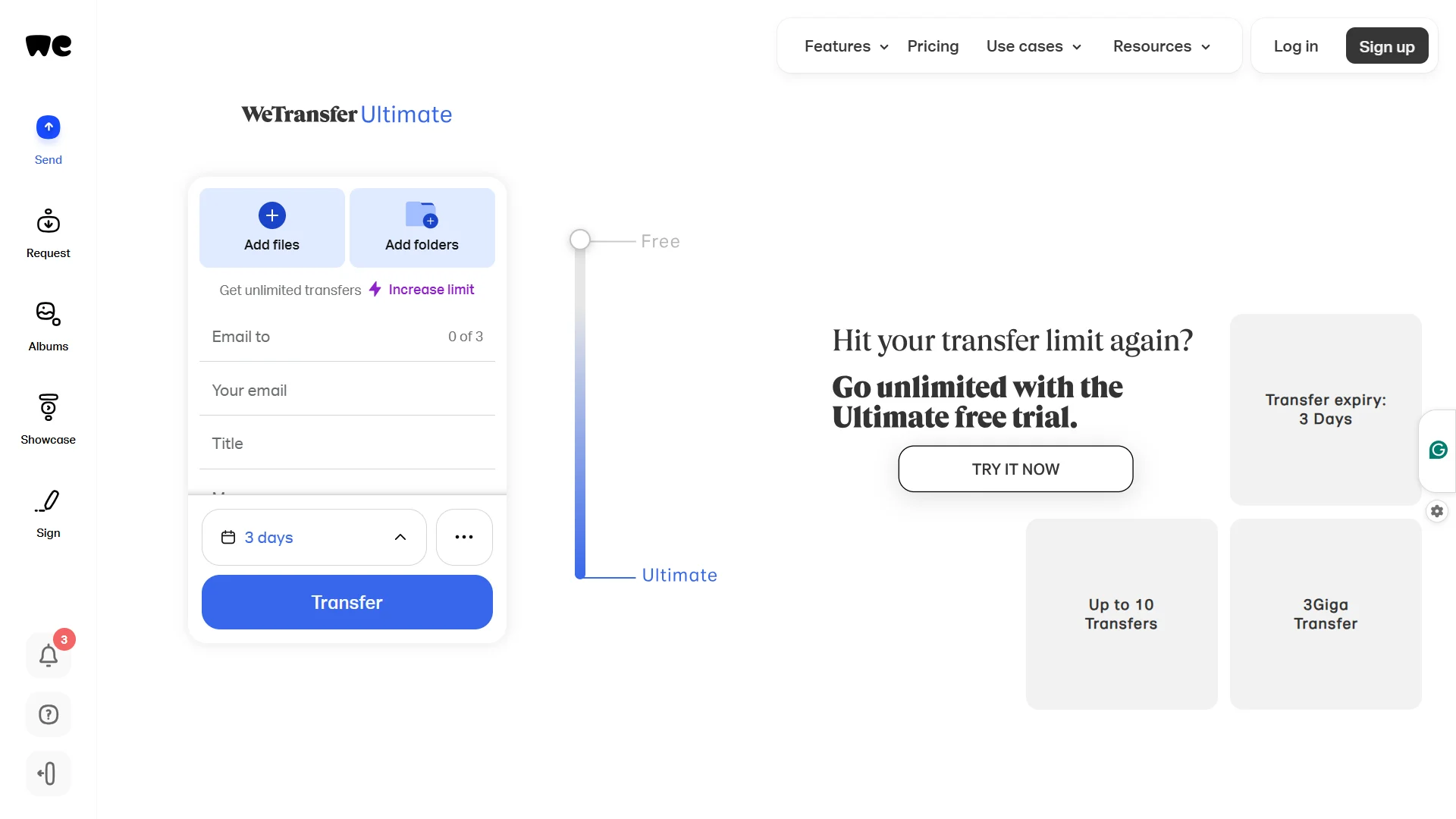
These are purpose-built for one-off transfers. You go to the website, drag your file onto the page, type in the recipient’s email address or grab a link, and hit send.
No account is required for the basic free tiers, and the size limits are generous compared to email attachments.
WeTransfer’s free version handles around 3 GB, Smash offers 2 GB with a 7-day retention window, and Send Anywhere can push up to 10 GB via a share link.
Files sit on their servers for a few days, usually 48 hours to a week, depending on the service, then they’re deleted automatically.
This is the option to reach for when you need to send a multi-gigabyte file once and you’ll probably never need to send that same file again.
The recipient doesn’t need an account, and neither do you. The trade-off is that these services are designed for speed and convenience, not long-term storage or collaboration.
If the recipient doesn’t download the file before the expiration date, you’ll have to upload it all over again.
4) Compress the File
Compression is the oldest trick in the book, and it still works well in certain situations. Zipping a file or a folder into a .zip or .7z archive bundles everything together and can shrink the overall size, sometimes dramatically.
But here’s the thing most people don’t realize: compression doesn’t work equally well on everything. ZIP is a lossless format, meaning it preserves all your original data perfectly, but it can only shrink files that have redundancy built into them.
Text documents, spreadsheets, code files, and uncompressed images can often shrink by 50 to 90 percent.
But if you’re trying to compress a JPEG photo, an MP4 video, or a PDF that’s already been optimized, you’ll be lucky to save a few percent.
In some cases, the ZIP file might even end up slightly larger than the original because of the archive overhead.
If you’re only slightly over the limit- say you’re at 28 MB and you need to get under 25 MB- zipping is worth a shot, especially if your files are documents or spreadsheets. But don’t expect it to turn a 500 MB video into something you can attach to an email.
5) Reduce the File Itself
When compression doesn’t cut it, you have to change the file itself. This means resizing images to smaller dimensions, lowering a video’s resolution, or using a tool to optimize a PDF.
For images, most photo editing apps and even basic preview tools let you export at a smaller size or lower quality setting.
A 12-megapixel photo from a modern phone can easily be 5 MB or more, but resizing it to 1920 pixels wide for screen viewing might bring it down to a few hundred kilobytes with barely any visible difference.
For videos, dropping from 4K to 1080p or from 1080p to 720p can slash the file size by more than half.
And for PDFs, there are dedicated compression tools that strip out redundant data and downsample embedded images without making the text unreadable.
The downside is obvious: you’re losing quality. That might be perfectly fine for a quick preview or a casual share, but it’s not the right move if you’re sending a portfolio piece or a document that needs to be printed at high resolution.
This method is best when you have control over the content and the recipient doesn’t need the original, full-quality version.
Which Method Should You Use?
| Your Situation | Best Option |
| Slightly over the limit | Compress the file |
| Same email ecosystem (e.g., Gmail → Gmail) | Built-in cloud integration |
| One-off transfer, multi-GB file | File transfer service |
| Ongoing sharing or collaboration | Cloud storage link |
Get Truehost Workplace Email with Built-in Drive Storage
At Truehost, we’ve built our Workplace Email plans around the reality that modern work involves more than just text.
Every plan comes with Drive Storage included, so you’re not forced to juggle a separate cloud subscription just to send a file that’s a few megabytes too large.
The Starter plan gives you 1 mailbox with 3 GB of storage and Drive Storage for quick file sharing. If your team is growing, Pro bumps you up to 3 mailboxes and 15 GB of storage, while Business gives you 5 mailboxes and 50 GB.
For larger operations, Premium and Enterprise scale up to 10 and 20 mailboxes with 100 GB and 200 GB of storage, respectively.
Every tier includes collaboration tools for docs, sheets, and presentations, plus security features like 2FA protection, anti-virus checks, and advanced anti-spam.
Pricing starts at USh 8,905.00 for Starter, USh 3,740.10 for Pro, USh 1,424.80 for Business, and USh 13,060.67 for Premium.
You get email that works the way you need it to, with the storage built in so you’re not stuck hunting for workarounds every time a file is a little too big.
