A WooCommerce store may run smoothly during normal business hours, but a sudden increase in visitors can quickly put your website under pressure. A flash sale, viral social media post or successful ad campaign can bring hundreds of customers to your store at once, leading to slow pages, failed checkouts, and abandoned carts.
The challenge is keeping your store fast while processing orders, payments and stock updates correctly. This requires reliable hosting, proper caching, optimised images and databases, and enough server resources to handle busy periods.
This article explains how to prepare your WooCommerce store for high traffic so customers can browse, shop and complete their orders without unnecessary delays.
1) Assess your store’s current performance
Measure before you change anything, so you know which fix counted.
- Test page speed. Run product, category, and checkout pages through Google PageSpeed Insights. Google rates a metric “good” when 75% of visits meet it: LCP of 2.5 s or less, INP of 200 ms or less, CLS of 0.1 or less.
- Check server resources. Watch CPU, RAM, PHP workers and database load. Too few PHP workers show up as time-to-first-byte spikes, queued requests, and timeouts.
- Review traffic patterns. Note peak hours, best-selling products and spikes from campaigns.
- Find bottlenecks. Query Monitor exposes slow database queries and heavy plugins; New Relic can monitor a live store.
- Record a baseline. Capture response times, error rates, checkout completion rate, and orders per hour.
2) Upgrade to hosting that can handle more traffic
A PHP worker runs one request at a time. When all workers are busy, new requests queue, and the usual symptoms are pages that hang and then return 502 or 504 errors. Cart, checkout and logged-in requests usually need a worker, while cached product and category pages for anonymous visitors do not.
- Ask your provider how many PHP workers you get, whether Redis is available, and how fast you can add resources.
- Match workers to CPU. Far more workers than CPU cores can make each request slower, because requests compete for the same processor and memory.
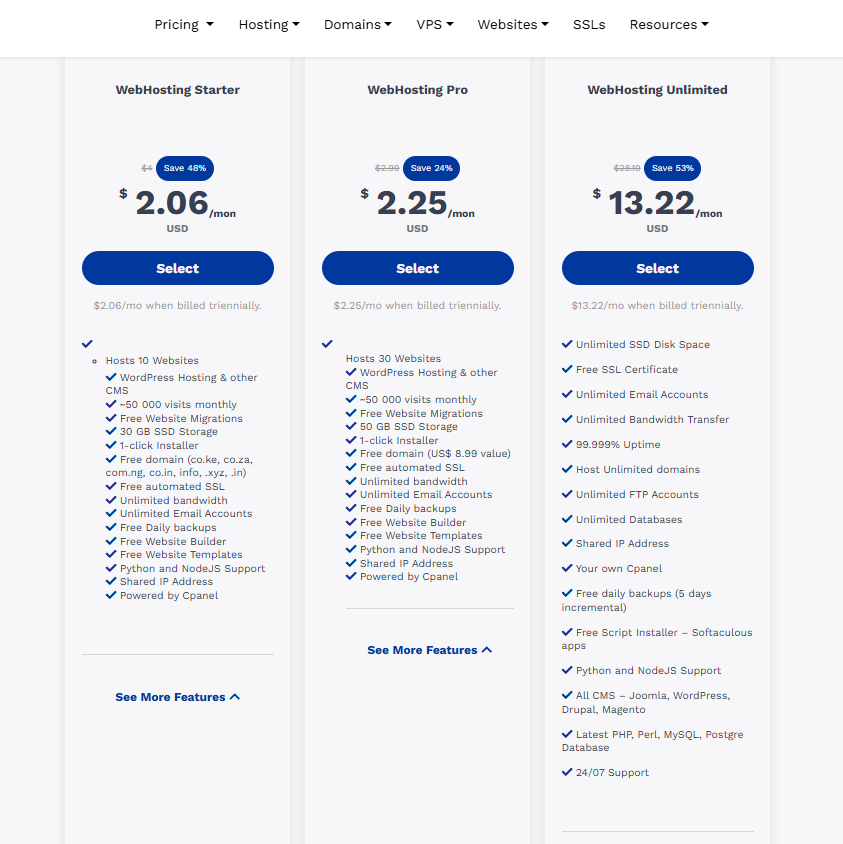
- Compare options. Shared, managed WooCommerce, VPS, cloud and dedicated hosting differ mainly in how much dedicated capacity you get.
- Scale before the sale. Raise capacity ahead of a planned promotion rather than reacting to an outage.
- Fix software first. A bigger server will not cure slow plugins, inefficient queries or poor caching.
3) Configure caching without breaking the store
Caching reuses finished pages so PHP and the database do less work, but caching the wrong page shows one shopper another shopper’s cart.
- Cache public pages. Enable page caching for the homepage, product pages and category pages.
- Exclude private pages. Never cache Cart, Checkout or My Account, plus the order-received page. WooCommerce’s own guide lists these pages and the session cookies to exclude. The cookies most commonly named are woocommerce_cart_hash, woocommerce_items_in_cart, wp_woocommerce_session_ and woocommerce_recently_viewed. Popular plugins such as WP Rocket exclude the core pages automatically, but confirm this, especially with custom checkout pages or translated slugs.
- Add a persistent object cache. Redis or Memcached keeps repeated database results in memory. It helps most where page caching cannot: cart, checkout, logged-in users and admin. It also moves transients out of the wp_options table.
- Enable browser caching and OPcache so browsers reuse static files and PHP reuses compiled code.
- Test invalidation. Change a price, update stock and apply a promotion, then confirm shoppers see the new values.
- Warm the cache before the sale. Clearing everything just before a spike sends the full load to the database.
- Check hit rates in your cache plugin or response headers.
4) Optimize product images, themes and plugins
Less work per page means fewer workers tied up per visitor.
- Compress and resize images. Use correctly sized WebP or AVIF where supported.
- Lazy-load selectively. Lazy-load images below the fold, but never the main image visible on load. Lazy-loading it delays the largest paint, and WordPress 6.3 and later adds fetchpriority=”high” to what it guesses is the main image, which themes and page builders sometimes get wrong, so check the result.
- Remove unused plugins. Use Query Monitor to find the ones that slow requests. Extensions run inside the cart and checkout path, and one poorly written plugin can make add-to-cart noticeably slower.
- Load scripts only where needed. Cart-fragment requests can fire an uncached AJAX call to PHP on page loads; if you disable them or other WooCommerce scripts on non-shop pages, retest the mini-cart.
- Limit third-party requests. Cut unnecessary chat widgets, trackers and recommendation tools, which are frequent causes of poor INP and CLS.
- Minify and defer carefully. After changing CSS or JavaScript, retest product variations, payment buttons and checkout.
5) Optimize the database and order processing
WooCommerce keeps products, sessions, stock and orders in the database, so heavy database activity slows checkout.
- Use High-Performance Order Storage (HPOS). It moves orders out of the WordPress posts tables into dedicated order tables with their own indexes, meaning fewer reads and writes on busy tables. It has been the default for new stores since October 10, 2023 (WooCommerce 8.2); existing stores can enable it, with compatibility mode keeping both tables in sync. Check that your extensions support it first, and test on staging.
- Review autoloaded options. Autoloaded data in wp_options loads on every request, so remove bloat left by old plugins.
- Clean safely. After a backup, remove expired transients, old sessions, unneeded revisions and orphaned plugin data.
- Check scheduled actions. Open WooCommerce > Status > Scheduled Actions to filter for failed or overdue jobs and read their logs. Failed actions are kept indefinitely, so they accumulate.
- Find slow queries with Query Monitor or MySQL’s slow query log.
- Schedule heavy jobs off-peak. Run bulk imports, updates and email campaigns when traffic is low.
Cleanup helps, but it will not fix every performance problem. Back up before changing anything.
6) Use a CDN to handle more visitors
A content delivery network serves files from servers near the visitor, which cuts latency and takes work off your origin server.
- Serve static files. Put product images, CSS, JavaScript and fonts on the CDN.
- Configure caching carefully. Never cache cart contents, account pages or checkout responses; apply the same exclusions as your page cache.
- Add protection. Consider a web application firewall, DDoS protection and bot filtering. Bots hammering cart, search and filter URLs can occupy PHP workers just as real shoppers do.
- Control limited-stock launches. A virtual waiting room limits how many visitors enter at once during a flash sale.
- Test beforehand. Confirm the CDN does not break cart updates, payments or customer sessions.
A CDN cannot fix too few PHP workers, slow queries or an undersized server.
7) Prepare checkout, payments and inventory
Checkout involves customer data, database writes and external payment services, so test it separately from product pages.
- Test payment gateways. Complete test transactions and confirm order confirmations and emails arrive.
- Watch payment delays. A slow provider holds a PHP worker for the whole wait.
- Test inventory. Confirm simultaneous purchases of a scarce product do not oversell, and set sensible stock limits.
- Simplify checkout. Remove unneeded fields and scripts, and enable guest checkout where appropriate.
- Test shipping, taxes and coupons under load, not just singly.
- Review limits and webhooks. Check payment provider rate limits, retries and timeout settings.
- Prevent duplicates. Confirm retries and timeouts cannot create duplicate charges or orders.
8) Test your store before the traffic surge
A page-speed score shows how one visitor fares, not how the store behaves when hundreds shop together.
- Use load-testing tools such as k6, Apache JMeter or Artillery to simulate many visitors.
- Model real journeys: browsing, search, cart updates, coupons and checkout, not just the homepage.
- Ramp up gradually. Grafana’s k6 guidance suggests a ramp-up of roughly 5% to 15% of total test time and starting with a smoke test to validate scripts. Note where response times climb, errors appear or resources saturate.
- Set targets first: acceptable response times, error rates and order volumes.
- Fix and retest. Address the biggest bottleneck, then repeat.
- Test recovery. Confirm the store returns to normal when load drops.
- Use staging, a copy that closely matches production, and get your host’s approval before heavy load tests.
9) Set up monitoring, backups and a traffic-spike plan
Assume something will degrade and decide in advance how you will respond.
- Monitor uptime, server resources, database load, cache performance, payment errors and server error rates.
- Back up files and the database, and test that you can restore them.
- Freeze changes. Test updates and configuration changes well before the sale.
- Write a response plan: who to call, how to add server resources, and what to do if payments fail or traffic overwhelms the store.
- Watch the whole event, not only the first hour.
- Review afterward. Record bottlenecks, adjust resources and document what you changed for the next peak.
Get Your WooCommerce Store Ready for Traffic
A store survives a traffic spike when its uncacheable paths, cart and checkout, have enough PHP workers, a lean database, and tested payment flows. Measure your baseline, cache correctly, load-test on staging, and finish all changes well before the sale.
Your hosting sets the ceiling for everything above. Ready to scale your store? Check hosting at Truehost.
Prepare WooCommerce for High Traffic FAQs
How much traffic can WooCommerce handle?
There is no fixed number. Capacity depends on how much traffic can be served from cache, how many PHP workers you have, database efficiency and plugin quality. Two stores on identical hardware can differ widely, so load-test your own store.
Is shared hosting enough for a high-traffic WooCommerce store?
Usually not for a large sale. Cart and checkout need PHP workers that shared plans typically limit, and resources are shared with other sites. Ask your host for the worker count and load-test the plan before relying on it.
Does a CDN help WooCommerce handle more visitors?
Yes, for static files and cacheable pages, which reduces origin load. It does not help with cart, checkout or account requests, which still reach your server.
Should you cache WooCommerce product pages?
Yes, for logged-out visitors, and confirm that price and stock changes clear the cache. Never cache Cart, Checkout or My Account.
How do you test a WooCommerce store before a big sale?
Run a staged load test on a staging copy with realistic journeys, from browsing to checkout. Set targets, ramp up gradually, fix the largest bottleneck and retest.
When should you upgrade from shared hosting to VPS hosting?
When requests queue or return 502/504 errors at peak despite correct caching, when CPU or RAM saturate, or when you need Redis and control over resources your plan lacks.
