Yes, you can host multiple websites on one hosting plan. It works if your provider and your specific tier allow it.
There is a catch. Hosting multiple websites is not the same as hosting isolated websites.
That one difference shapes this whole guide.
On cPanel, you add extra sites as addon domains. An addon domain is a separate domain with its own document root inside one cPanel account. You manage several sites from one dashboard.
An alias, also called a parked domain, works differently. It has no content of its own. An addon domain has separate files.
Shared, reseller and VPS hosting each handle multiple sites differently. This guide covers:
- How to set up a second site
- How to test what your sites share
- Plan limits to check first
- When to split sites, including client work
- How to keep every site safe
Let’s start with what your plan needs.
What Your Hosting Plan Needs Before You Add Another Site
Check these five areas first. They save you trouble later.
1) Domain limits and storage caps
- Check the plan’s “websites” or “addon domains” limit.
Entry plans often cap sites. On Truehost, Starter hosts 10 websites, Pro hosts 30 and Unlimited has no cap on domains.
“Unlimited” plans may still carry fair usage limits. Read the terms before you rely on them.
Storage is shared too. Every site you add draws from the same disk space.
2) Shared CPU, RAM and processes
All your sites draw on the same pool of resources.
Add up the combined load of every site, not just one. A quiet blog next to a busy shop is a very different load from two quiet blogs.
3) Databases, DNS and document roots
- Give each site its own database and database user. Never share one database across sites.
- Give each site its own document root.
- Make sure you can edit DNS for every domain.
Separate databases keep a problem on one site from spreading into another. It also makes restores far simpler.
4) Updates, backups and SSL
Every site needs updates, backups and an SSL certificate. That workload grows with each site you add.
One weak site can put the others at risk on shared hosting. The isolation tests below show why.
5) Tools you’ll use day to day
- cPanel Domains page
- File Manager or FTP
- Softaculous
- Resource Usage
- The backup tool
WHM is only available on reseller or VPS plans.
With the groundwork done, you can add your second site.
How to Add a Second Website to Your cPanel Account
Menus can look slightly different from host to host. The steps below follow cPanel’s own Domains documentation.
Step 1: Log in to cPanel
Use the cPanel login link and details from your hosting welcome email.
Step 2: Open the Domains section
On the cPanel home page, click Domains. You will see your main domain and any others on the account.
Step 3: Click Create A New Domain
Enter the domain without http:// or www.
For example, type yourbrand.ug, not https://www.yourbrand.ug.
Don’t have a domain yet? You can register a .co.ug or .ug domain with us.
Step 4: Assign a separate document root
Untick Share document root. Keep the suggested folder named after the domain.
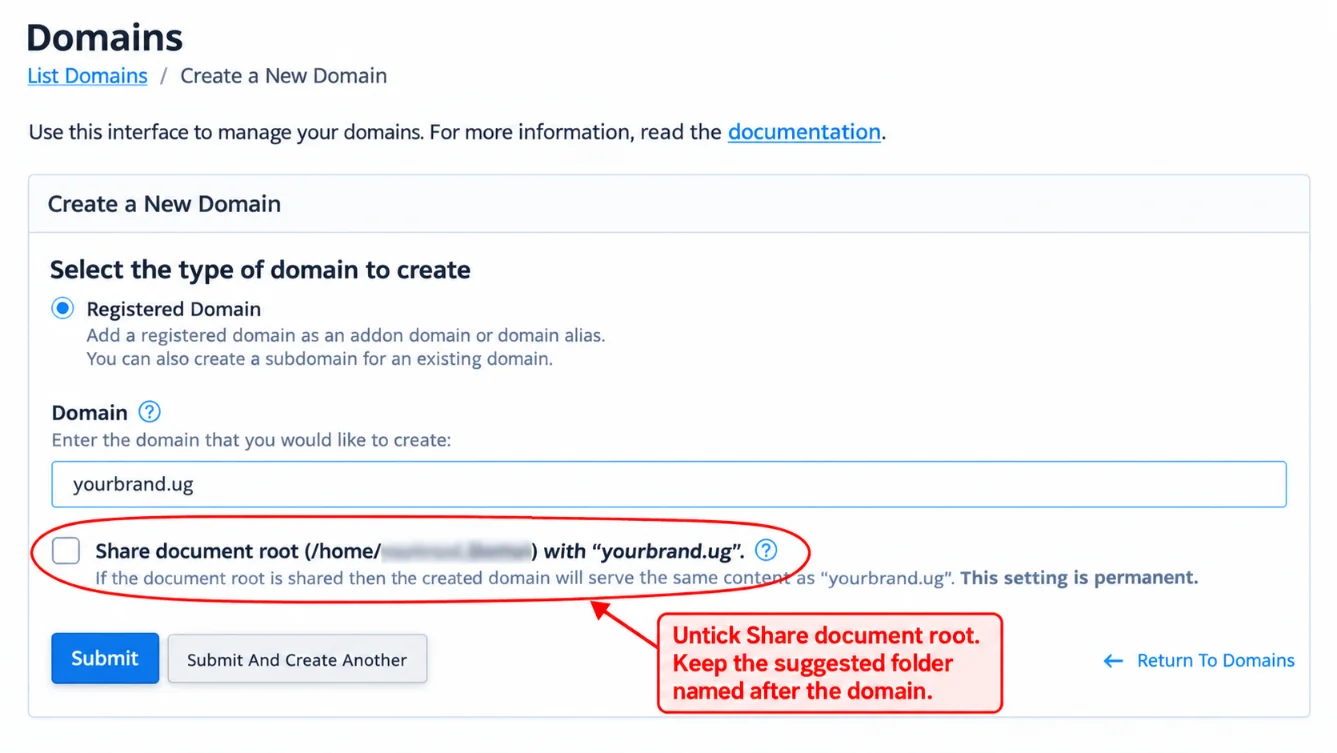
Note: A separate folder keeps your files organised. It does not isolate your sites from each other. The isolation test section explains why.
If you leave the box ticked, you create an alias instead. It would show the same content as your main site.
Step 5: Submit the domain
Click Submit. cPanel automatically creates a linked subdomain for the addon domain.
Leave the suggested subdomain as it is. The new domain can take a few minutes to become ready.
Step 6: Point the domain’s DNS
You have two options:
- Use the host’s nameservers at your domain registrar.
- Add an A record that points to the hosting server’s IP address.
DNS changes can take a few hours to spread, and sometimes longer.
Step 7: Upload your website files
Use File Manager, FTP or a Softaculous one-click install.
If you use Softaculous, choose the new domain in the installer. That puts the site in the right folder.
Step 8: Issue the SSL certificate
Once the domain points to your server, check its certificate in cPanel’s SSL/TLS Status page. Our plans include free SSL, so you should not need to buy one.
If the padlock is missing, wait for DNS to finish, then run the check again.
Step 9: Create a separate database and user
In cPanel, open the database tools. Create a new database and a new user for this site only.
Assign that user to that database alone. Then use those details in your site’s configuration file.
Step 10: Set up email for the new domain
Open Email Accounts and create addresses on the new domain, such as [email protected].
Send and receive a test message before you announce the address.
Step 11: Test the new site
Check these four things:
- HTTPS loads with a padlock and no warnings.
- Email sends and receives.
- Page speed is acceptable. Google PageSpeed Insights is a free check.
- Your primary site is unaffected.

Ready to try it on a real plan? See our hosting plans.
Test It Yourself: Isolation and Resource Sharing
Adding a site is easy. Knowing what it shares with your other sites is the real skill.
These two quick tests show you.
How isolation actually works in cPanel
- Everything inside one cPanel account runs as one Unix user, and that user is the isolation boundary.
- Addon domains separate the document root, DNS zone, mail routing and SSL certificate, but not the user.
- Where a host sets resource limits, they usually apply per account, not per domain.
In plain terms, your sites have separate rooms but share one front door.
Test 1: Check what your sites share
- Open File Manager in cPanel.
- Look at the folders for your main site and each addon domain.
- Notice that they all sit under the same home directory.
One account owns all of them. That is the shared boundary in action.
Test 2: Watch resource sharing
- Open cPanel’s Resource Usage page.
- Note the account’s CPU, memory and process counts.
- Load one site, for example by opening several pages in a row.
- Refresh Resource Usage and see how the account figures change.
Keep this test gentle. Do not run heavy load tests unless your host allows them.
Here is what the result means. A traffic spike on one site uses the same pool as your other sites.
If the account hits its limits, every site on it can slow down or show errors. One busy site can affect the quiet ones.
What this means if one site gets hacked
Think of the account as one house with several locked rooms. If a thief gets into the house through one weak window, the inner doors do not stop them for long.
The same applies here. One outdated plugin or one stolen password can give an attacker access to files in the whole account. That includes your other sites.
This risk is real. Patchstack counted 11,334 new vulnerabilities in the WordPress ecosystem in 2025, and 91% of them were in plugins.
The fix is simple. Put sites that must stay safe in separate cPanel accounts.
Account Limits Compared
Here is how our three shared plans compare. Notice the isolation row. It is the same on all three.
| Feature | Starter | Pro | Unlimited |
|---|---|---|---|
| Sites allowed | 10 | 30 | Unlimited |
| Isolation | One cPanel account for all sites | One cPanel account for all sites | One cPanel account for all sites |
| Storage | 30 GB SSD | 50 GB SSD | Unlimited SSD |
| Price per month | USh 14,248.00 | USh 10,650.38 | USh 100,412.78 |
| Price per year | USh 106,860.00 | USh 128,232.00 | USh 627,553.16 |
| Best for | Blogs, portfolios, new sites | Small business sites | Agencies, developers, busy shops |
More sites does not mean more isolation. It means more room under one roof.
Compare the full details on our hosting page.
When to Stay on One Plan and When to Split
The right choice depends on who owns the sites and what is at stake.
- Stay on one plan: your own small sites, low traffic, one owner.
- Split into separate accounts or a reseller plan: client sites, ecommerce, sites with different owners, or any site you can’t afford to have infected.
- Signs it’s time to upgrade: slowdowns, resource limit warnings, or one site outgrowing the rest.
Splitting costs more per site. What you get in return is isolation.
Client work deserves extra care. Separate accounts also make handover simple, because you can pass a whole account to the client.
When shared hosting is no longer enough, a VPS gives you dedicated resources and more control. Very large or busy projects may suit a dedicated server.
How to Keep Several Sites Fast, Backed Up and Secure
Good habits count for more as your site count grows. Here are five.
a) Keep separate document roots and databases for every site
You set this up in the steps above. Keep it that way.
It keeps files tidy and makes a single-site restore possible.
b) Set up regular backups and test restores
A backup you have never restored is only a guess.
- Check that backups run on schedule.
- Download a copy of important sites and keep it off the server.
- Test a restore on a spare domain.
c) Monitor your resource usage closely
Open Resource Usage once a week. Look for rising CPU, memory or process counts.
Small rises are a useful early warning. They show up before visitors complain.
d) Keep every site updated and secure
Update WordPress core, plugins and themes on every site. Delete plugins and themes you no longer use.
Unused code still counts as attack surface. With 91% of WordPress vulnerabilities found in plugins, a lean plugin list is your best defence.
Use strong, unique passwords for cPanel and for each site.
e) Know when it’s time to upgrade
Move up when you see any of these:
- Resource limit warnings more than once
- Slow pages during busy hours
- One site using most of the account’s resources
- A client or new owner who needs their own account
- A shop or any site that handles payments
Our VPS plans and dedicated servers are the next step. If you run automation tools like n8n, we also offer N8n hosting so they do not compete with your websites. We also offer OpenClaw hosting and AI Workers for AI projects.
Ready to move up? See our VPS hosting plans and pick the resources your sites need.
Host Multiple Websites on One Plan With Truehost
Starter hosts 10 websites (USh 14,248.00 a month or USh 106,860.00 a year). Pro hosts 30 (USh 10,650.38 a month or USh 128,232.00 a year). Unlimited hosts unlimited domains (USh 100,412.78 a month or USh 627,553.16 a year).
Every plan includes cPanel, Softaculous one-click installs, free SSL, daily backups and unlimited email accounts.
Need a domain for your next site? Register a .co.ug or .ug domain with us. Outgrowing shared hosting? Look at our VPS hosting plans.
The short answer: you can host several sites on one plan. Just remember they share one account, so keep client and high-risk sites apart.
Host Multiple Websites on One Hosting Plan FAQs
How many websites can I host on one shared plan?
It depends on the plan. On Truehost, Starter hosts 10 websites, Pro hosts 30 and Unlimited has no cap on domains.
Always check the addon domain limit and the fair usage terms.
Will multiple websites slow each other down?
They can. All sites share one pool of CPU, RAM and processes.
Light sites usually coexist well. A traffic spike on one site can slow the rest.
If your sites keep slowing each other down, a VPS gives you dedicated resources.
Can I host different CMSs (WordPress, Joomla) on one plan?
Yes. Each addon domain has its own files and database, so each can run a different CMS.
Check that each CMS supports the PHP version you plan to use.
Does each addon domain get its own SSL and email?
Yes. Each domain can have its own SSL certificate and its own email accounts.
You set up both per domain, as in Steps 8 and 10 above.
Is it safe to host client sites on my own plan?
It is risky. All sites in one cPanel account share one user, so one hacked site can reach the others.
For client sites, use separate cPanel accounts or a reseller plan.
Can I move a site to its own hosting later without downtime?
Often with little or no downtime, but it is not guaranteed.
Switch the DNS, and keep the old copy until the change has spread.
Copy the site and database to the new host.
Test it there before changing anything.
Lower the domain’s DNS TTL ahead of time.
What is the difference between an addon domain and a parked domain?
An addon domain has its own document root and its own files. A parked domain, or alias, has no content of its own.
It simply shows the content of another domain.
