SMTP stands for Simple Mail Transfer Protocol. It’s the set of rules that computers follow to send email from one place to another.
Whenever you hit send on a message in Gmail, Outlook, or Apple Mail, SMTP works behind the scenes to push that message out of your account and toward its destination.
You’ll find SMTP at work anywhere email leaves one system and enters another.
It doesn’t handle incoming mail, and it doesn’t store messages for you to read later. Its entire job is outgoing delivery, taking a message from a sender and handing it off to the right receiving server.
It’s like the postal worker who picks up your letter and gets it to the sorting facility, not the mailbox where the recipient eventually finds it.
How SMTP Works
SMTP uses a client-server setup. The client sends the message: your email app, a contact form, or a server sending a password reset. The server accepts it and works out where it goes.
You compose a message and hit send. Your client connects to an SMTP server and says, in effect, “I have a message from this sender for this recipient.”
The server checks if it’s allowed to relay it, accepts it, and gets it to the recipient’s mail server. That server delivers it to the inbox, where the recipient’s client picks it up using a different protocol.
Three components handle this: the Mail User Agent (the app you use; Gmail, Outlook, Apple Mail), the Mail Submission Agent (the first server that accepts your outgoing message, usually requiring authentication), and the Mail Transfer Agent (which relays the message between domains until it arrives).
SMTP talks through a short list of commands: HELO or EHLO to greet the server, MAIL FROM for the sender, RCPT TO for the recipient, and DATA to start the message, which ends with a line containing just a period.
Ports are also important; port 25 handles server-to-server relaying. Port 587 is for authenticated client submission and is the recommended choice today.
Port 465 is for implicit TLS, though 587 with STARTTLS is more common.
Where Is SMTP Used?
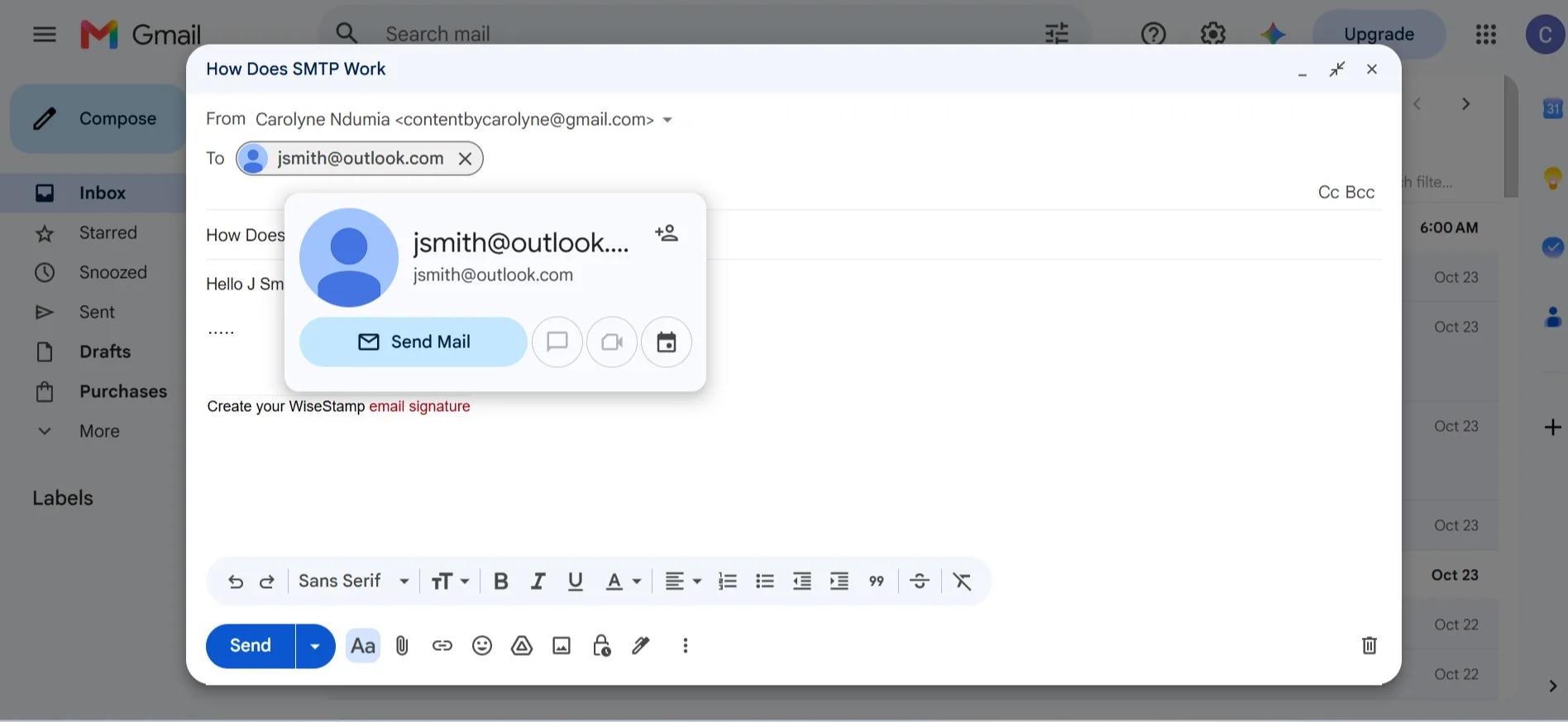
- Everyday email: Sending from Gmail to a friend’s Outlook address means SMTP moves it from Google’s servers to Microsoft’s.
- Transactional email: Password resets, receipts, and one-time passcodes all travel through SMTP servers set up to send them.
- Marketing email: Newsletters, promotions, and product announcements go out through SMTP infrastructure, often via a bulk-sending provider.
- Website and app notifications: Contact form submissions and signup welcome messages are SMTP transactions, usually happening invisibly.
- Business systems: CRMs, helpdesks, and WordPress sites all rely on SMTP for follow-ups, ticket confirmations, and admin alerts.
- Devices and servers: Office printers, monitoring tools, and backup systems use SMTP whenever they need to notify someone by email.
Do You Need Your Own SMTP Server?
No. You really don’t.
Running your own SMTP server means maintaining a machine that’s constantly online, keeping it secure, managing IP reputation, handling bounces, and dealing with spam filters that will treat a new server with suspicion.
The practical alternative is to use a provider. Cloud email services give you SMTP credentials that plug into whatever application or client you’re using.
They handle the infrastructure, the deliverability, and the security. You just point your app at their server and send.
The advantages of running your own server are control and, at very high volumes, cost. You own the entire pipeline.
The disadvantages are significant: IP reputation starts at zero and takes time to build, blacklists are a constant threat, and security patches never stop coming.
For most people and most businesses, a provider is the smarter choice.
How Do You Set Up Cloud-Based SMTP?
1) Pick a provider
Choose a cloud email service that fits your needs and budget. Examples include Truehost, Amazon SES, SendGrid, Mailgun, and Brevo.
Each has different pricing, different free tiers, and different levels of hand-holding.
If you’re sending transactional email for a small application, a simpler provider might serve you better than a complex enterprise platform.
If you need to send thousands of marketing emails per month, look for one that specializes in that volume
2) Create your account
Sign up with the provider you’ve chosen. Depending on the service, you may need to add contact and billing details before you can start sending.
Some providers give you a sandbox or testing mode first, where you can only send to verified addresses until you upgrade.
3) Prove you own your domain
Verify the domain you’ll send from. This usually means adding DNS records through your domain registrar or hosting control panel.
The exact process varies by provider; some ask for a TXT record, some want CNAME records, some use both. The point is the same: you’re proving to the provider that you control the domain that appears in your From address.
Without this step, most providers will limit what you can send or mark your mail as suspicious.
4) Grab your SMTP credentials
Once your domain is verified, go into your provider’s dashboard and find the SMTP settings.
You’ll need four things: the server address (something like smtp.provider.com), the port number, the encryption type (SSL or TLS), and your login details.
That login is sometimes a username and password, sometimes an API key, and sometimes a token that goes in both fields.
Copy everything carefully; some credentials can’t be retrieved again once you close the window.
5) Connect your app
Enter those SMTP settings into your application or email client. If you’re setting up a WordPress site, you’ll put them into an SMTP plugin.
If you’re configuring a CRM or helpdesk, you’ll find an SMTP section in the email settings. If you’re writing your own code, you’ll pass those values to whatever mail library you’re using.
The goal is the same everywhere: tell your app where to send outgoing mail and how to authenticate when it gets there.
6) Test it out
Send a test email to confirm everything works. Most providers have a test button in their dashboard or a tool that walks you through it.
Once you know mail is flowing, use the provider’s analytics to check deliverability. Check whether messages are delivered, opened, or bounced.
That data tells you if something is misconfigured before real users start complaining.
Is SMTP Secure?
Basic SMTP has no built-in security, but today it always runs with protections layered on top.
Authentication comes first. SMTP AUTH requires a username and password (or API key) before the server accepts a message. Without it, anyone could send mail pretending to be you.
Encryption comes second. TLS, whether STARTTLS on port 587 or implicit TLS on port 465, encrypts the connection between client and server, and between servers as they relay. Without it, anyone monitoring the network could read your mail.
Spam and spoofing are handled by three DNS-based systems. SPF lists which servers are allowed to send for your domain.
DKIM adds a signature proving the message wasn’t altered in transit. DMARC tells receiving servers what to do when a message fails both checks, usually quarantine or reject it.
Set all three through your DNS provider. It’s the most effective way to protect your domain’s email reputation.
SMTP vs Other Email Protocols
| Protocol | Job | Direction |
| SMTP | Sends and relays email | Outgoing |
| IMAP | Syncs email across devices | Incoming |
| POP3 | Downloads email to one device | Incoming |
What Is SMTP FAQs
Which protocol, SMTP, IMAP, or POP3, is used to receive emails?
IMAP and POP3 are the receiving protocols. SMTP is only for sending. When you hit send, SMTP takes over. When you open your inbox, IMAP or POP3 is doing the work.
Is SMTP the same as email?
No. SMTP is one part of email; the sending part. Email as a whole involves composing, sending, relaying, receiving, storing, and retrieving. SMTP only handles the sending and relaying.
What is the difference between SMTP and HTTP?
HTTP is for loading web pages. It’s a pull protocol; your browser requests content and a server sends it back. SMTP is a push protocol; it actively pushes messages from sender to recipient. They serve completely different purposes.
What is the difference between SMTP and API?
SMTP is the standard protocol that any email client can use without custom code. An API is a programmatic interface that requires development work but can offer more control and better performance at high volumes. SMTP is universal and simple. API is flexible and faster to integrate into applications, but it ties you to a specific provider’s system.
What is replacing SMTP?
Nothing is replacing SMTP at the protocol level. It’s too deeply embedded in how email works. What’s changing is how people access SMTP, more providers offer APIs alongside SMTP, and more applications use those APIs for sending. But the underlying delivery between mail servers still runs on SMTP.
How do I change my SMTP settings?
In most email clients, you’ll find them under account settings, usually in an “outgoing server” or “SMTP” section. In WordPress, you’d use an SMTP plugin. In a custom application, you’ll change the configuration file or environment variables that hold the server address, port, username, and password.
Ready to Put SMTP to Work?
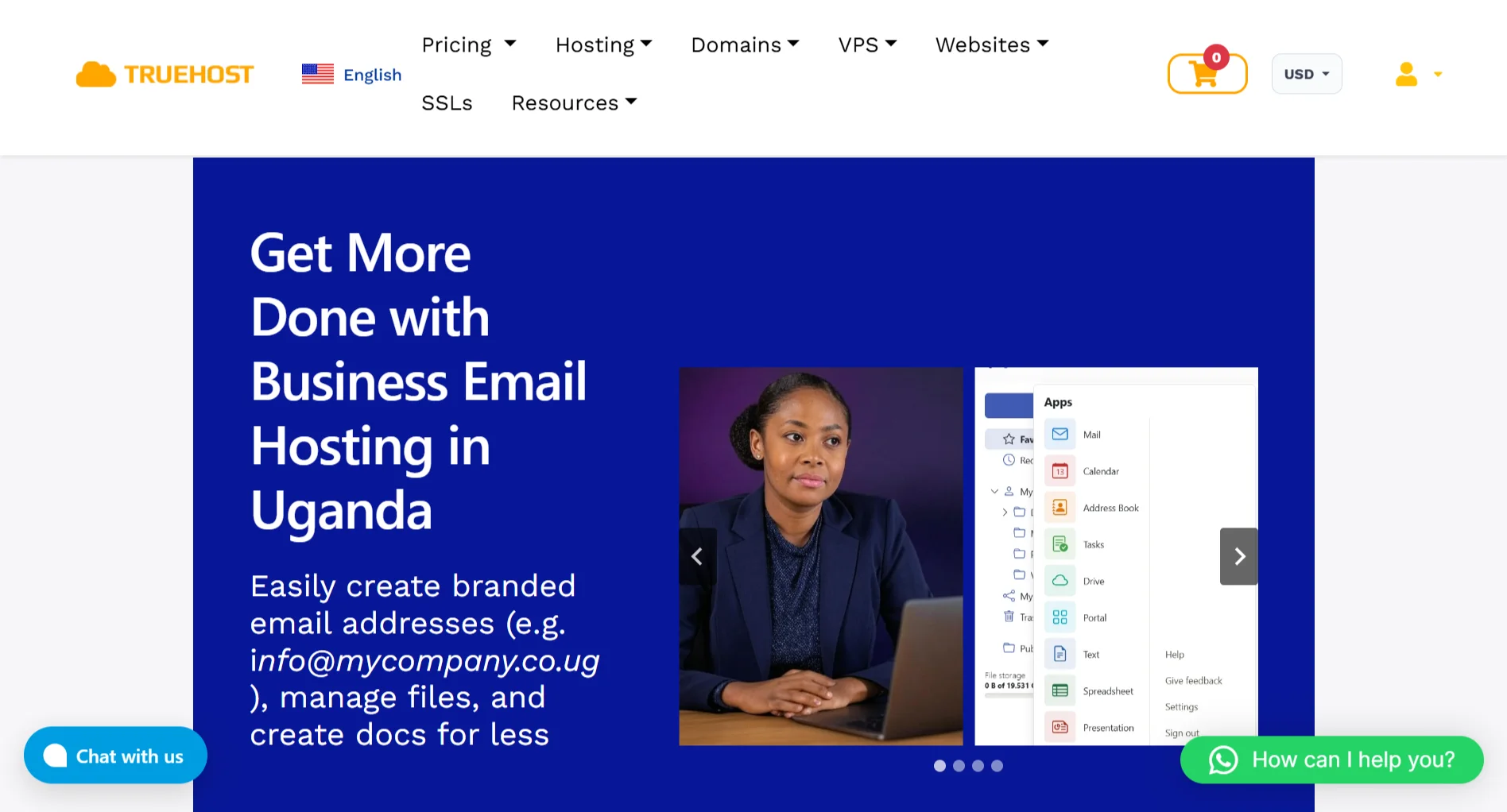
You don’t have to wrestle with SMTP configuration alone. At Truehost, we handle the infrastructure.
With our business email hosting, you get branded email addresses that use your own domain [email protected] instead of a generic Gmail address.
Our Workplace Email plans give you custom email addresses, access from webmail and mobile and desktop apps, enterprise-grade spam and virus protection, and collaboration tools like shared calendars and contacts.
There are no ads in your inbox. Everything syncs across your devices without you thinking about it.
Plans start at USh 8,905.00/month for Starter, USh 3,740.10/month for Pro, USh 1,424.80/month for Business, and USh 13,060.67/month for Premium.
You also get more than email. Team cloud storage lets you share files without email attachments. Real-time collaboration through Tasks, Drive, and Portal keeps work moving.
And, built-in office tools let you create documents, spreadsheets, and presentations without needing separate Google or Microsoft accounts.
If you’re ready to stop worrying about SMTP servers and start sending from an address that looks like it means business, Truehost is here.
