A WordPress theme controls your website’s appearance, layout, and navigation. The right theme should fit your website’s purpose, work well on mobile devices, load quickly, and be easy to maintain.
A theme that looks good but is slow or poorly supported can cause problems later. Follow these ten steps to choose a WordPress theme that meets your needs and test it before using it on your live site.
Step 1: Define Your Needs Before Browsing
List what your website needs before browsing themes. This helps you compare options and avoid designs with features you will never use.
- Website purpose: Decide if you need a blog, business site, portfolio, online store, membership site, or news website.
- Required features: List must-haves, such as WooCommerce support, booking tools, multilingual support, or custom content types.
- Who will manage the site: Choose a theme with simple controls if you will manage it yourself, or one with more flexibility if you have a developer.
- Budget and timeline: Consider the theme price, renewal fees, and whether ready-made templates can help you launch faster.
- Create a checklist: Use the same criteria to compare each theme you shortlist.
Your checklist should cover:
- Supports your website type.
- Works with your required plugins.
- Is easy to edit and manage.
- Fits your budget, including renewals.
- Has clear documentation and regular updates.
Step 2: Compare WordPress Theme Types
WordPress has four main theme types. The right option depends on your website, design needs, and editing preferences.
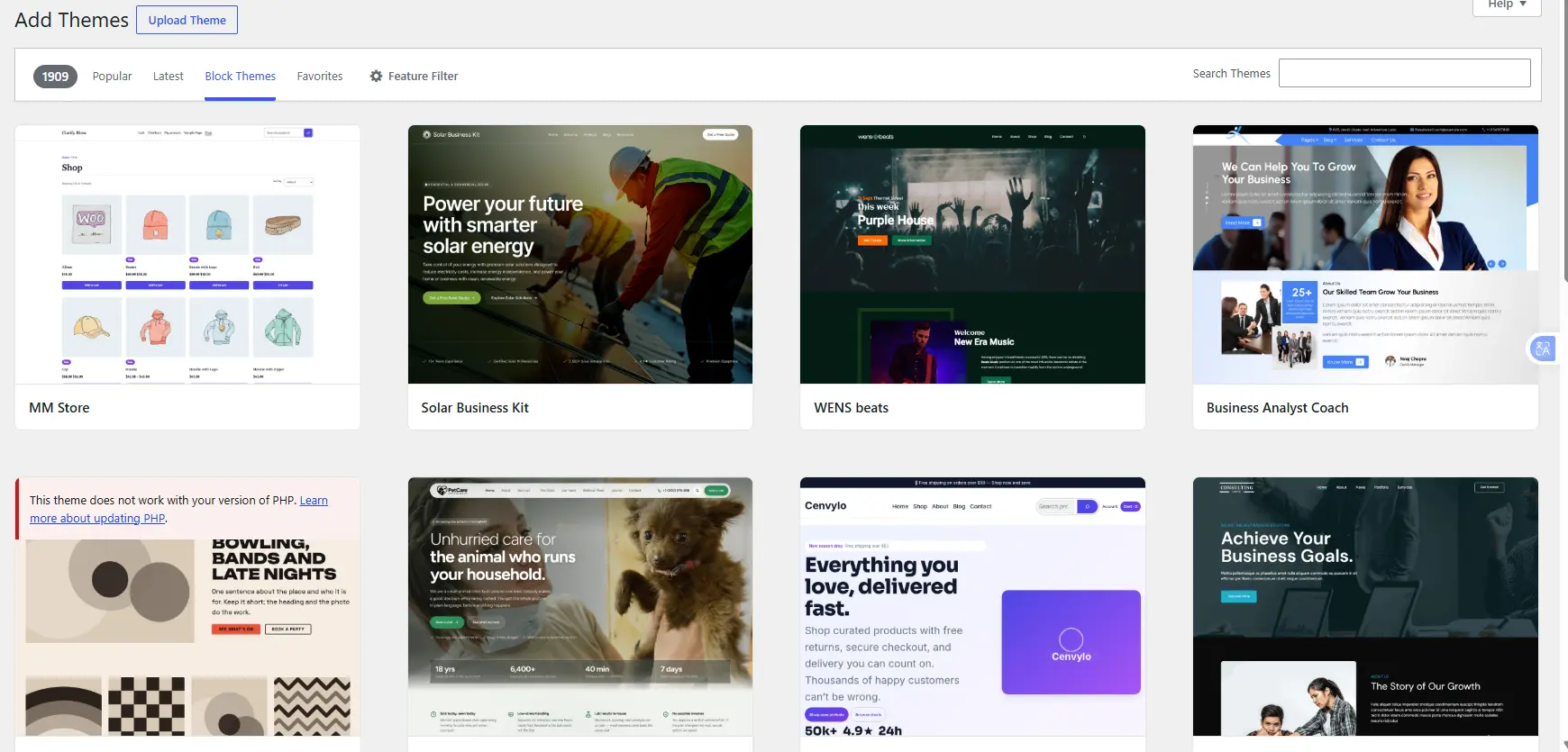
- Block themes: Let you edit headers, footers, layouts, and styles using the WordPress Site Editor. They are a good choice for new websites.
- Classic themes: Use traditional PHP templates and settings such as the Customizer. They remain supported and are suitable for users who prefer traditional editing.
- Hybrid themes: Combine classic features with block editing tools, offering a middle ground between the two.
- Page-builder themes: Work with tools such as Elementor, Divi, or Bricks to give you more visual design control. Performance depends on how the theme and builder are configured.
Choose a theme that fits your needs, not just the latest trend. You do not need to replace a working classic theme simply because block themes are newer.
Keep it updated and consider switching during a planned redesign. Block themes can also support custom PHP functionality.
Step 3: Check Theme Performance
A fast theme improves the browsing experience and can support SEO. Test the demo before installing the theme to check its loading speed and responsiveness.
- Choose a lightweight theme: Avoid unnecessary scripts, fonts, animations, and features that slow down your site.
- Check Core Web Vitals: Google measures loading speed (LCP), responsiveness (INP), and visual stability (CLS).
- Test the demo: Use Google PageSpeed Insights to check both mobile and desktop performance.
- Compare results: Check real-user data when available, as lab tests may not reflect actual visitor experiences.
Google considers these Core Web Vitals results good when at least 75% of visits meet the recommended thresholds.
| Metric | Measures | Good | Poor |
| LCP | Loading speed | 2.5 seconds or less | Over 4 seconds |
| INP | Responsiveness | 200 ms or less | Over 500 ms |
| CLS | Visual stability | 0.1 or less | Over 0.25 |
PageSpeed Insights provides two types of data: field data from real users over the previous 28 days and lab data from simulated tests. A score of 90 or above is good, but it does not guarantee a fast experience for every visitor. If real-user data is unavailable, use lab results as a guide.
Remember that hosting, images, plugins, and caching also affect speed. Test your website again after installing the theme and adding your own content.
Step 4: Check Design and Customization Options
Test how the theme will look with your own content, not just the polished demo.
- Check the layout: Picture your logo, text, images, and colours in the design. Make sure they fit properly.
- Review customization options: Look for controls for fonts, colours, spacing, headers, footers, and page layouts.
- Check templates: Confirm that useful layouts, such as contact pages, blog pages, and product pages, are available.
- Test mobile layouts: Open the demo on a phone and check menus, text, buttons, and images.
- Avoid unnecessary features: Choose a theme that meets your needs without adding features you will not use.
Also check whether important content depends on the theme. Custom post types, shortcodes, and theme-specific layouts may break when you switch themes. Use plugins for features that should remain available after a theme change.
Step 5: Check Accessibility
An accessible theme helps more people use your website, including visitors who rely on keyboards or assistive technologies. Test the demo using this checklist:
- Keyboard navigation: Use the Tab key to navigate menus, links, and buttons without a mouse.
- Visible focus: Check that the currently selected link or button is clearly highlighted.
- Colour contrast: Normal text should have a contrast ratio of at least 4.5:1, while large text needs at least 3:1.
- Headings and skip links: Check that headings follow a logical order and that visitors can skip repeated navigation.
- Zoom and resizing: Test at 200% zoom to ensure text remains readable and content does not overlap or become difficult to access.
The WordPress Theme Directory has an Accessibility Ready label for themes that meet its minimum accessibility requirements. However, the label does not guarantee full compliance with WCAG AA standards, so test the theme yourself before installing it.
Step 6: Check Compatibility, Code Quality, and Security
Check that the theme works with your WordPress setup, required plugins, and hosting environment before installing it.
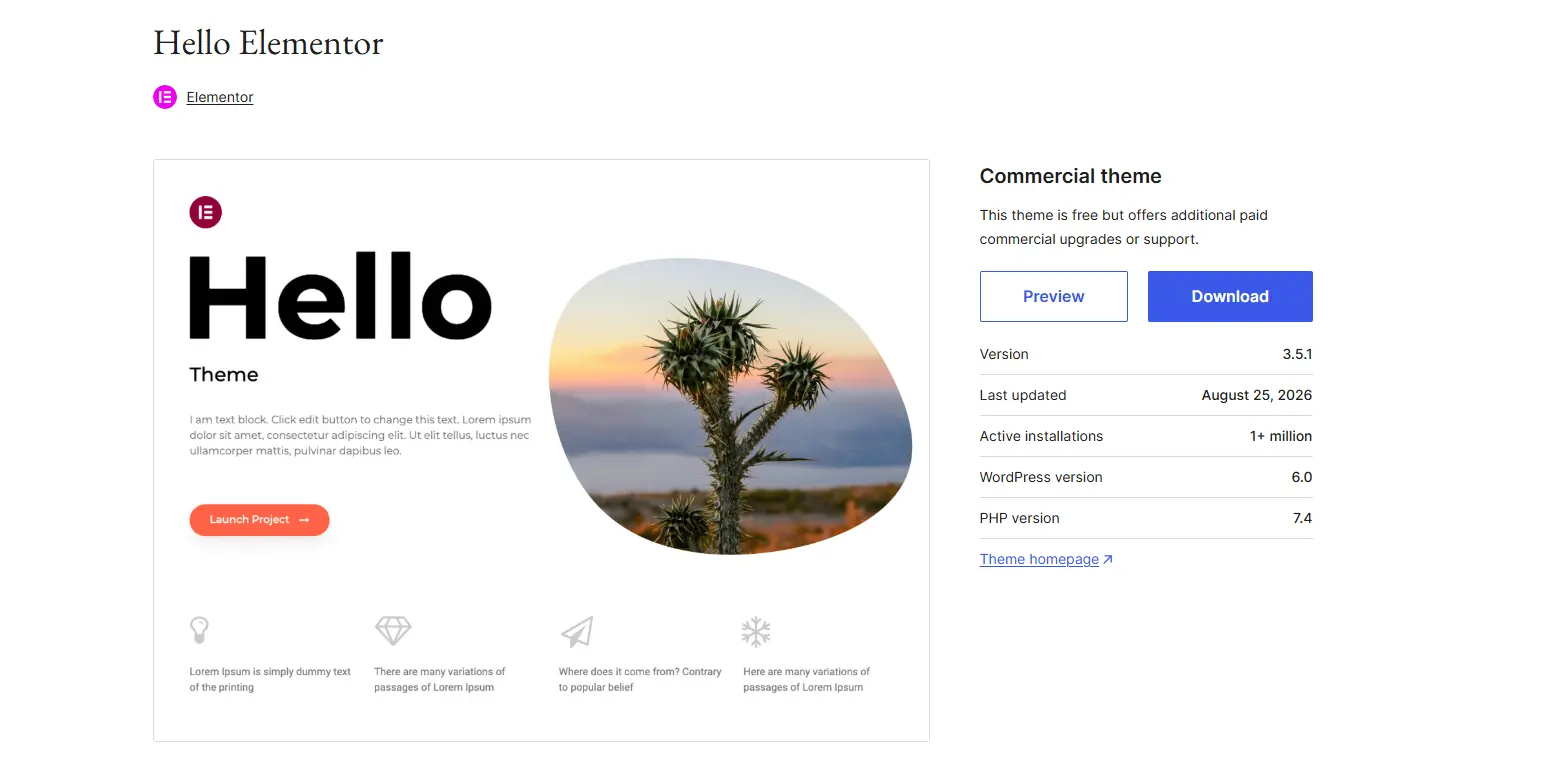
- WordPress and PHP compatibility: Check which versions the theme supports. WordPress 7.0 requires PHP 7.4 or later, with PHP 8.3 recommended. You can check your PHP version under Tools → Site Health → Info in WordPress.
- Updates: Review the changelog and update history to confirm that the developer maintains the theme.
- Plugin compatibility: Check that it works with essential plugins, including WooCommerce, SEO, contact forms, and caching tools.
- Code and licensing: Look for a clear licence, translation support, and no suspicious code, unexpected links, or demands to install unrelated plugins.
- Security: Download themes from trusted sources and avoid pirated premium themes, also called nulled themes, which may contain malware or backdoors.
The Wordfence security team has reported malware distributed through nulled themes and plugins. These themes can expose your website to attacks and SEO spam, while leaving you without official updates or support.
The official WordPress Theme Directory reviews submitted themes for issues such as licensing, security, and code quality. This makes it a good starting point, although you should still test any theme before using it.
Step 7: Review Support and Developer Reputation
A reliable developer can save you time when errors or compatibility problems arise. Check the developer’s track record before committing to a theme.
- Read reviews: Look for repeated complaints about bugs, broken features, or poor support rather than relying on star ratings alone.
- Check support responses: Review the theme’s support forum or ask the developer a question before purchasing a premium theme.
- Review documentation: Look for clear setup instructions, tutorials, and troubleshooting guides.
- Check support terms: For paid themes, confirm how long support lasts and whether refunds are available. For example, Envato’s support policy offers six months of support for eligible ThemeForest purchases, with an option to extend it to 12 months.
- Check maintenance: Look for regular updates and changelog entries covering WordPress compatibility and bug fixes.
Pay attention to how the developer handles problems. Developers who acknowledge bugs, explain changes, and release fixes are generally more reliable than those with little visible activity.
Step 8: Compare Free and Premium Themes
Free themes can work well for blogs, portfolios, and small business websites. Premium themes may offer more templates, customization options, and dedicated support.
| Factor | Free theme | Premium theme |
| Cost | No purchase fee | Requires payment |
| Features | Often enough for basic sites | May include more features |
| Support | Documentation and community forums | May include dedicated support |
| Customization | Depends on the theme | May offer more options |
| Extra costs | Paid add-ons may be needed | Renewal fees or paid extensions may apply |
Compare the total cost, including renewals, add-ons, setup time, and support. A free theme that needs several paid extensions may cost more than a premium theme with the features you need.
Pay for useful features and ongoing maintenance, not just a large collection of demo designs. Extra features you never use can add unnecessary code to your website.
Whichever option you choose, download or purchase themes from trusted sources, such as the official WordPress Theme Directory, the developer’s website, or a reputable marketplace. Avoid unofficial discounted copies of premium themes, as they may contain malware and lack updates or support.
Step 9: Consider SEO and Future Needs
A good theme supports SEO through clean code, fast loading, and clear page structure, but it cannot guarantee high rankings. Content quality and other technical factors also affect search performance.
- Clean code: Look for clear HTML and logical heading structures.
- SEO compatibility: Ensure the theme works with your SEO plugin without duplicating meta titles, descriptions, or social tags.
- Structured data: Use a suitable plugin to manage schema where needed, so it remains available if you change themes. Structured data can enable rich search results but does not directly improve rankings.
- Easy theme changes: Avoid relying heavily on theme-specific shortcodes, widgets, and layouts that may break when switching themes.
- Room to grow: Check that the theme can support plans, such as more content, higher traffic, an online store, or additional languages.
Consider your plans for the next two years before settling on a theme. This can help you avoid an expensive redesign later.
Step 10: Test the Theme Before Committing
Test the theme on a staging site or local WordPress installation before using it on your live website. This helps you identify problems with your content, plugins, and layouts.
- Set up a test site: Use your host’s staging feature or a local WordPress installation.
- Add your content: Test your actual text, images, menus, and pages.
- Check performance: Use Google PageSpeed Insights to test loading speed and responsiveness.
- Mobile test: Check menus, buttons, forms, and layouts on a real phone.
- Check plugins: Confirm that essential tools, including forms, SEO, caching, and shop plugins, work correctly.
- Test editing: Make sure you can update pages and content easily.
- Review the refund policy: Check the terms before buying a premium theme.
If you are changing themes on an existing website, back up your files and database first. A theme change can affect custom CSS, widgets, page templates, and shortcodes.
After switching, check that:
- Your homepage, landing pages, and important posts display correctly.
- Menus, widgets, and footers work properly.
- Forms submit successfully and show confirmation messages.
- Analytics and tracking codes still work.
- Internal links, redirects, and your 404 page function correctly.
- Mobile layouts and page speed remain acceptable.
Once everything works as expected, you can confidently use the theme on your live website.
Common Mistakes to Avoid
Most bad theme choices come from the same handful of mistakes, and each one maps back to a step above.
- Choosing purely on looks or demo beauty. A demo is a sales tool. Judge the theme with your own content, as in Steps 4 and 10.
- Ignoring performance, mobile behavior, or update frequency. A slow, unmaintained theme gets worse over time (Steps 3 and 6).
- Overloading with features that bloat the site. Every unused feature still adds code, so pick what you need.
- Selecting a theme that locks you into a specific page builder or requires many proprietary plugins. Content tied to one builder or bundle of plugins is painful to move later.
- Failing to match the theme to actual content and future needs. Write down what the site must do now and over the next two years (Steps 1 and 9).
- Buying from untrusted sources or ignoring support quality. Nulled themes risk malware, and a theme without support leaves you alone when something breaks
Choose a WordPress Theme That Fits Your Needs
The right WordPress theme is the one that matches your site’s purpose, loads quickly, works for every visitor, and will still be maintained when your needs change. Begin with a written checklist (Step 1) and choose a theme type that suits whoever will edit the site (Step 2). Then put your shortlist through the performance, accessibility, security, and support checks above, and try it on a staging site with your own content before you commit.
You do not need the newest or most feature-packed option. A well-maintained theme from a developer you trust will serve you better than a flashy one you outgrow within a year.
A good theme still needs reliable hosting underneath it, because hosting affects speed as much as the theme does. Truehost offers cPanel hosting with one-click WordPress installation, so you can set up a site and start testing your shortlisted themes in minutes. Check the current plan details on its site, then get your WordPress hosting with Truehost and put your chosen theme to work.
