Adding a manager to your Google Business Profile is one of the simplest ways to keep your listing active without handing over full control of your business.
You remain the owner, and they handle the day-to-day work.
That means fewer hours spent updating hours, answering reviews, or posting updates, and more time running your business.
Your profile is often the first thing a customer sees when they search for you.
So, outdated hours, unanswered reviews, or a post from eight months ago push people toward your competitors.
A manager keeps your profile accurate, responsive, and active. You can add a trusted employee, a virtual assistant, or a marketing partner. They get their own access; you keep ownership.
This guide walks you through the exact steps to add a manager, plus the other access tasks you’ll likely need along the way.
6 Easy Steps to Add a Manager to GBP
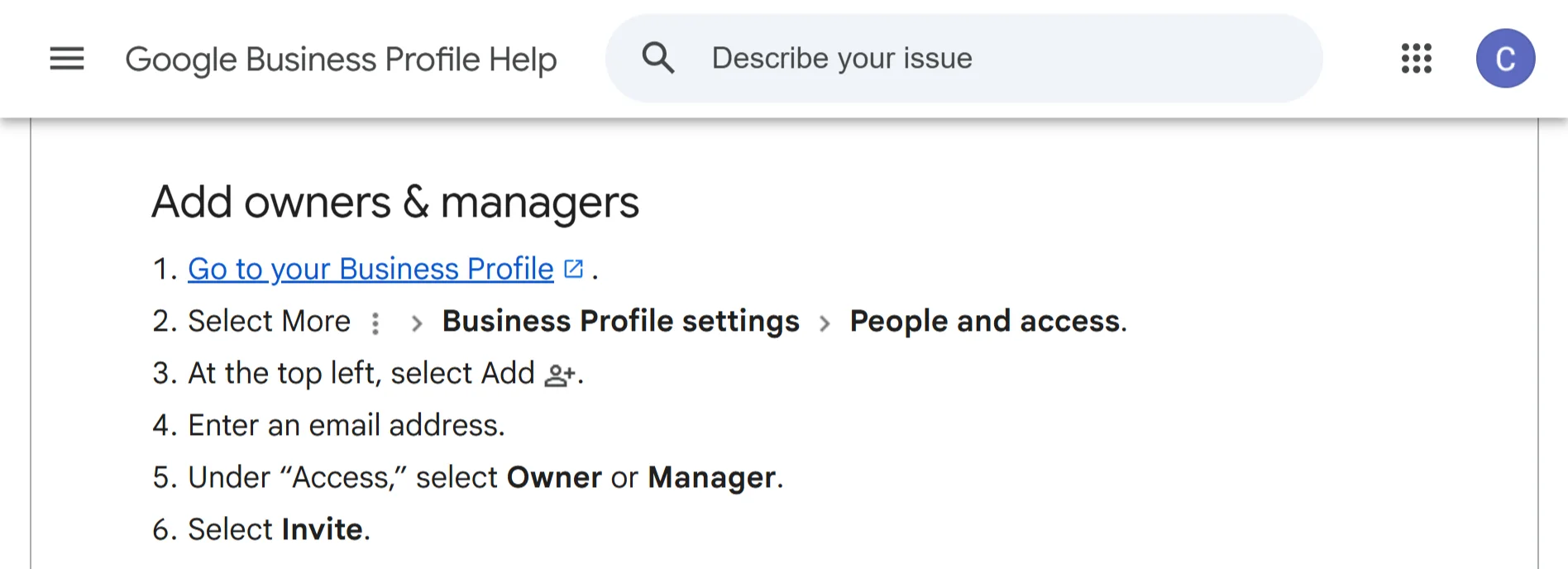
Step 1: Open Your Business Profile
Sign in to the Google account tied to your business and head to your Google Business Profile. You can do this from a browser or the Google Maps app on your phone.
Step 2: Access the People and Access Settings
Click the menu icon, then go to Business Profile settings. From there, select People and access. This is where every user on your profile lives, including pending invitations.
Step 3: Begin Adding a New User
Look for the Add button in the upper-left corner of the People and access page. Click it to start the invitation process.
Step 4: Enter Their Email Address
Type in the email address of the person you want to add. Make sure it’s the email linked to their Google account, since that’s what they’ll use to accept the invite.
Step 5: Choose Their Access Level
Under the Access section, decide whether this person should be an Owner or a Manager. Managers can do almost everything an owner can, except add or remove other users or delete the profile.
Pick the level that matches what you need them to do.
Step 6: Send the Invitation
Hit Invite. Google sends them an email. Once they accept, they’re in. You’ll get a confirmation email when they do.
Benefits of Adding a Manager on GBP
- Delegate routine tasks like responding to reviews and updating hours: Hand off the day-to-day upkeep, including review replies, hours, and posts, so it doesn’t pile up on your desk.
- Keep your profile active and accurate without doing everything yourself: Your listing stays current and consistent, even when you’re too busy to touch it.
- Multiple managers can handle different tasks across locations, so no single person carries the whole load: Each manager can own a location or task, making it easier to stay on top of everything.
- Gives limited access instead of sharing your primary login credentials, which keeps your account safer: Team members get only the permissions they need, reducing the risk of accidental changes or security issues.
- Ensures someone is always available to manage your profile, even when you’re unavailable: There’s always coverage during busy periods, vacations, or time off.
- Faster replies to customer questions and reviews, which customers appreciate and Google rewards: Quick responses improve customer trust and can boost your local search visibility.
- Free up your time for bigger business priorities: Spend less time on admin and more on growing the business.
Other Managerial Tasks You Can Do on Google Business Profile
How to Change Someone’s Access Role
Sometimes a manager needs to become an owner, or vice versa. Here’s how to make the switch:
- Go to the People and access page and select the user you want to change.
- Next to Access, click Edit.
- Choose the new role and hit Save.
Only owners can change roles for other owners and managers, so if you’re a manager yourself, you won’t see this option.
Remove an Owner or Manager
Need to cut someone’s access? Here’s the process:
- Select the person from the People and access page.
- Click Remove person.
Again, only owners can remove other owners and managers. When you remove someone, they get an email letting them know.
They lose admin abilities immediately, but anything they posted or any review replies they wrote stay on the profile. Their past work doesn’t disappear.
How to Remove Yourself from a Profile
If you’re leaving the business or just stepping back, you can remove yourself:
- Select your own name from the list.
- Click Stop managing.
- Then hit Confirm.
There’s one catch: if you’re the primary owner, you have to transfer ownership to someone else first.
You can’t just walk away and leave the profile without a primary owner.
And just like when you remove someone else, your past activity, replies, posts, and photos stay on the profile even after you’re gone.
Can multiple people manage a Google business profile?
Yes. You can have different roles for various team members on Google Business Profile.
One person can be an owner, another a manager, and they can all log in with their own Google accounts. No password sharing required.
This is helpful if your business runs across several locations or departments. You can assign one manager to handle review replies, another to keep hours and photos updated, and an owner to oversee everything.
Each person signs in with their own Google account, so you always know who did what. If someone leaves the team, you remove their access without touching anyone else’s.
The profile keeps running smoothly, and your login details stay private.
Ready to take your Google Business Profile to the next level?
Managing access is the easy part. Keeping your profile optimized, ranking in Google Maps, and staying ahead of competitors takes consistent work. That’s where we come in.
| Plan | Who It’s For | Price |
|---|---|---|
| Growth | DIY owners | USh 14,841.67/month |
| Elite | Hands-off owners | USh 14,841.67/month |
| Pro | Agencies & franchises | USh 676,780.00/month |
Localforce Growth keeps your profile active without you lifting a finger. Localforce Elite puts a dedicated growth team behind your listing.
And Localforce Pro gives agencies and franchises the tools to manage everything at scale.
We built these plans for business owners who’d rather focus on their actual business than fiddle with settings all day. Reach out to Truehost today and let us handle the local search side of things.
