Every location you run needs its own Google Business Profile.
Once you have several, the work adds up. This guide shows you how to manage multiple Google Business Profiles in one organized system.
Without one, profiles can end up in different accounts, details can go out of date, and duplicates can appear.
Getting this right pays off. BrightLocal’s 2026 data shows 71% of consumers use Google to read local business reviews.
Yet only 35% of small businesses have a Google Business Profile, according to BrightLocal’s 2025 SMB report.
The fix has four parts:
- Organize your profiles in one place
- Control who has access
- Keep every detail accurate
- Maintain each profile on a regular schedule
This guide is for businesses with multiple branches, franchises, and agencies that manage client profiles.
Work through the eight steps first. Then use the later sections for setup, team access, and problem-solving.
How to Manage Multiple Google Business Profiles
Follow these eight steps in order. Each one builds on the last.
Step 1: Audit all existing profiles
Start by finding every profile tied to your business. Some will be ones you forgot.
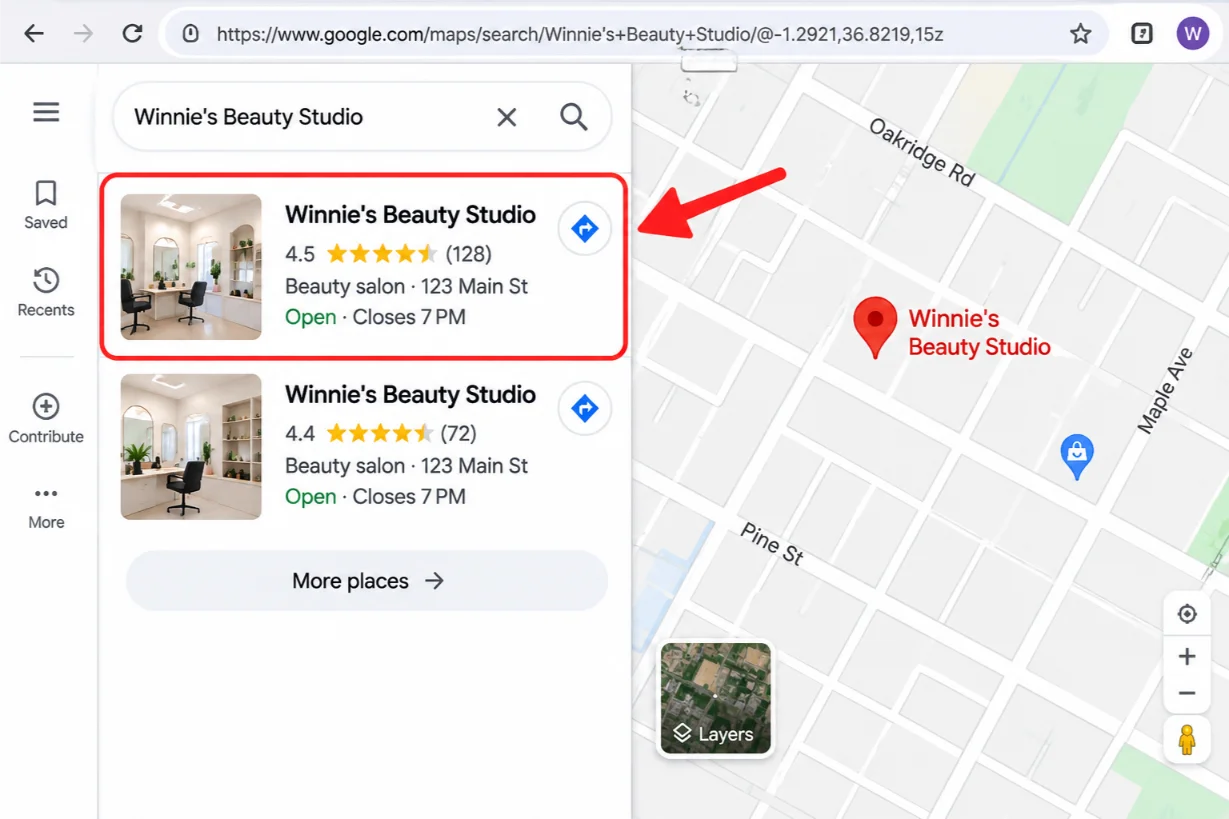
Search Google Search and Google Maps using:
- Your business name
- Old business names
- Phone numbers, old and new
- Addresses, including past ones
Then label each profile you find:
- Claimed
- Unclaimed
- Duplicate
- Outdated
- Suspended
These labels pay off later. Google says duplicate, suspended, and disabled profiles do not count toward the 10-profile minimum for bulk verification.
Next, create a simple sheet with these columns:
- Branch name
- Address
- Profile status
- Owner
- Managers
- Verification status
- Action needed
One sheet gives you one source of truth.
Step 2: Confirm each location needs its own profile
Not every address needs a profile. Google’s guidelines say not to create more than one page for each location, in one account or several.
Use these rules:
- Use one profile per real, staffed physical location.
- Do not create separate profiles for the same business at the same address.
- Use one profile for a business operating from one office but serving several areas.
- Use separate profiles only for branches with their own address, staff, and customer service point.
A rented mailing address or virtual office does not qualify. Google also says a service area should not stretch much beyond about two hours of driving time from your base.
This step stops duplicates before they start.
Step 3: Create a business group
A business group puts your profiles in one place. Google used to call it a business account.
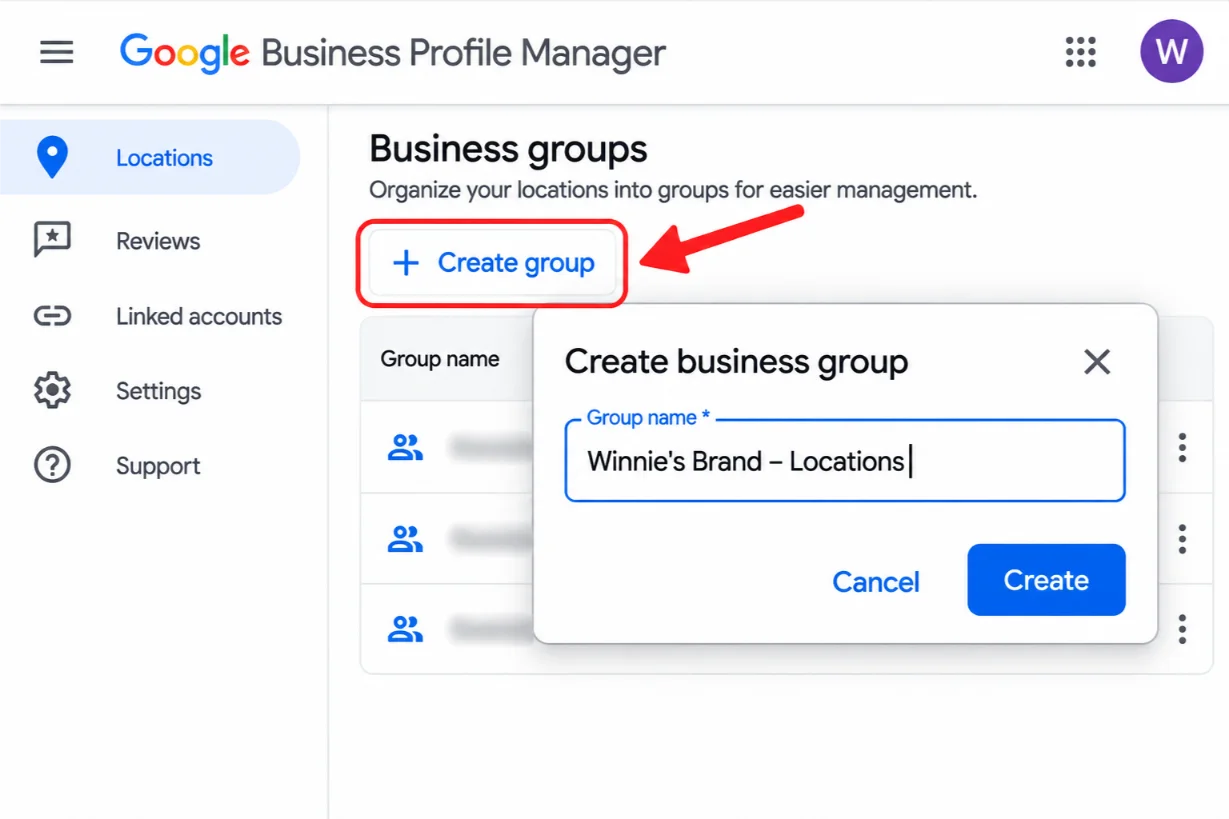
- Create one business group for the company or brand.
- Use the group to organize branches by brand, city, region, or business unit.
- Remember that business groups make it easier to manage and share access to multiple profiles.
There is one tradeoff. Anyone added at group level can reach every profile in that group, so plan your groups around who needs what.
Step 4: Add, claim, or transfer each location
Now move every branch into the group. You have three routes:
- Add new branches through Business Profile Manager.
- Claim existing unclaimed profiles instead of creating duplicates.
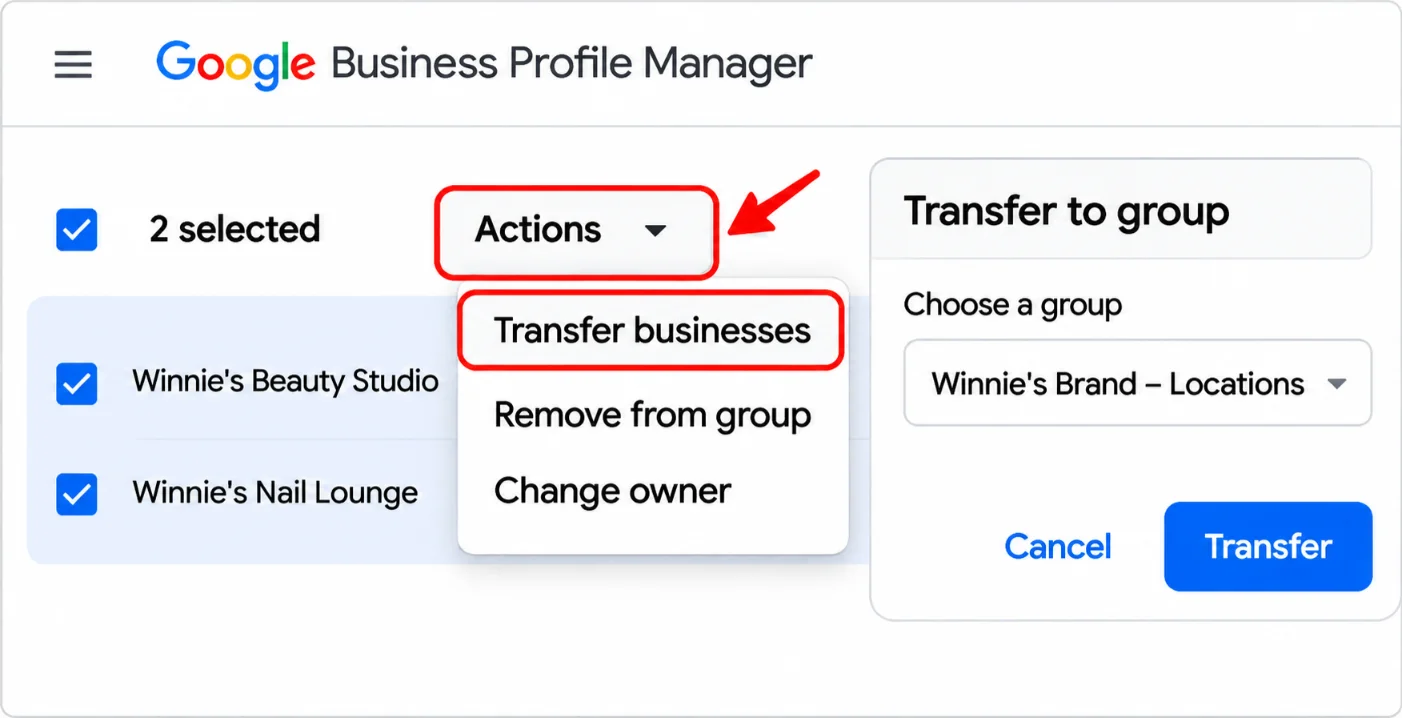
- Transfer existing profiles into the correct business group.
Google allows you to select profiles and transfer them to a business group. A profile can also sit in more than one group, per Google’s group help page.
Claiming beats creating. A new profile at an old address is how duplicates are born.
Step 5: Assign owner and manager access
Ownership decides who stays in control. Keep it with the business.
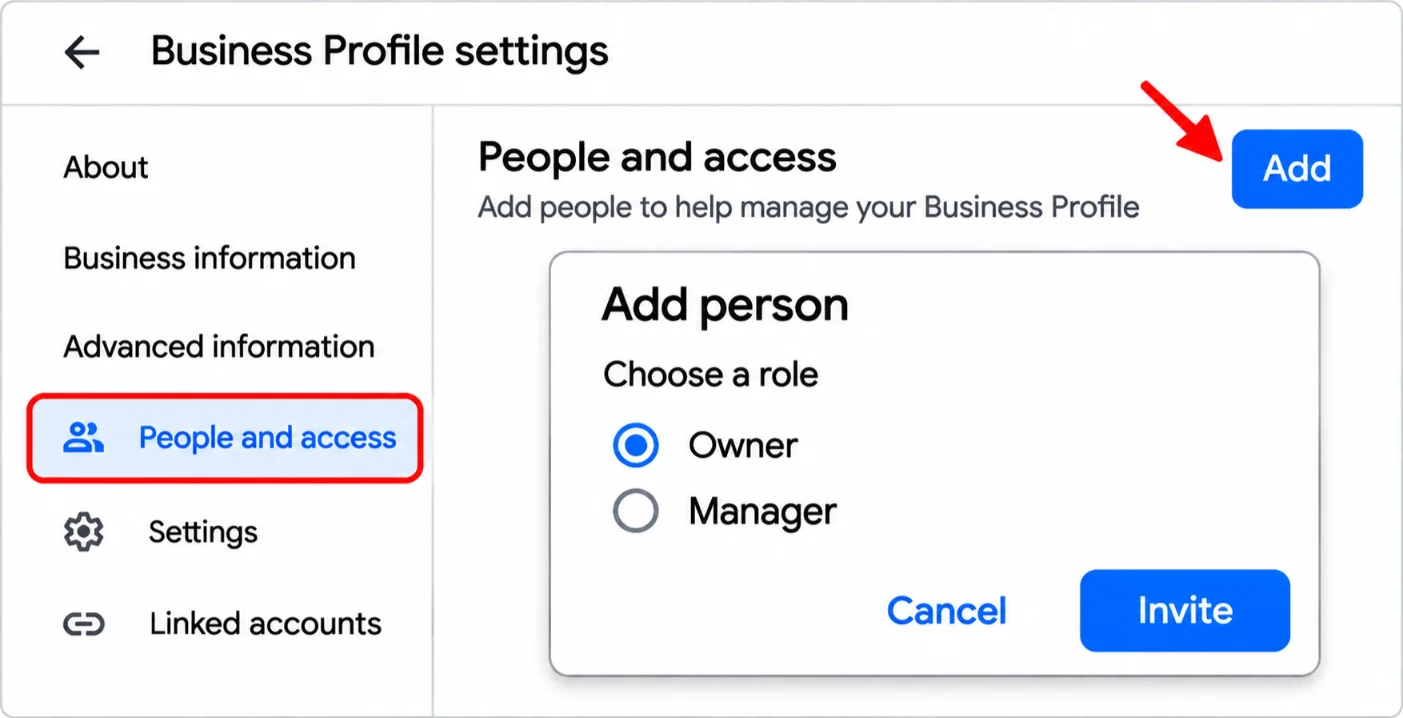
- Keep primary ownership with the business or a company-controlled Google Account.
- Give branch managers, marketing staff, and agencies manager access only.
- Do not give agencies or employees primary ownership.
- Remove access for former employees and former agencies.
The reason is simple. Per Google’s roles help, only owners can add or remove users. Managers cannot.
Step 6: Keep every profile accurate
Customers trust what they see on Google. Wrong details cost you visits and calls.
- Use the same business name format across all profiles.
- Use the exact address for each branch.
- Use a branch-specific phone number where customers need to reach that branch directly.
- Update hours, holiday hours, temporary closures, categories, services, photos, and website links.
- Use real branch-specific photos instead of identical images across all locations.
Google asks you to represent your business as it appears in the real world, including signage. Match that on every profile.
Your website links should land on the right branch page. If you run many branch pages or several sites, a VPS or dedicated server from us at Truehost gives you room to grow.
Step 7: Maintain the profiles regularly
Accuracy fades without a routine. Set a schedule and keep it.
- Weekly: Check suggested edits, update temporary closures, and upload new photos where needed.
- Monthly: Check addresses, phone numbers, links, hours, and services.
- Quarterly: Review user access, search for duplicates, and refresh branch-specific content.
- Annually: Complete a full profile audit and confirm ownership details.
Weekly checks are worth the time because public edits are common. Google blocked 79 million inaccurate or unverified edits in 2025, per WiserNotify’s summary of Google’s trust data.
If you want automatic reminders, you can run workflows on our N8n hosting at Truehost.
Step 8: Fix common multi-profile problems
Even a tidy setup hits problems. Know the fixes before you need them:
- Resolve duplicate listings.
- Recover lost access.
- Correct incorrect edits.
- Handle suspended profiles through Google’s official process.
- Update or remove profiles for closed or relocated branches.
We cover each fix in detail near the end of this guide.
Set Up Google Business Profile Manager for Multiple Profiles
The steps above need a solid setup behind them. This section shows you how to build it.
Use one company-controlled Google Account
Start with the account that will own everything.
- Use a company-controlled account as the primary owner.
- Avoid using a personal employee Gmail account as the main owner.
- Keep ownership with the business even when an agency manages the profiles.
Google’s rules explain why. A profile must always have a primary owner, and that person cannot leave until they transfer the role. If an employee holds it and quits, you have a problem.
No company email yet? You can open a domain with us at Truehost and set up business email on it.
Create a business group
Here is how to create a group in Business Profile Manager:
- Sign in to Business Profile Manager with the company-controlled account.
- Select the option to create a group.
- Enter a clear group name.
- Save it, then start adding locations.
Choose one group when the same people manage every branch. Choose separate groups when regions, brands, or business units need different teams and different access.
Name the group clearly. A good pattern is Company Name – Locations.
Add locations to the business group
You can fill the group in three ways:
- Add a new location. Open the group, choose to add a location, and follow the prompts to create the profile.
- Claim an existing listing. Search for the listing and request access instead of creating a second one.
- Transfer an existing profile. Select the profile in Business Profile Manager and move it into the group.
Pick a naming convention and stick to it. For example, use Brand – Branch – Area.
A steady format makes your sheet and your group easy to scan.
Know owner and manager roles
Roles control what each person can change. Study this table before you share access.
| Role | Best for | Can do | Cannot do |
|---|---|---|---|
| Primary owner | Business owner or company-controlled account | Full control, transfer ownership, manage users, remove profile | — |
| Owner | Senior manager or trusted director | Manage users and profile settings | Transfer primary ownership unless made primary owner |
| Manager | Branch manager, marketer, agency | Update details, reply to reviews, upload photos, publish updates | Add/remove users or delete the profile |
| Business group manager | Multi-location administrator | Add, edit, and delete profiles in the group | Add or remove group users |
Ready to put this into practice? Our local SEO plans at Truehost can help you keep every branch listing visible while you build this structure.
Manage Team Access Without Losing Control
More people on a profile means more risk. A few clear rules keep control with your business.
Give managers only the access they need
Match each role to the job:
- Branch managers: manager access for their branch.
- Marketing team: manager access where necessary.
- Agency: manager access only.
- Business owner: primary owner.
Manager access covers daily work like updating details and replying to reviews. It does not let anyone add users or delete the profile.
New users also face limits. Per Google, a new owner or manager must wait 7 days before they can use all features.
Review access every quarter
Access piles up quietly. A quarterly review clears it out.
- Remove former employees.
- Remove former agencies.
- Remove unused accounts.
- Confirm that the primary owner is still a company-controlled account.
Google does not allow a Google Group as an owner or manager. Use individual Google Accounts instead.
Keep a simple access register
A register shows who can touch what, and why.
Create a table with:
- Profile or branch.
- Primary owner.
- Managers.
- Date access was added.
- Reason for access.
- Last review date.
- Action needed.
Keep it next to your audit sheet from Step 1. You can also run an automated reminder for the quarterly review on N8n hosting from us at Truehost.
What to do when an employee leaves
Act on the same day. Follow this order:
- Remove their access.
- Retain company ownership.
- Change any shared credentials.
- Review recent profile changes.
The last check is easy to skip, but it can reveal edits you did not approve.
Need help keeping all your branch listings healthy? Take a look at our local SEO plans at Truehost.
How to Fix Common Multi-Profile Problems
Problems will come up. Here is how to handle the five most common ones.
1) Duplicate listings
Duplicates split your reviews and confuse customers. They also block bulk verification, since Google does not count them.
- Identify the duplicate.
- Claim the correct profile.
- Correct the details.
- Report or resolve the duplicate.
- Keep evidence of the correct business information.
Do not delete the wrong profile in a hurry. Confirm which one holds your real reviews and details first.
2) Lost access
This often happens after a former employee or agency leaves.
- Contact the current primary owner.
- Request access through the proper Google process.
- Do not create a duplicate profile to regain control.
A second profile makes the problem bigger, not smaller.
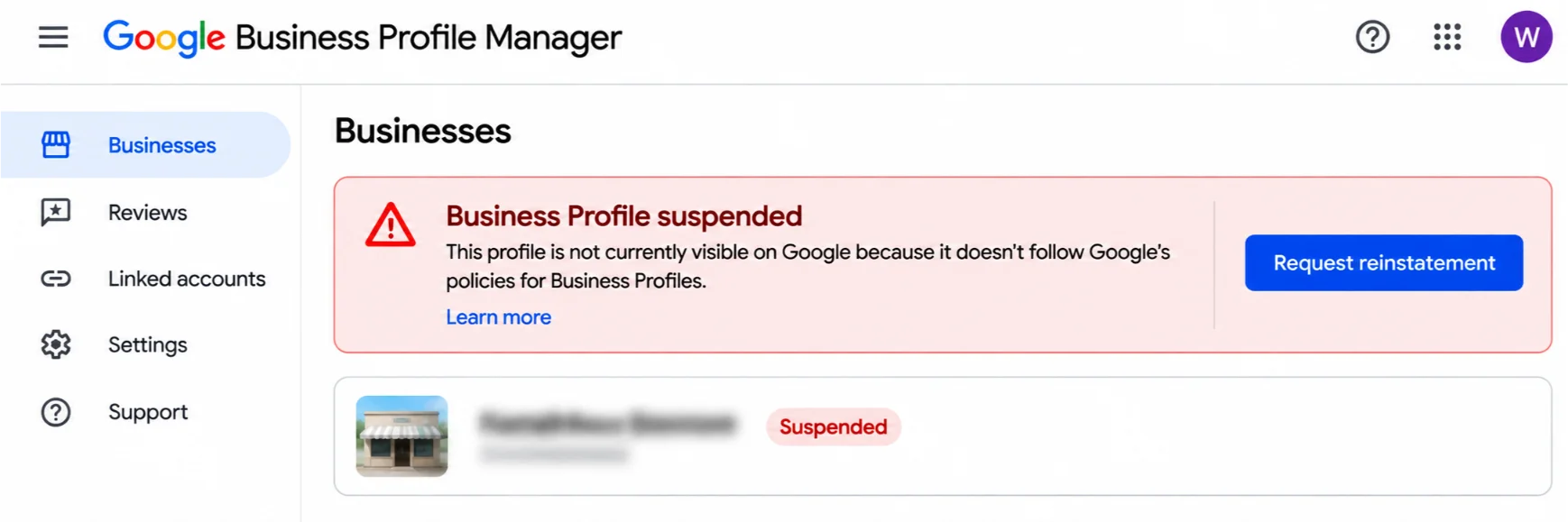
3) Suspended profiles
A suspension removes your listing from view. Stay calm and follow the process.
- Do not create a new profile for the same business.
- Read the suspension notice.
- Correct policy issues.
- Submit a reinstatement request through Google’s official process.
Submit one complete request. Repeat requests can slow your case.
4) Incorrect information
Wrong details can appear from public edits or old data.
- Correct the profile.
- Monitor suggested edits.
- Keep evidence such as signage, business registration, and photos.
Evidence also helps if Google asks you to prove your details.
5) Closed or relocated branches
An outdated profile sends customers to the wrong place.
- Update the profile if the branch moved.
- Mark it temporarily closed when appropriate.
- Remove or report the profile if the branch permanently closed.
Add this check to your quarterly review so no old branch stays live.
How to Manage Multiple Google Business Profiles FAQs
Can I move existing Google Business Profiles into a business group?
Yes. Select the profiles in Business Profile Manager, choose Actions, then Transfer businesses, and select the target group.
Can a business group manager add or remove users?
No. A group manager can manage profiles, but only a group owner can add or remove owners and managers.
Can I use a Google Group to manage multiple profiles?
No. Google does not allow Google Groups as owners or managers; use individual Google Accounts instead.
Do I need to verify every branch separately?
Not always. Businesses with 10 or more locations may qualify for bulk verification after approval.
What does bulk verification require?
You need 10 or more profiles from the same business, a business group, a complete location spreadsheet, and an authorized representative available for video verification if Google requests it.
Note that Google says agencies with more than one business under one account cannot bulk verify.
Can I transfer primary ownership of a profile to someone else?
Yes. Only the current primary owner can transfer primary ownership through the profile’s People and access settings.
