Seeing a 503 service unavailable error on your website can cost you visitors, enquiries, and sales.
It means your server received a request but cannot process it right now.
The cause could be heavy traffic, scheduled maintenance, exhausted hosting resources, or a failing application. The important thing is to identify the source before changing server settings.
This guide shows you how to diagnose and fix the problem. You’ll also learn how to prevent it from interrupting your business again.
What Causes a 503 Service Unavailable Error?
A 503 error means the server is reachable but temporarily unable to complete a request.
Unlike a 404 error, which means a page cannot be found, a 503 does not mean the page is missing.
Unlike a 403 error, it does not mean access was denied.
The HTTP standard defines this response around temporary overload or scheduled maintenance. The server may also include a Retry-After header to tell visitors when to try again.
Common causes include:
- High traffic: Too many visitors or automated requests can exhaust available server capacity.
- Resource limits: CPU, RAM, disk I/O, PHP workers, or database connections may reach their limits.
- Scheduled maintenance: WordPress updates, server maintenance, or software deployments can temporarily interrupt access.
- Unavailable backend services: Your database, API, cache, or background service may stop responding.
- Faulty plugins or themes: A recent WordPress update or code change may cause application failures.
- CDN or reverse proxy problems: Cloudflare or another proxy may return an error when its connection to your origin fails.
- Shared hosting restrictions: Your account may exceed its allocated CPU, memory, process, or other CloudLinux limits.
CloudLinux distinguishes between different resource-limit responses. For example, reaching the entry-process limit can produce a 508 error. Memory or process limits can also produce 500 or 503 responses.
Knowing these differences helps you avoid fixing the wrong problem.
Quick Fix Checklist
If your website suddenly stops working, start with these checks:
- Refresh the page after 30–60 seconds.
- Check whether one page or the entire website is affected.
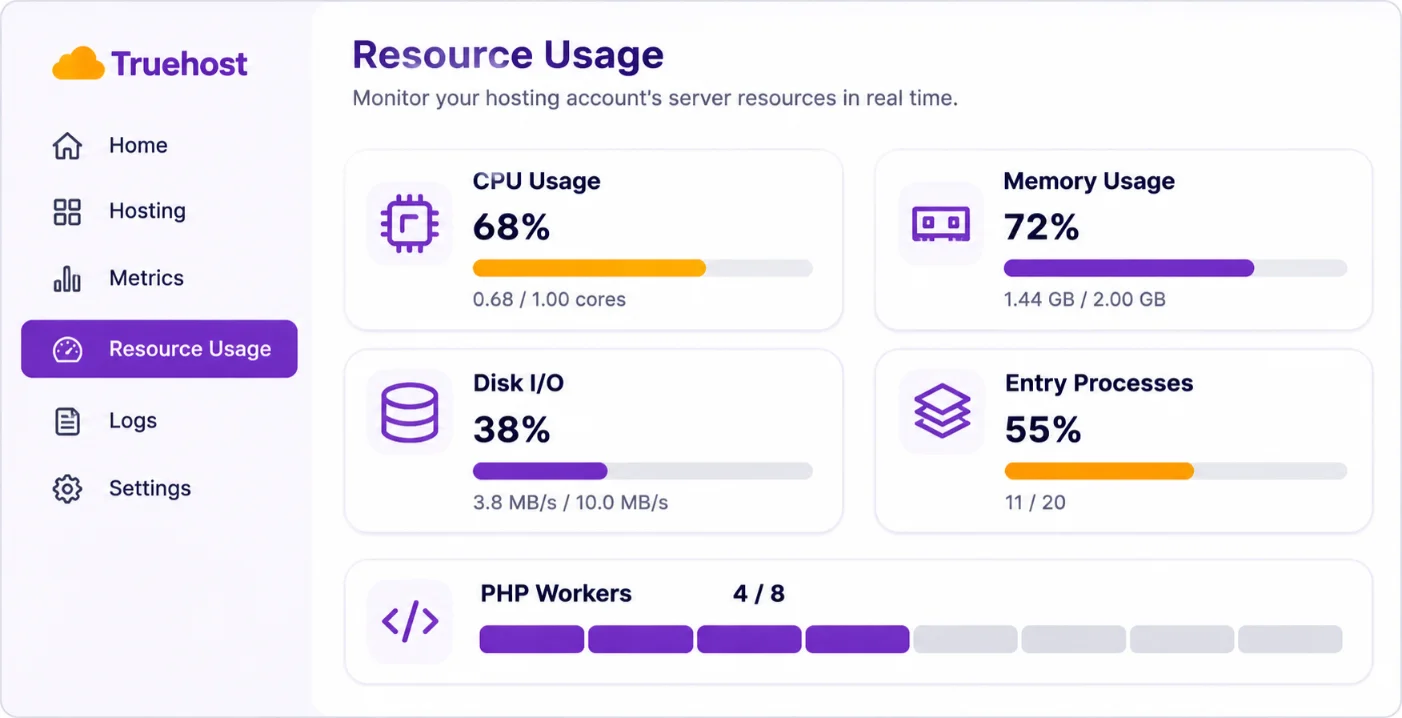
- Review CPU, RAM, disk I/O, process usage, and PHP workers in your hosting dashboard.
- Check whether maintenance, updates, or a deployment is running.
- Review your server, PHP, and application error logs.
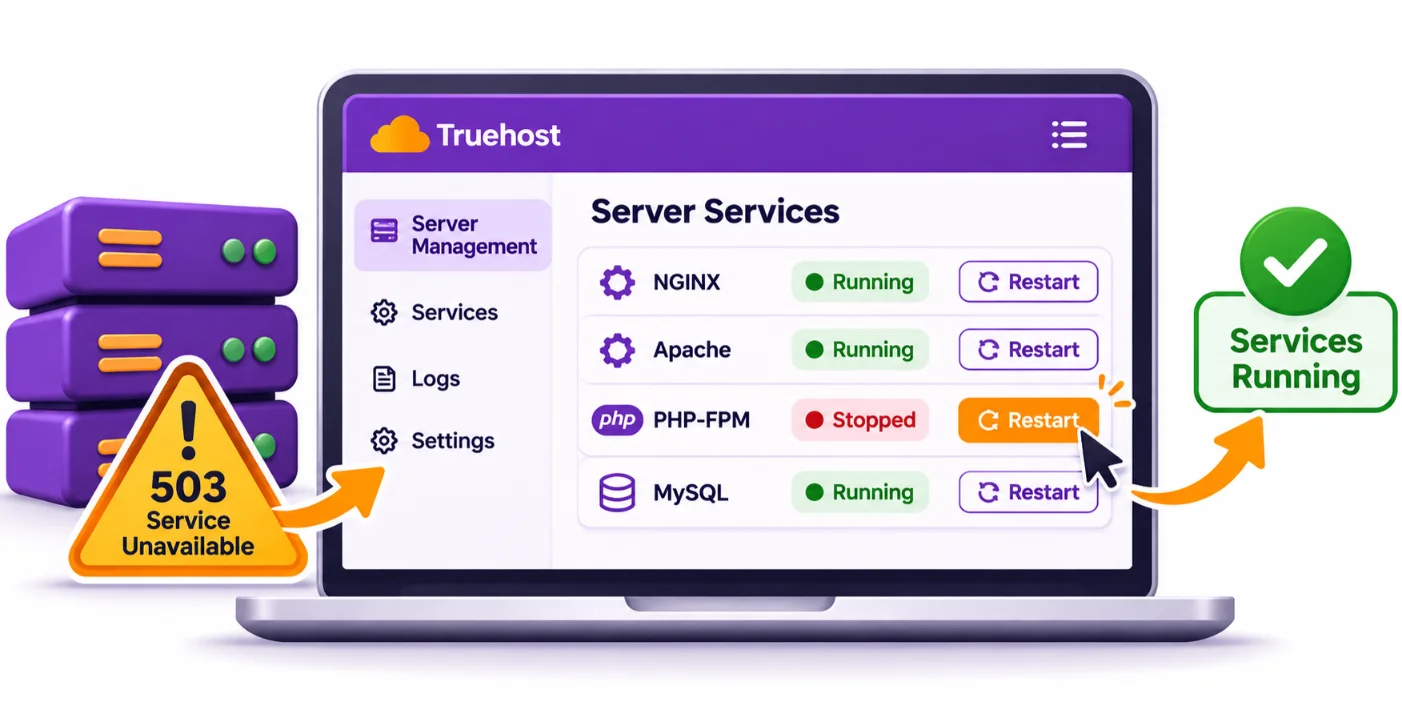
- Restart the affected service if it is safe to do so.
- Check CDN, firewall, WAF, and rate-limiting settings. Restore protection immediately after testing.
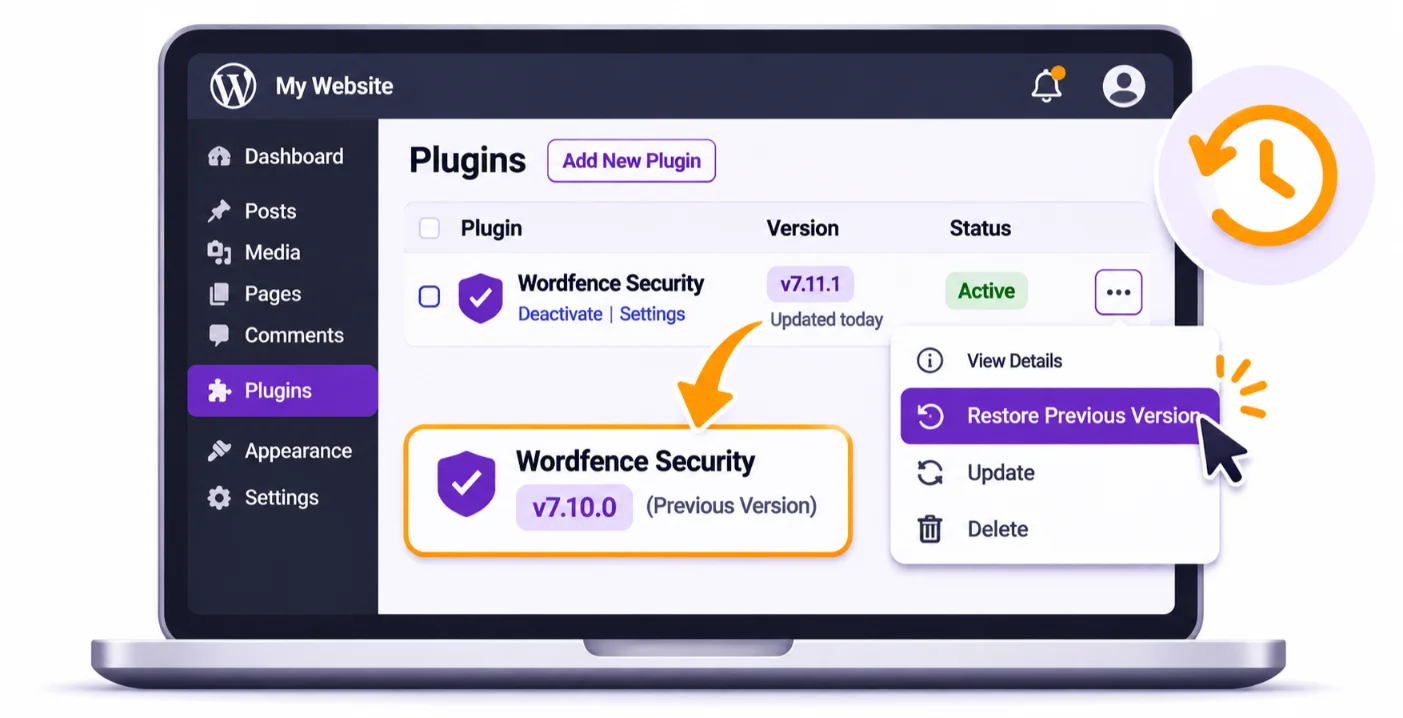
- Roll back the most recent plugin, theme, or code change if it caused the problem.
- Add caching, a CDN, load balancing, or autoscaling when traffic is the cause.
- For planned downtime, return a proper 503 response with a
Retry-Afterheader.
These checks help narrow down the cause before you make major changes.
How to Fix a 503 Service Unavailable Error
Work through these fixes in order. Most problems involve resource limits, maintenance, recent changes, or backend failures.
1) Diagnose the Cause
Start by identifying where the failure occurs. Avoid restarting everything before checking the available evidence.
Check the scope
- Is the entire website unavailable?
- Does the error affect only one URL?
- Did the problem start after an update?
- Did traffic increase suddenly?
- Did your hosting provider announce maintenance?
Check resource usage
In cPanel, open the Resource Usage area if your hosting plan provides it. Review CPU, memory, disk I/O, and process usage.
On a VPS, use these commands:
top
htop
free -h
df -h
These commands help you inspect running processes, memory, and available disk space.
Check server logs
Review NGINX, Apache, PHP-FPM, MySQL, and WordPress logs. Look for timeouts, fatal errors, database failures, and plugin conflicts.
Check recent changes
Think about what changed before the error appeared. A new plugin, theme, firewall rule, or deployment may explain the timing.
Identify where the error originates
If the error page contains Cloudflare branding, investigate Cloudflare first. Otherwise, check your origin server.
Cloudflare documents both Cloudflare-generated and origin-generated 503 responses. It also recommends checking server logs for overload, exhausted connections, and application maintenance mode.
2) Wait, Refresh, and Confirm Maintenance
Sometimes, waiting is the safest first response.
A temporary traffic spike or maintenance window may resolve without manual intervention. However, check your hosting provider’s maintenance notices before making changes.
If you manage planned maintenance, return an actual HTTP 503 response. Do not simply display a maintenance message with a normal HTTP 200 status.
For a basic PHP maintenance response, use:
<?php
http_response_code(503);
header('Retry-After: 600');
exit('The site is temporarily unavailable for maintenance. Please try again shortly.');
This example tells visitors and compatible crawlers to wait 600 seconds.
Send the response before producing any page output. Otherwise, PHP may fail to set the correct HTTP status.
The Retry-After header communicates the expected waiting period. The HTTP specification allows either a delay in seconds or a specific date.
Googlebot retries temporary 503 responses for about two days. Returning 503 or 429 for longer than two days can cause Google to drop affected URLs from its index. Keep planned downtime short and restore normal responses promptly.
3) Free Up Server Resources
Your website needs enough resources to process incoming requests. When those resources run out, requests may fail.
Check for these issues:
- Exhausted CPU or RAM.
- High disk usage or disk I/O limits.
- Too many running processes.
- Reached entry-process limits.
- Insufficient PHP workers.
- Excessive database connections.
Then take the appropriate action:
- Stop runaway processes: Identify processes consuming excessive resources before terminating them.
- Clear caches: Remove stale application caches when they contribute to the problem.
- Review old files: Remove unnecessary logs or backups only after confirming you have at least one verified backup.
- Optimize database queries: Investigate slow queries and unnecessary database operations.
- Upgrade hosting resources: Consider a larger plan if your website consistently reaches its limits.
- Contact your hosting provider: Ask for help when you cannot identify the limit or restart the affected service.
On shared hosting, open cPanel’s Resource Usage area. Check the recorded faults and resource limits.
CloudLinux uses entry processes to control concurrent requests entering an account’s environment.
When this limit is reached, the server can return a 508 Resource Limit Is Reached response. Other resource limits can produce different errors, including 503.
If your business website regularly outgrows shared hosting, consider a VPS.
We at Truehost offer cloud VPS options for workloads that need dedicated allocations and greater configuration control. You can compare the available options at Truehost.
4) Review Logs and Fix the Underlying Error
Server logs help you find what actually failed. They are more useful than repeatedly refreshing an error page.
Check the relevant log locations:
NGINX:
/var/log/nginx/error.logApache:
/var/log/apache2/error.logOn Debian or Ubuntu systems, this is a common location. RHEL, CentOS, and AlmaLinux systems commonly use:
/var/log/httpd/error_logMariaDB/MySQL:
Check the database error log configured for your server. Its location depends on the installation and configuration.
WordPress:
wp-content/debug.logLook for:
- PHP fatal errors.
- Plugin or theme conflicts.
- Database connection timeouts.
- Missing application files.
- Incorrect file permissions.
- Failed requests to external services.
If you use WordPress, you can temporarily enable debugging in wp-config.php:
define('WP_DEBUG', true);
define('WP_DEBUG_LOG', true);
define('WP_DEBUG_DISPLAY', false);
Place these settings before the following line:
/* That's all, stop editing! Happy blogging. */WordPress saves logged errors to wp-content/debug.log when debugging is configured this way.
Safety warning: Disable debugging after troubleshooting. Logs may contain sensitive information. Avoid displaying errors publicly.
5) Restart the Server or Affected Services
Restarting a service can restore access when it becomes unresponsive. However, identify the problem first.
Common Linux service commands include:
# NGINX
sudo systemctl restart nginx

# Apache on RHEL/CentOS/AlmaLinux
sudo systemctl restart httpd

# Apache on Debian/Ubuntu
sudo systemctl restart apache2

# MariaDB
sudo systemctl restart mariadb

# MySQL, if installed instead of MariaDB
sudo systemctl restart mysql

# PHP-FPM example
sudo systemctl restart php8.3-fpm
Replace php8.3-fpm with your installed PHP-FPM service name. Your server may use another version.
Important: Check logs before restarting services. A restart can remove useful evidence about the failure. It can also interrupt active visitors and transactions.
Also review your PHP version. PHP 8.2 reaches end of security support on 31 December 2026. The PHP project recommends planning upgrades to supported versions. Test compatibility before switching versions on a live website.
6) Check CDN, Firewall, WAF, and Rate Limits
A CDN or firewall can sometimes contribute to website availability problems. However, do not assume every 503 originates from these services.
Start by reviewing your security configuration.
- Temporarily test whether a firewall, WAF, or CDN rule affects legitimate traffic.
- Review Cloudflare Security Events for blocked requests.
- Check rate-limiting rules and Workers.
- Verify that your origin server remains reachable.
- Restore security protection immediately after testing.
Cloudflare provides a diagnostic option called Pause Cloudflare on Site. It sends traffic directly to your origin server instead of routing it through Cloudflare’s reverse proxy.
You can find it under Account Home, select your domain, then go to Overview and Advanced Actions.
Use this test briefly. Pausing Cloudflare also disables services such as its WAF and SSL/TLS features. Cloudflare recommends considering Development Mode when investigating caching problems instead.
Understand the difference between common HTTP responses:
| Error | What it generally indicates |
|---|---|
| 403 | Access is forbidden |
| 429 | Too many requests |
| 503 | Service temporarily unavailable |
| 508 | Resource limit reached |
| 521 | Web server refused connection |
| 522 | Connection to origin timed out |
Cloudflare Error 1020 is also returned with an HTTP 403 status. It indicates that a configured security rule blocked the request.
A 503 can originate from an overloaded server or Cloudflare itself. Origin connectivity failures are more commonly represented by 52x errors.
7) Roll Back Recent Code, Plugins, or Themes
If the error started after a software change, investigate that change first.
For WordPress or other applications, consider these recovery options:
- Roll back a recent Git deployment.
- Deactivate the most recently installed WordPress plugin.
- Switch to a default WordPress theme.
- Disable all plugins, then reactivate them individually.
- Restore the last known-good backup.
- Test future changes in a staging environment.
Do not make several changes simultaneously. You may fix the problem without discovering its actual cause.
Safety warning: Restoring a backup replaces the current website or database state. You could lose orders, enquiries, posts, comments, and other recent changes.
Always verify your backup before restoring it. Keep another copy before making destructive changes.
For business websites, this is especially important when customers submit orders or enquiries. A backup that predates those transactions may create additional problems.
Use a staging environment to test updates before applying them to your live website.
How to Fix 503 in WordPress
WordPress websites can return 503 responses because of resource limits, failed updates, plugin conflicts, and server problems.
Work through these checks:
- Wait for updates to finish. WordPress temporarily enters maintenance mode during updates. Give the process time to complete.
- Check hosting resource usage. Review CPU, memory, PHP workers, and shared-hosting entry-process limits.
- Enable WP_DEBUG logging temporarily. Use the configuration explained earlier to identify PHP errors.
- Deactivate plugins. If you cannot access wp-admin, use SFTP or your hosting file manager. You can rename the affected plugin directory to disable it.
- Check the
.maintenancefile. Find it in your WordPress root directory. Confirm that no update is running before deleting it. An interrupted update can leave this file behind. - Switch to a default theme. This helps you identify whether your active theme causes the failure.
- Check the database and PHP memory. Look for database connection failures and memory exhaustion. Increase PHP memory only when the application needs it and your hosting plan permits it.
- Restore a backup if necessary. First confirm that losing changes made after the backup is acceptable.
- Use staging for future updates. Test plugins, themes, and WordPress upgrades before publishing them on your live website.
WordPress documentation confirms that an interrupted update can leave the .maintenance file behind. You can remove it through FTP or your hosting file manager after confirming the update has stopped.
If your website is growing, reliable hosting and regular backups become increasingly important.
We at Truehost provide WordPress-compatible hosting options with website backups and migration support. Visit Truehost to review the available plans.
How to Handle High Traffic Without a 503 Error
High traffic is good for business. However, your hosting environment must handle the number of requests coming in.
If your website receives more visitors than its available resources can support, it may become slow or unavailable.
Immediate Traffic Mitigation
Start with measures that reduce the amount of work your server handles.
- Enable page caching: Serve stored versions of pages instead of generating every page from scratch.
- Use a CDN for static assets: Deliver images, CSS, and JavaScript through distributed servers.
- Rate-limit bots and expensive endpoints: Control excessive requests without blocking legitimate customers.
- Move background jobs: Schedule backups, imports, and cron jobs during quieter periods.
- Optimize database queries: Reduce unnecessary database operations and slow API requests.
These changes can reduce pressure on your hosting account without immediately requiring a more expensive infrastructure setup.
Long-Term Scalability
If traffic continues growing, consider infrastructure improvements.
- Use load balancing: Distribute incoming requests across multiple application servers.
- Enable autoscaling: Add computing resources when demand increases, where your infrastructure supports it.
- Cache database and API responses: Avoid repeating expensive operations unnecessarily.
- Separate application, database, cache, and media layers: Give each component suitable resources as your architecture grows.
- Load-test before campaigns: Test capacity before product launches, advertising campaigns, and seasonal traffic peaks.
Your hosting choice should reflect your business requirements.
Truehost Uganda offers shared hosting and cloud VPS options. You can compare the available resources and choose a setup that matches your website’s workload at Truehost.
Is a 503 Error Temporary or Permanent?
A 503 response is intended for temporary problems. However, the underlying cause determines how long the problem lasts.
Some situations resolve quickly:
- Temporary traffic spikes.
- Scheduled server maintenance.
- Short-lived backend service failures.
- Temporary resource exhaustion.
Other problems require manual intervention:
- Incorrect server configurations.
- Faulty plugins or themes.
- Persistent database failures.
- Insufficient hosting resources.
- Repeated application crashes.
A website that remains unavailable for several hours needs investigation. Do not assume the error will disappear on its own.
How to Prevent Future 503 Errors
Preventing another outage is better than repeatedly troubleshooting one.
Build these practices into your website maintenance routine:
- Monitor server resources: Track CPU, RAM, disk space, I/O, uptime, and response times.
- Set resource alerts: Receive warnings before your hosting resources reach critical levels.
- Use caching and a CDN: Reduce unnecessary requests reaching your origin server.
- Test updates in staging: Check plugins, themes, and application changes before deploying them.
- Deploy during low-traffic periods: Reduce the impact of planned maintenance on customers.
- Schedule background jobs carefully: Run backups, imports, and resource-heavy tasks outside peak traffic hours.
- Keep software updated: Maintain supported versions of PHP, WordPress, plugins, themes, and server software.
- Configure security rules properly: Use sensible firewall and rate-limiting settings without blocking legitimate visitors.
- Document rollback procedures: Know how to restore your previous working configuration when an update fails.
- Plan for growth: Consider load balancing or autoscaling before recurring capacity problems affect your customers.
Your monitoring routine should also include regular backup checks. A backup only helps when you can restore it successfully.
Fix a 503 Service Unavailable Error FAQ
Does a 503 error hurt SEO?
A brief 503 response usually does not cause lasting SEO damage.
During planned downtime, return a proper 503 response with a Retry-After header. This tells search engines that the page is temporarily unavailable.
Googlebot retries these responses for about two days. However, keeping 503 or 429 responses for longer than two days can cause affected URLs to drop from Google’s index.
Can Cloudflare cause a 503 error?
Yes. Cloudflare can generate a 503 response when an issue occurs within its network. Your origin server can also return a 503 that Cloudflare forwards to visitors.
However, origin connectivity problems are more commonly represented by 52x errors.
If the error page includes Cloudflare branding, investigate Cloudflare settings and origin connectivity. You can briefly use Pause Cloudflare on Site as a diagnostic test. Re-enable protection immediately afterwards.
Can high traffic cause a 503 error?
Yes. Too many incoming requests can exhaust your server’s available resources.
These may include:
- CPU and memory.
- PHP workers.
- Database connections.
- Available processes.
- Disk I/O capacity.
Caching, a CDN, optimized database queries, and suitable hosting resources can reduce the risk.
For websites with growing traffic, load balancing and autoscaling can provide additional capacity.
How do I fix a 503 error on shared hosting?
Start by opening cPanel or your hosting control panel.
Check:
- CPU and memory usage.
- Disk I/O.
- Entry-process limits.
- PHP worker availability.
- Error logs.
- Maintenance notifications.
On CloudLinux hosting, reaching the entry-process limit can produce a 508 Resource Limit Is Reached response. Other resource limits may produce 503 errors.
Stop unnecessary processes, clear caches, and investigate recently installed plugins or themes.
Contact your hosting provider if you cannot identify the resource limit, restart services, or resolve repeated restrictions.
Final Takeaway
A 503 error does not automatically mean your website is permanently broken. It means the server cannot handle a request at that moment.
Start by identifying where the failure originates. Check resource usage, review logs, investigate recent changes, and restart services only when necessary.
Most importantly, don’t treat recurring errors as normal website behaviour. They can interrupt customer enquiries, online sales, and search engine crawling.
If your current hosting environment regularly struggles with traffic or resource limits, it may be time to consider a more suitable setup.
We at Truehost offer web hosting and cloud VPS solutions for Ugandan businesses. Visit Truehost to compare hosting options and find a suitable environment for your website.
