You updated your DNS records. Now your site looks different on your phone and your laptop.
Don’t panic.
DNS propagation usually takes a few minutes to 24 hours. Nameserver changes can take up to 48 hours, and in rare cases up to 72.
This is the time it takes for resolvers and ISPs worldwide to drop their old cached copy of your DNS records and pick up the new one. Nothing is pushed out. Old records simply expire.
How long that takes depends on the type of change, the TTL and the resolver.
This guide will teach you:
- Timeframes for each type of change
- Why the wait happens
- How to check progress
- How to speed it up
- What to do if your site still isn’t loading
How Long Does DNS Propagation Take?
The range is a few minutes to 24 hours for most changes. Nameserver changes can reach 48 hours, and rarely 72.
What you changed decides where you land in that range.
| Type of change | Typical time | What drives it |
|---|---|---|
| New domain registration | A few minutes to 24 hours | The registry publishing the new domain, and resolvers that may have cached an earlier “domain not found” result |
| A record or CNAME change | A few minutes to 24 hours | The TTL on the old record. A 300-second TTL clears in about 5 minutes, while an 86400-second TTL can take up to a day |
| MX, TXT, SPF, DKIM or DMARC change | 1 to 24 hours | The TTL on the old record, and how long mail servers cache the lookup |
| Nameserver change | Up to 48 hours, rarely up to 72 | The registry’s longer cache time on nameserver records, plus ISP and resolver caching |
| TTL change | Up to the length of the old TTL | Resolvers keep the old TTL value until their cached copy expires, so the new TTL only applies after that |
These are estimates. Some users see the change within minutes, while others wait longer depending on the resolver they use.
Research backs up the TTL link. One CDN provider’s guide puts a record with a 300-second TTL at about 5 to 15 minutes to spread, and one with an 86400-second TTL at up to 24 to 48 hours.
Nameserver changes are the slowest. They are updated at the registry level, and those records usually carry a longer cache time.
Why Does DNS Propagation Take So Long?
Every website visit starts with a lookup. The answer travels through a chain.
- Your browser checks its own cache.
- Your device checks its cache.
- Your router checks its cache.
- Your ISP’s resolver checks its cache.
- If nobody knows, the resolver asks a root server.
- The root points to the TLD server, such as the one for .ug.
- The TLD points to the authoritative nameserver, which holds the real records.
Each layer saves the answer to cut waiting time. Each one keeps it until its TTL runs out.
That is the whole reason for the delay.
Many people think the internet is “updating” slowly. It isn’t.
Nothing is being sent out. Technical documentation from ManageEngine says the same: DNS does not push a changed record to resolvers. Each resolver refreshes its own copy when the TTL expires.
One more thing to know. Your web host cannot force other people’s ISPs to refresh their caches.
Factors That Affect DNS Propagation Time
Six things decide how long you wait.
a) TTL (Time to Live)
TTL is a number, in seconds, that tells resolvers how long to keep a record.
- High TTL (86400): Resolvers keep the record for 24 hours. Fewer lookups, but changes show up slowly.
- Low TTL (300): Resolvers keep it for 5 minutes. Changes show up fast.
The trade-off is load. A low TTL means more queries hit your DNS server.
b) Type of change
Nameserver changes are slowest. Record changes depend on the old TTL. New domains depend on the registry and on any “not found” answer a resolver already cached.
c) ISP and resolver caching
Some resolvers refresh on schedule. Others hold records longer than they should. Developer Julia Evans notes that some resolvers ignore the TTL and keep a record for as long as they like.
d) Registry and registrar processing
A nameserver change must first reach the registry. Only then can the TLD servers publish it.
This applies to .ug and .co.ug domains as well.
e) DNS provider infrastructure
Anycast DNS answers each query from a server close to the visitor. Well-distributed providers also sync changes across their servers quickly, so the update is ready at the source once caches expire.
f) Local caching
Your router, your device and your company network each keep their own copy. That is why you may see the old site while a colleague elsewhere sees the new one.
DNS Caching vs Browser Caching
Two different caches can fool you.
- DNS cache: stores the IP address of a domain.
- Browser cache: stores the page files, such as images, scripts and styles.
DNS propagation can finish and you may still see the old site. Your browser may be showing saved files, or holding the old IP in its own DNS cache.
Here is a simple test.
- Open the domain in an incognito window.
- Open it on mobile data instead of your Wi-Fi.
If the new site loads there, your own device is the problem. The next sections show how to check progress, and the flush section shows how to clear your caches.
How to Check DNS Propagation
Start with a tool, then confirm from the command line.
Use an online DNS checker
Three free tools do the job:
- whatsmydns.net: checks your domain from many locations and colour-codes the results.
- dnschecker.org: shows results on a world map and lets you pick the record type.
- MXToolbox: the best choice for email records such as MX, SPF, DKIM and DMARC.
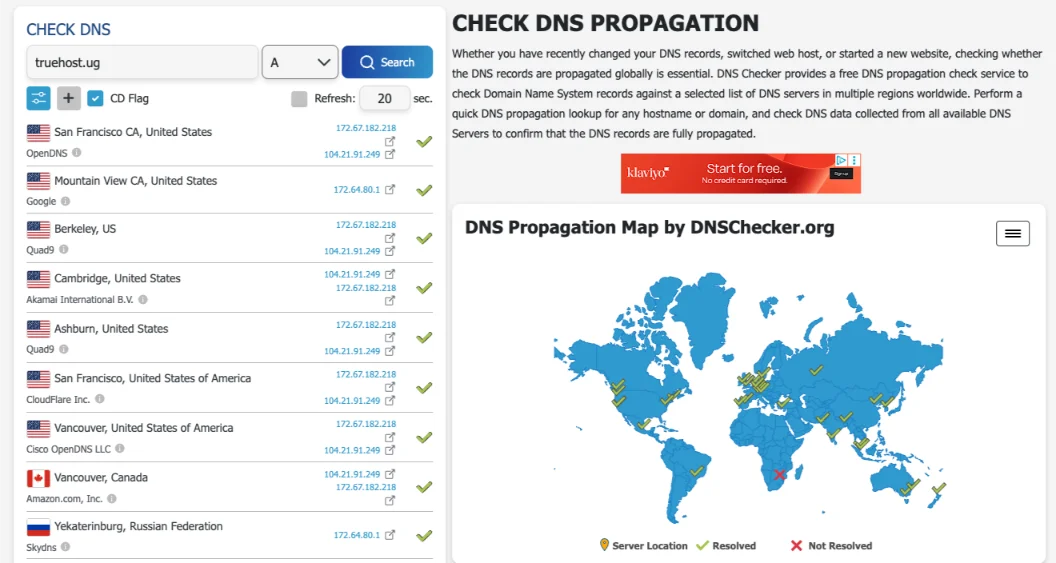
Pick the record type that matches your change. Use A for a website IP, CNAME for an alias, MX for email, TXT for SPF or verification, and NS for nameservers.
Now read the results.
- All locations match your new record: propagation is complete.
- Some show the new record and others the old: propagation is in progress. This is normal.
Check manually with command line
On Windows, use nslookup:
nslookup example.com
On Mac or Linux, use dig or host:
dig example.com A +short
host example.com
Example output from dig:
203.0.113.10
If that matches your new server’s IP, your resolver has the update.
Test with public resolvers
Ask Google and Cloudflare directly:
nslookup example.com 8.8.8.8
nslookup example.com 1.1.1.1
dig example.com A @8.8.8.8 +short
dig example.com A @1.1.1.1 +short
Large public resolvers often show changes sooner than a local ISP resolver. Compare the answers. If they match your new record but your own device doesn’t, the delay is local.
How to Speed Up DNS Propagation
Be honest with yourself here. You can’t force DNS propagation on the whole internet.
You can shorten the wait.
Lower the TTL 24-48 hours before the change
- Lower the TTL on the record to 300 seconds.
- Wait for the old TTL to expire.
- Make your change.
- Raise the TTL again to 3600 or 86400 once the site is stable.
Guides from CDN and DNS vendors say that, with a 300-second TTL in place, a new value is usually visible within 5 to 15 minutes.
Make the change once and correctly
Repeated edits restart the caching cycle. You end up with mixed results that are hard to read.
Check the value before you save it.
Change records only at the DNS provider that is active for the domain
Many people edit records in the wrong place. The change then does nothing.
To confirm which nameservers are active, run:
dig NS example.com +short
Edit your records at the provider those nameservers belong to.
Keep your DNS setup simple
Remove unused and duplicate records. Fewer records mean fewer mistakes and easier checks.
Flush your local DNS and browser cache
This helps you see the change sooner. It does not speed up propagation for everyone else.
Moving a site to a new server? We at Truehost can host it on a VPS or dedicated server, with your domain and DNS in the same place.
How to Flush Your DNS Cache
Run the command for your system. Each one only affects your own device.
Windows
- Open Command Prompt as administrator.
- Run:
ipconfig /flushdns
- Look for the message “Successfully flushed the DNS Resolver Cache.”
macOS
- Open Terminal.
- Run:
sudo dscacheutil -flushcache; sudo killall -HUP mDNSResponder
- Enter your password if asked.
Linux
- Open a terminal.
- On systems that use systemd-resolved, such as Ubuntu and Fedora, run:
sudo resolvectl flush-caches
Other distributions use different DNS services, so the command may differ.
Chrome’s internal DNS cache page
Chrome keeps its own DNS cache, separate from your system.
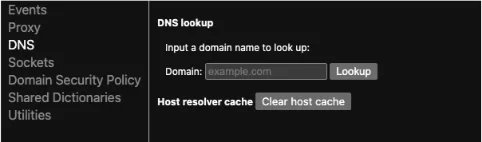
- Type
chrome://net-internals/#dnsin the address bar and press Enter. - Click “Clear host cache.”
- Open
chrome://net-internals/#socketsand click “Flush socket pools.”
Remember to clear your browser cache too, so old page files don’t hide the new site.
Common DNS Propagation Problems and How to Fix Them
Each problem below follows the same pattern: symptom, cause, fix.
Site still showing the old server
- Cause: A resolver or your device still holds the old IP.
- Fix: Check with a DNS checker. Flush your cache. Test on mobile data. Then wait out the old TTL.
“Server not found” or DNS_PROBE_FINISHED_NXDOMAIN
- Cause: A resolver cached a “no such domain” answer, or the records are missing. Resolvers keep that negative answer for the time set in the zone’s SOA record.
- Fix: Confirm the domain is registered and the records exist. Flush your cache. Wait for the negative answer to expire.
Site loads for some people and not others
- Cause: Propagation is incomplete. Different resolvers hold different answers.
- Fix: Keep the old server live so both groups reach a working site. Check again with a global DNS checker.
SSL certificate errors right after a change
- Cause: Visitors reach a server that has no certificate for your domain yet. Many hosts can only issue one after the domain points to them.
- Fix: Confirm the domain resolves to the new server. Then issue or reinstall the certificate.
DNS timeouts
- Cause: The new nameservers have no zone for your domain, or the nameserver hostname has a typo.
- Fix: Run
dig NS yourdomain.comand check each nameserver. Make sure the zone and records exist there.
Wrong or missing records (typos, wrong IP)
- Cause: A typo, a wrong IP or a record that never got copied over.
- Fix: Compare your records against your old zone. Correct the mistake once, then recheck.
What not to do: Don’t keep switching nameservers or editing records while you wait. Every new edit starts another cache cycle.
Does DNS Propagation Affect Email?
Yes. Email relies on MX, SPF, DKIM and DMARC records.
During propagation, these things can go wrong:
- Delayed delivery: Some mail servers still use the old MX record.
- Mail going to the old server: Messages land where you no longer check.
- Authentication failures: If SPF or DKIM records are not updated everywhere, receiving servers may send your mail to spam.
Email deliverability firm Warmy lists MX changes at 4 to 24 hours and SPF, DKIM and DMARC changes at 30 minutes to 24 hours. Palisade advises allowing up to 24 to 48 hours for the change to be honoured everywhere.
Here is the practical tip.
Set up the new mail records before you switch. Keep the old mail service active until DNS propagation completes.
Need professional email on your own domain? Check our domain and hosting options.
How Long Does DNS Propagation Take FAQs
1) Can I cancel or stop DNS propagation once it has started?
No. You can’t recall a change that resolvers have already cached. You can only make a new change.
Reverting is possible, but the revert will also take time to spread. It is best to confirm the record before saving it.
2) Should I keep my old hosting active while DNS propagates?
Yes. Some visitors will still reach the old server until their cache expires.
Keep the old hosting live for at least 48-72 hours after the change. That way nobody lands on an error page, and you can still receive emails sent to the old server.
3) Will DNS propagation hurt my SEO rankings?
A normal propagation period rarely does. Problems arise only if the site is unreachable when Google crawls it.
Keep the old site working, make sure the new one loads correctly, and avoid long periods of downtime.
4) Can I make more DNS changes while propagation is still ongoing?
You can, but it’s not advisable. New edits start fresh cache cycles, and you will get mixed results that are hard to troubleshoot.
Wait until the first change has fully spread, unless you have found a mistake.
5) Does propagation take longer for .co.ug and .ug domains?
Not necessarily. The time depends mainly on the TTL, the type of change and the resolver.
Registry-level updates for nameserver changes may add some time, though.
Get Fast, Reliable DNS Support With Truehost
Here is the short version. Most changes take a few minutes to 24 hours, and nameserver changes can take up to 48.
Three actions matter most: lower the TTL early, check with DNS tools, and clear your caches.
Moving a website or domain is easier when your hosting, domain and DNS are managed in one place. Support is there if something doesn’t resolve.
If you run a VPS, a dedicated server, N8n Hosting, OpenClaw hosting or AI Workers with us, your DNS records and your server stay in the same hands, which makes troubleshooting simpler.
Ready to make your next move smoother? Visit our domain and hosting pages, or contact our support team for DNS help.
