CMS stands for content management system. It is software that lets you create, store, edit and publish website content from a simple dashboard. You do not need to code every update.
So what is a CMS in daily use? It manages far more than blog articles. It handles:
- Pages and blog posts
- Service and product listings
- Images, videos and PDFs
- Menus and forms
- Testimonials and contact details
You may also see the term web content management (WCM). People often use “CMS” and “WCM” interchangeably, so expect both.
This guide shows how a CMS works, which type fits you, and how Ugandan businesses use one.
CMS vs Website vs Web Hosting: What Is the Difference?
People mix up these three terms. The table keeps them apart.
| Feature | CMS | Website | Web hosting |
|---|---|---|---|
| What it is | Software used to create, edit, organise, and publish content | The public online presence visitors see | The service that stores website files and makes them available online |
| Main job | Manage content through an admin dashboard | Display pages, products, services, and information to visitors | Store files, databases, images, and deliver the site to browsers |
| Who uses it | Staff, editors, marketers, and site administrators | Customers, clients, and other visitors | The website owner or developer sets it up; visitors do not interact with it directly |
| Example | WordPress dashboard | Your homepage, services page, and blog | The server account where your WordPress files and database live |
| Simple analogy | The staff workspace where products, prices, and displays are updated | The shop customers walk into | The building, electricity, and storage that keep the shop open |
CMS vs Website
Think of a shop. The website is the shop customers walk into.
The CMS is the staff workspace. That is where you update products, prices and displays.
Staff change content in the CMS. The website shows the published result.
CMS vs Web Hosting
The CMS manages content. Hosting stores the website files and database. It also makes your site reachable online.
A self-managed CMS needs three things before you can use it:
- A domain
- A hosting account
- A maintenance routine
We at Truehost run web hosting for Ugandan websites that is ready for WordPress, Joomla and Drupal.
How Does a CMS Work?
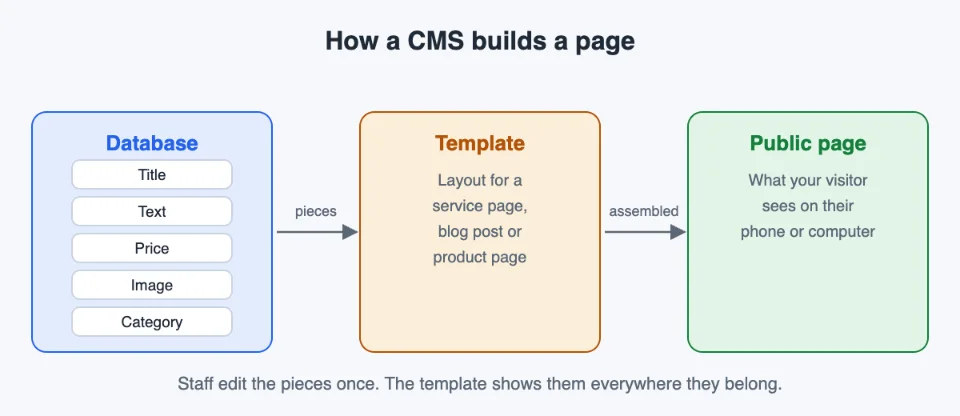
The core idea is simple. A CMS separates content from design. Your staff edit content without touching code.
1) Content Is Stored in a Database
Each item is stored as a separate piece:
- Title
- Text
- Price
- Image
- Category
When a visitor requests a page, a template assembles those pieces.
A hand-coded static page works differently. Every change means editing code, page by page.
Example: a small catering business stores a package price once. The template shows it wherever that package appears.
Text and settings sit in the database. Uploaded images and files sit on the server. Remember this split. It matters for backups later.
2) The Admin Area and the Public Site
A CMS has two sides. One is the dashboard where staff work. The other is the public pages visitors see.
Technical guides call these the content management application and the content delivery application. Now you will recognise both terms.
3) Themes and Templates
A theme is a bundle of design files. It sets the overall look of your site.
Templates are repeatable layouts for specific content types:
- Service page
- Blog post
- Product page
- Contact page
Templates keep pages consistent. They also speed up publishing.
4) Plugins and Extensions
Plugins are add-ons that give a CMS extra features. Small businesses often use them for:
- Contact forms
- SEO fields
- Online booking
- Ecommerce
- Analytics
- Security and backups
Too many plugins create risks:
- Slower pages
- Security gaps
- Conflicts between add-ons
Follow one rule. Install only what you need, from reputable providers. Remove what you stop using.
5) Core CMS Features You Will Use
Most platforms share a common toolkit:
- An editor and a media library
- Drafts, preview and scheduling
- Version history, categories and search
- SEO fields
- Integrations with analytics, email and payment tools
Most of these platforms install in one click with Softaculous on our cPanel hosting.
CMS User Roles and Permissions
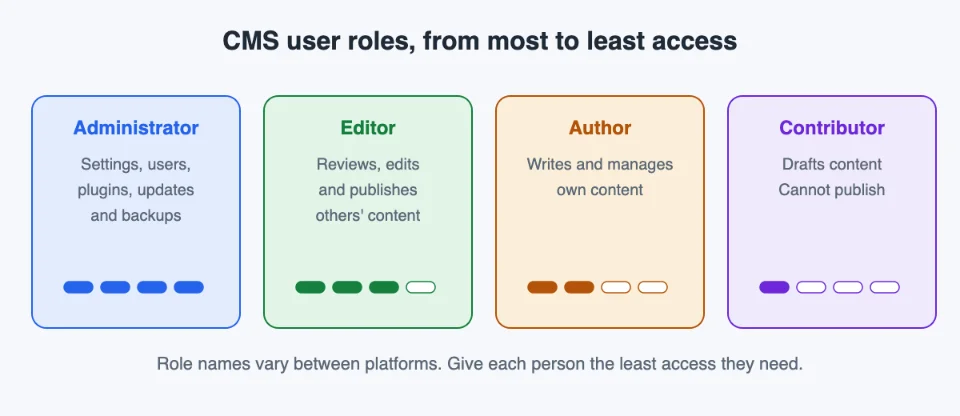
Several people can work on one site. Roles decide what each person can do.
a) Administrator
Administrators control major settings, user accounts, themes, plugins, security, updates and backups.
Limit this access to trusted people. One careless change can break the whole site.
b) Editor
Editors review, edit, approve and publish content created by others.
This role suits a part-time editor.
c) Author
Authors create and manage their own content. They may need approval before publishing.
This role suits a staff writer.
d) Contributor
Contributors draft content but cannot publish.
The role suits occasional writers or outside helpers.
Role names and permissions vary between platforms.
Why Permissions are Important
Good permissions do three jobs:
- They prevent accidental deletions and unwanted changes.
- They keep responsibility for published information clear.
- They let several people contribute without giving everyone full access.
Removing Access When Staff Leave
Remove accounts for former staff, contractors and agencies. Do it on their last day.
Review your user list on a regular schedule.
What Are the Different Types of CMS?
CMS platforms differ in how they are built. Here are the main types.
1)Traditional CMS
In a traditional CMS, content management and page display sit in one system.
It suits a single business website that needs a familiar, simple setup. WordPress is a common example.
2) Headless and Hybrid CMS
A headless CMS delivers content through APIs to a separately built front end. A hybrid CMS combines both approaches.
Headless frees developers from templates. It does not, by itself, give marketers page-building control.
It is rarely the starting point for a small business. If your developer builds a custom front end, a VPS gives it room to run.
3) Hosted and Self-Hosted CMS
With a hosted CMS, the provider handles updates, backups and security. With a self-hosted CMS, you or your developer handle them, and your host supports the server.
Examples of CMS Platforms
Several platforms are widely used:
- WordPress, Joomla and Drupal are widely used platforms.
- Wix and Shopify are hosted platforms with built-in content tools.
WordPress leads by a wide margin. As of 1 October 2026, W3Techs reports WordPress on 40.2% of all websites. Among sites with a known CMS, its share is 58.7%.
Benefits and Limits of a CMS for a Small Business
A CMS saves time. It also asks for some care.
a) Faster Updates Without a Developer
Your team can change these items on its own:
- Opening hours
- Prices
- Services
- Team details
- Promotions
- Blog posts
Complex technical changes still need professional help.
b) One Organised Home for Your Content
Categories, media libraries and search make content easier to find. You can reuse it too.
c) A Consistent, Collaborative Website
Templates and reusable sections reduce formatting errors.
Drafts, approvals and version history support shared work.
How a CMS Helps With SEO
A CMS gives you tools for:
- Editable URLs
- Page titles and meta descriptions
- Heading structure
- Image alt text
- Internal linking
- Sitemaps and redirects
- Mobile-friendly themes
These tools support SEO work. They do not guarantee rankings.
Limits and Risks to Plan For
Plan for these four limits:
- Security gaps when updates are skipped
- Slower sites from plugin overload
- A learning curve for beginners
- Developer help for setup and custom features
Keeping Your Website Safe and Current
A CMS is not a one-time setup. A little routine care keeps it healthy.
1) Updating the CMS, Themes and Plugins
Updates fix security issues and improve performance. They also keep add-ons compatible.
Apply security updates promptly. Test major updates before applying them to the live site, where possible.
2) Backing Up Your Website
Backups must include both website files and the database. Remember the split from earlier.
Keep a clear restore process. Test it before you need it.
3) Protecting User Access
Protect every account with:
- Strong, unique passwords
- Two-factor authentication
- Few administrator accounts
- No unused accounts
4) Checking Speed, Uptime and Broken Pages
Test page speed regularly. Check your contact forms, links and key pages on a phone.
If a busy site outgrows shared hosting, a dedicated server adds capacity.
5) Keeping Content Up to Date
Review pages for outdated details and expired offers.
Assign an owner to each important page.
Who Is Responsible for What
Responsibility shifts with your setup. Details vary by plan and agreement.
| Who | Self-hosted setup (for example, WordPress on a hosting plan) | Hosted platform (for example, Wix or Shopify) |
|---|---|---|
| Business owner | Content, user accounts, passwords, and checking that updates and backups happen | Content, user accounts and passwords |
| Hosting provider | Server, uptime and hosting tools; backups depend on your plan | Runs the platform, including hosting, updates, security and backups |
| Developer | Setup, custom features, fixes, and maintenance if you hire one | Optional; custom work within the platform’s limits |
A Simple Monthly and Quarterly Maintenance Checklist
Monthly
- Apply updates
- Check backups
- Test forms
- Fix broken links
- Review the user list
Quarterly
- Review content
- Clean up plugins
- Run a speed check
How Ugandan Businesses Use CMS Platforms
Local data shows which platforms Ugandan sites choose. It also shows how your visitors get online.
What .ug Website Data Shows
WordPress runs 75.7% of .ug websites whose CMS is known. Drupal follows at 12.5% (W3Techs, 10 October 2026).
The Uganda Revenue Authority and Soroti University both run WordPress.
This data covers .ug domains only. Sites with an unidentified CMS are excluded.
The Mobile-First Context
As of December 2025, the Uganda Communications Commission counted:
- 47.1 million active mobile subscriptions
- 36.3 million active mobile money accounts
- 18.5 million internet subscriptions
The practical steps are clear. Test every page on a phone. Plan for mobile money at checkout with an online shop built for it.
What This Means for the Staff Who Publish
A 2019 study of 172 SME owners and managers in Kampala describes Ugandan small businesses as slow to adopt e-commerce. It appeared in the International Journal of Business and Management.
The lesson is practical. Choose a CMS your team finds easy to use. Keep the workflow simple.
How to Get Started With a CMS
Six steps take you from idea to launch.
1) Define What Your Website Must Do
List your goals:
- Enquiries
- Bookings
- Sales
- Credibility
Then decide who will publish.
2) Choose a CMS and a Hosting Approach
Match the platform to your team’s skills, time and budget. Count the full cost:
- Domain
- Hosting
- Premium themes or plugins
- Maintenance help
3) Get a Domain and Hosting
A self-hosted CMS needs both.
We at Truehost Uganda offer .co.ug and .ug domain registration. You can install WordPress from the hosting control panel. Supported plans include daily backups, and you pay in Ugandan shillings.
See our Uganda hosting plans and open a domain with us.
4) Plan Your Pages, Menus and Templates
Start with a simple site map:
- Home
- About
- Services or products
- Blog
- Contact
- FAQ
5) Set Up Roles and Permissions
Assign who creates, edits, approves, publishes and maintains.
6) Test, Launch and Schedule Maintenance
Before launch:
- Check pages on phone and desktop.
- Test forms and links.
- Confirm your backups work.
Then set a recurring maintenance routine.
What Is a CMS FAQs
How Much Does It Cost to Run a CMS Website?
The CMS itself is often free. Other costs apply:
- Maintenance help
- Domain
- Hosting
- Premium themes and plugins
Can I Switch to a Different CMS Later?
Content can usually be exported and moved. Design and plugin settings often need rebuilding.
Plan URL redirects to protect your existing search traffic.
What Is the Difference Between a CMS and a Website Builder?
Website builders focus on designing and launching a site with drag-and-drop tools. A CMS focuses on managing content at scale.
Many modern platforms combine both. Our website builder is one option for a quick start.
Can I Sell Products Online With a CMS?
Yes. Many platforms support shops through built-in tools or plugins.
They cover products, payments and order tracking.
Does a CMS Support More Than One Language?
Yes. Multilingual support comes through built-in features or plugins.
You can serve customers in English and local languages.
Can I Manage My Website From My Phone?
Often yes. Many platforms offer mobile apps or mobile-friendly dashboards.
Complex layout work is easier on a computer.
Who Owns My Content and Website?
On self-hosted platforms, you control the files and database. On hosted builders, the provider controls the platform.
Check export options before you choose.
What Should I Do If My CMS Website Is Hacked?
Act fast and follow this plan:
- Contact your host.
- Restore a clean backup.
- Change all passwords.
- Update everything.
- Remove unknown users and plugins.
Launch and Manage Your Website With Truehost
A CMS gives your team a practical way to publish and maintain a website. A self-hosted platform such as WordPress needs a domain and reliable hosting.
We at Truehost are ready to help. Choose a Truehost hosting plan and get your site online.
