A bad update can take your VPS down in minutes. So can an accidental deletion, malware, a wrong setting, or a problem at your hosting provider.
The risk is real. Uptime Institute’s 2025 outage analysis found that nearly 40% of organizations had a major outage caused by human error in the past three years.
That is why the VPS snapshots vs backups question is worth settling early. The two sound alike, but they solve different problems.
A VPS snapshot is a point-in-time image of your server’s state. It captures the operating system, applications, settings, configuration files, and data.
A snapshot lets you roll the entire VPS back to that exact moment.
A VPS backup is an independent copy of selected data and configurations. It is stored separately from the original server.
A backup may include application files, databases, configuration files, or a full server image.
Here is the short version:
- Snapshots are best for fast, short-term rollback.
- Backups are best for independent, durable, and long-term recovery.
For a business-critical VPS, the safest approach is to use both. We at Truehost built our VPS hosting with that approach in mind.
Let’s look at how the two compare, one factor at a time.
Snapshots vs Backups: Comparison Table
Here is the side-by-side view. The sections after it explain each row.
| Feature | VPS Snapshot | VPS Backup |
|---|---|---|
| What it captures | OS, applications, settings, files, and data at one moment | Files, folders, databases, or full system |
| Creation speed | Usually near-instant or very fast | Slower, depending on data volume |
| Storage size | Often starts small and grows as changes occur | Usually a complete copy, though compression may reduce size |
| Storage location | Usually on the provider’s infrastructure | Can be off-site, on another provider, or in separate storage |
| Provider/account dependence | Usually tied to the same provider/account | Can exist independently of the original provider |
| Portability | Often provider-specific | Often portable across servers or providers |
| Retention | Often short to medium term | Suitable for short, medium, and long-term retention |
| Automation | Often manual or on-demand | Commonly scheduled automatically |
| Best use case | Quick rollback before updates or changes | Disaster recovery and long-term data protection |
Terms vary by provider. Some hosts use “snapshot” for an on-demand server image, while others use “backup” for scheduled copies of files, databases, or the full server.
Before relying on either feature, check exactly what your provider captures, where it stores the copy, how long it keeps it, and whether you can restore individual files.
1) What Each Method Captures
The first difference is scope. A snapshot takes everything. A backup takes what you choose.
Snapshot
- Captures the complete server state at a specific time.
- Includes the operating system, installed software, configuration, and data.
- Restoring a snapshot generally returns the whole VPS to that captured moment.
That is powerful, but a restore rewinds the entire server.
With many image-based snapshots, restoring individual files is not always straightforward.
You may need to restore the full server image first, then copy the specific files or database records you need.
Check the fine print. Hetzner’s documentation notes that its backups and snapshots do not include volumes attached to a server.
Backup
- Can be selective or full.
- May back up website files, database dumps, email data, or configuration files.
- Can also be a full-system backup.
- Allows recovery of only the component that was lost or corrupted.
This is the key strength of a backup. You fix the one thing that broke and leave the rest alone.
2) Creation Speed
Speed decides how often you can afford to protect your server.
Snapshot
- Usually much faster because it records the server state and tracks changes.
- Practical before deployments, updates, or configuration changes.
- Often created manually before a risky change.
Speed still depends on your provider, server load, disk type, and the amount of data being protected.
A snapshot may be quick, but it is not always instant, especially on a VPS with large databases, media files, or many user uploads. Plan enough time before a major update or deployment.
Backup
- Usually takes longer because data is copied to another location.
- Time depends on data size, network speed, compression, and backup type.
- Full backups take longer than incremental backups.
Speed is one trade-off. Storage is the next.
3) Storage Size and Growth
How much space each method uses depends on how it stores data.
Snapshot
- Often uses incremental storage after the first snapshot.
- Stores mainly changes rather than copying every file again.
- Can grow over time as the VPS changes.
Amazon’s EBS documentation shows the pattern clearly. The first snapshot holds all written data blocks. Later snapshots hold only new and changed blocks.
That is why a snapshot often starts small and grows as your server changes.
Backup
- Often creates a complete copy of the selected data.
- Compression, deduplication, and incremental backups can reduce storage needs.
- Requires more planning around storage capacity and cost.
Storage size is only half the story. Where the copy lives is just as important.
4) Storage Location and Independence
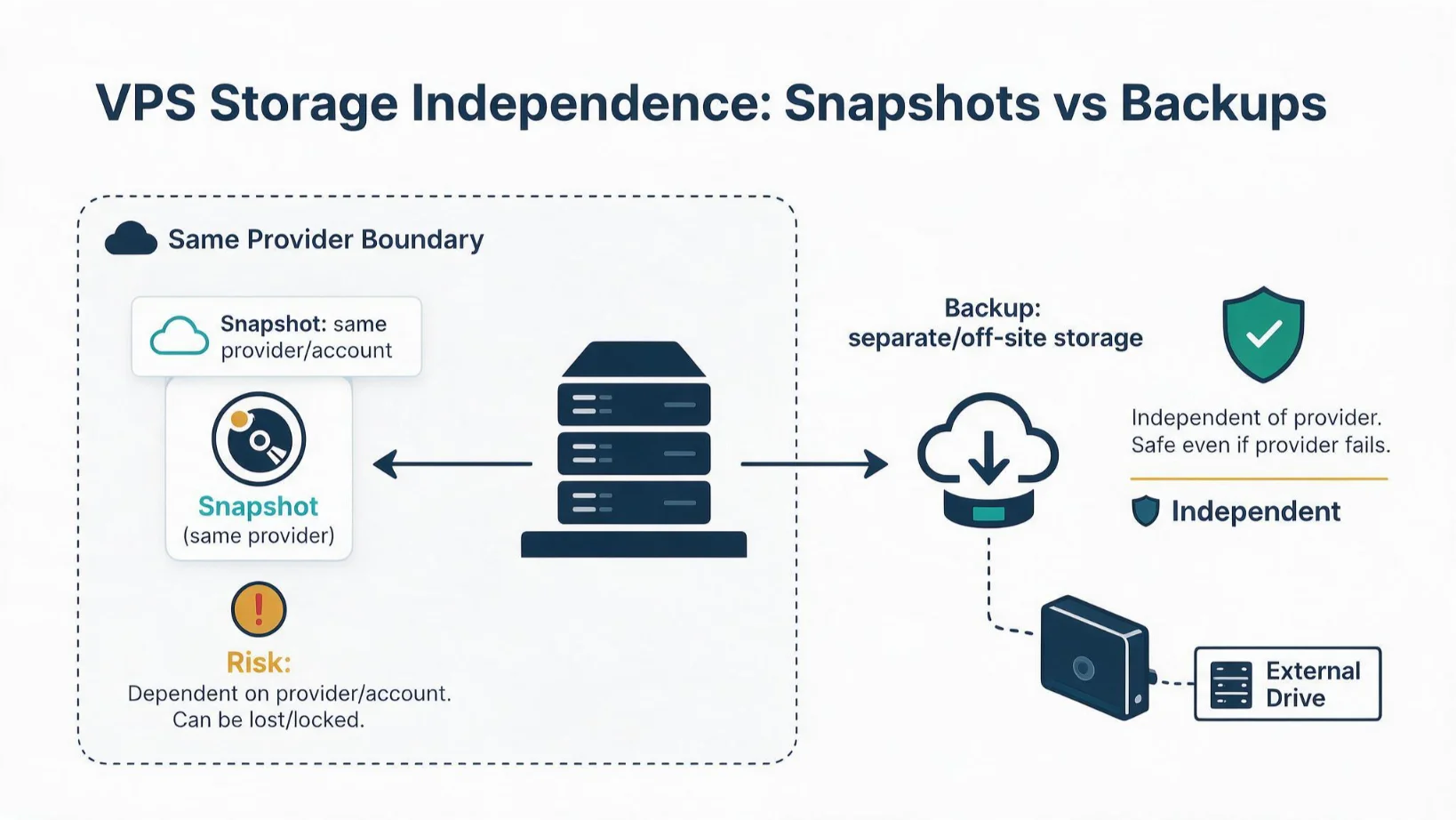
A copy stored next to your server can fail with your server. Location is where the two methods differ most.
Snapshot
- Commonly stored on the same provider infrastructure as the VPS.
- May remain within the same cloud account.
- Can be affected if the account is closed, compromised, or the provider suffers a storage failure.
On many hosting platforms, snapshots are stored within the same hosting account or provider environment as the VPS.
That means an account compromise, billing suspension, accidental deletion, or provider-level storage problem could affect both the server and its snapshot.
Backup
- Can be stored in a separate cloud account, object storage, another provider, or an off-site server.
- Provides stronger protection against account loss or provider failure.
- Essential for serious disaster recovery.
The data shows the risk:
- Veeam’s 2024 ransomware report found attackers tried to hit backup repositories in 96% of attacks.
- The same report found 43% of affected data was not recoverable.
- Sophos’s 2025 report found only 54% of organizations used backups to recover, the lowest in six years.
The U.S. cyber agency CISA gives the same advice. Its #StopRansomware Guide says to keep offline, encrypted backups and to test them regularly. It also suggests a multi-cloud approach so one vendor problem does not hit every copy.
So keep at least one copy outside your main account.
5) Portability
Portability decides how easily you can switch providers or rebuild elsewhere.
Snapshot
- Often provider-specific.
- Some providers allow restoration to another VPS, depending on compatibility.
- Less suitable for migration between hosting platforms.
Check your provider’s export and migration options before you need them.
Some providers let you transfer or download snapshots and backups; others keep them inside their own platform.
If portability is important to your business, choose a backup method that produces files, database dumps, or images you can store and restore elsewhere.
Backup
- Generally more portable.
- Database dumps, file archives, and full-server images can often be restored elsewhere.
- Useful for changing providers or migrating to a new server.
Still, test your restore before you need it. CISA’s guide warns that some system images do not install correctly on different hardware or platforms.
Its fallback is to keep separate access to your software.
Portability also shapes how long you can keep each copy.
6) Retention Period
Retention is how far back you can go.
Snapshot
- Commonly used for short-term recovery.
- Often retained for days or weeks.
- May be deleted manually or automatically, depending on the provider.
Policies differ widely. Some snapshots are retained until you delete them, while others are removed after a set period or when you exceed a storage limit.
Confirm the retention rule before using snapshots as your only recovery method.
Backup
- Better for long-term retention.
- Can include daily, weekly, monthly, and yearly versions.
- Helps recover an older clean version after a late-discovered problem.
Problems often stay hidden for a while. Sophos’s 2025 Active Adversary Report found a median dwell time of 4 days in ransomware incident-response cases, and 11.5 days in other attacks.
If your newest copy is from last night, it may already hold the damage.
Provider-managed backups can have short windows too. Provider-managed backups can also have limited retention windows.
For longer history, add your own scheduled backups to separate storage and keep several restore points, daily, weekly, and monthly where possible.
7) Automation and Scheduling
A protection plan only works if it runs without you.
Snapshot
- Often created manually before a change.
- Some providers support scheduled snapshots.
- Best used as a pre-change safety point.
Backup
- Usually automated on a schedule.
- Common examples include daily database backups and weekly full-server backups.
- Reduces the risk of forgotten or inconsistent manual backups.
Human error is why automation helps. Uptime Institute’s 2025 analysis found that 85% of major human-error outages came from staff not following procedures, or from flawed procedures.
A schedule removes the “I forgot” risk.
Choose a backup frequency that matches how often your data changes.
An active online store, business email system, or database-driven website may need more frequent backups than a static website.
Truehost offers two backup add-ons on its VPS plans:
JetBackUp 5 for backup and restore of files, emails, and databases, with self-service recovery, and Cloudoon Vault for automatic scheduled backups, alerts, and one-click restoration.
Set your schedule once with Truehost VPS hosting.
8) Cost Considerations
In the VPS snapshots vs backups debate, cost often decides the first move. It should not decide the last one.
Snapshot
- May appear cheaper initially because of incremental storage.
- Costs can increase if many snapshots are retained for a long time.
- Best value for short-term recovery needs.
Snapshot costs usually depend on the amount of storage used and how many restore points you retain.
Keeping several large snapshots for months can cost more than expected, so delete outdated snapshots once they are no longer useful.
Backup
- May cost more because of full copies and off-site storage.
- Provides greater resilience and long-term protection.
- Cost should be balanced against the value of the data and recovery requirements.
Backup costs depend on the backup method, storage location, frequency, compression, and retention period.
Off-site backups may cost more, but they provide stronger protection against server failure, account compromise, and ransomware.
Now weigh that against recovery. Sophos found the average cost to recover from a ransomware attack was $1.53 million in 2025.
Your numbers will be far smaller. The gap between prevention and recovery is the point.
Prefer less hands-on work? Our Managed VPS plans have us handle server setup, updates, security, and monitoring.
Next, let’s turn all of this into clear decisions.
When to Use a Snapshot
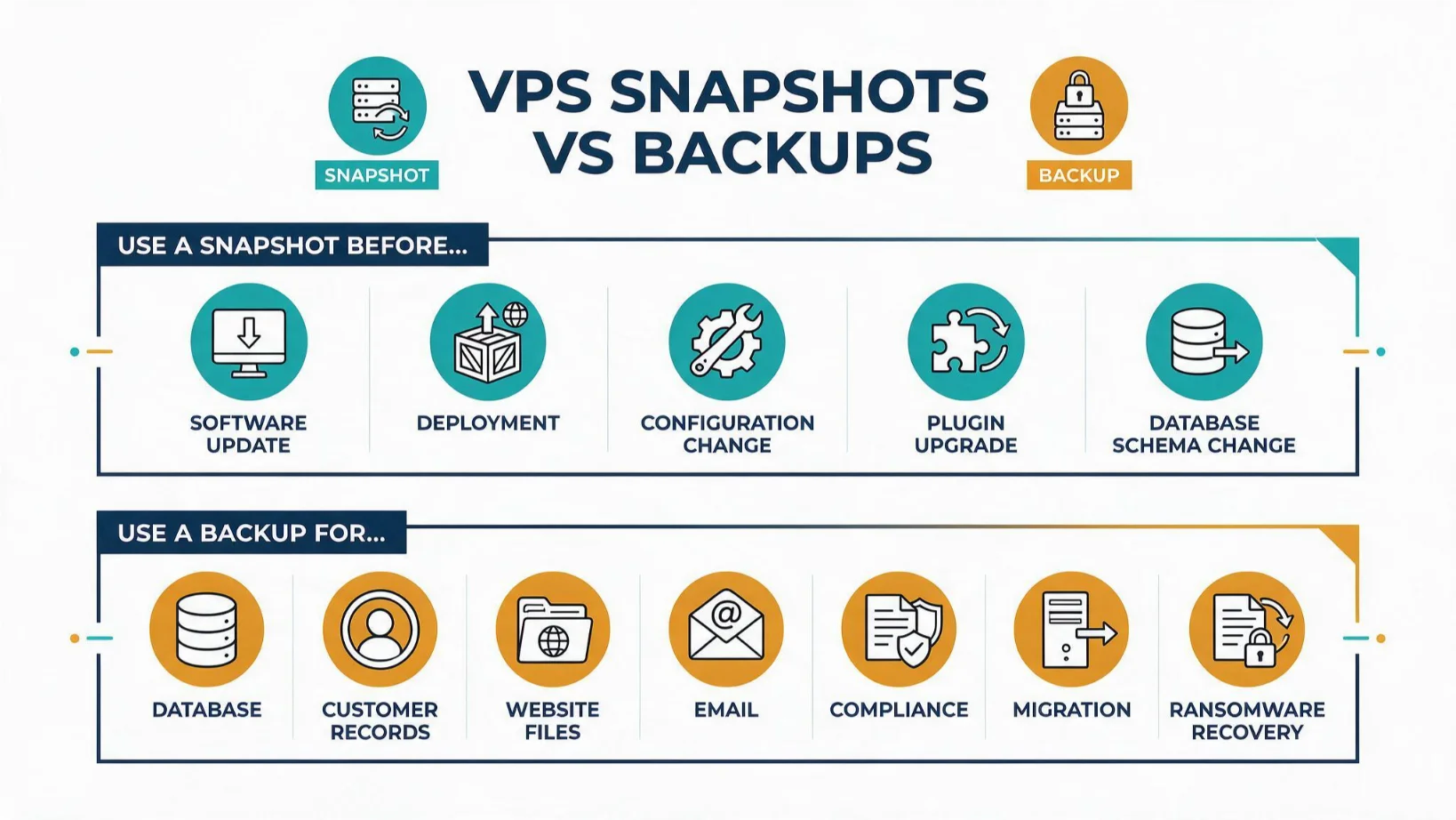
Reach for a snapshot when you need a fast way back.
- Before operating-system updates.
- Before application deployments.
- Before server configuration changes.
- Before plugin, theme, or dependency upgrades.
- Before database schema changes.
- When testing a new feature on a production-like server.
- When you need a fast rollback point after a failed change.
Changes are where things break. Network World’s summary of Uptime Institute’s report links a rise in IT and network outages in 2024 to change management and misconfiguration.
Many tools on a VPS change often. That includes n8n, OpenClaw, and AI Workers, all of which we at Truehost host.
A snapshot before each upgrade keeps a bad update from becoming an outage.
Snapshots also help after an incident. CISA’s guide advises taking a snapshot of cloud volumes to keep a point-in-time copy for later forensic review.
When to Use a Backup
Use a backup for anything you cannot afford to lose.
- For databases and customer records.
- For website files and user uploads.
- For configuration files.
- For email or business-critical data.
- For compliance or audit requirements.
- For migration to another provider.
- For recovery from ransomware, corruption, or accidental deletion.
Ransomware is a real threat. Veeam’s 2025 report found 69% of surveyed organizations were hit by ransomware in the past year.
Compliance plays a part too. Under section 20 of Uganda’s Data Protection and Privacy Act, data controllers must adopt measures to prevent loss and unauthorised destruction of personal data. Ask a legal adviser what applies to your business.
Need dedicated resources for a larger workload? The same rule applies: keep at least one copy of your business-critical data away from the server itself.
Start your backup plan with Truehost VPS hosting and choose the backup add-on that matches your recovery needs.
Choosing the Right Recovery Strategy for Your VPS
The VPS snapshots vs backups choice is not either-or.
- Snapshots and backups are not competitors; they solve different recovery problems.
- Use snapshots for fast, short-term rollback after failed updates, deployments, or configuration changes.
- Use backups for independent, long-term protection of databases, application files, and business-critical data.
- For any business-critical VPS, the safest approach is to use both.
Here is a simple routine to follow:
- Take a snapshot before every change.
- Schedule automatic backups for your databases and files.
- Keep at least one backup copy outside your main account.
- Restore a backup on a test server on a regular basis.
The last step is the most important. CISA’s guide says to test your backups regularly, because a copy you have never restored is only a guess.
Truehost supports this approach with VPS hosting and optional backup services.
JetBackUp 5 helps protect and restore files, emails, and databases, while Cloudoon Vault provides automatic scheduled backups, alerts, and one-click restoration.
Confirm the features included with your specific VPS plan before relying on them.
Protect your VPS with both snapshots and backups with Truehost VPS hosting.
