Upgrade from reseller hosting to a VPS when resource limits, slow websites, or software restrictions start affecting your clients, and you cannot fix the problems through optimization.
Reseller hosting lets you sell hosting without managing a server. However, each client account has resource limits that may not support busy websites or growing applications.
A VPS gives you more resources and control, but it also adds costs for server management, security, backups, and licences.
This guide covers when to upgrade, what to check before buying, when to stay on reseller hosting, and how to move your clients’ websites safely.
What You Have Now vs. What a VPS Offers
The main difference is control. With reseller hosting, your provider manages the server. With a VPS, you get more control but may also need to manage the server yourself.
| Feature | Reseller Hosting | VPS Hosting |
| Resources | Shared within plan limits | Allocated CPU, RAM, and storage |
| Control | Limited | Greater control, often with root access |
| Management | Provider handles server tasks | Depends on the plan |
| Customization | Limited | More flexibility |
| Cost | Usually cheaper | Usually more expensive |
| Best for | Starting a hosting business | Growing businesses needing more control |
Reseller hosting: You create and manage client accounts, set hosting limits, and brand your services. Your provider handles the server, security, and maintenance.

VPS hosting: You get a virtual server with allocated resources. You can install software and change server settings, but you may need to handle updates, security, and backups unless you choose a managed plan.
Check the virtualization type before buying. KVM gives each VPS its own kernel and allocated resources. Container-based options, such as OpenVZ, share the host kernel and may have more resource-sharing limitations. Ask your provider which technology it uses and whether your resources are guaranteed.
Signs to Upgrade from Reseller Hosting to a VPS
If two or more of these signs persist after checking your usage, it may be time to upgrade. One problem alone may have a cheaper fix.
1) Websites Stay Slow After Optimization
If websites remain slow after you enable caching, compress images, and remove unnecessary plugins, the server may be the problem.
- Check time to first byte (TTFB). Above 800 ms may indicate a server, database, or PHP issue.
- Compare website speed during peak and off-peak hours.
- Update PHP and enable full-page caching.
If sites remain slow and performance changes with server traffic, a VPS may offer more consistent performance.
2) You Keep Hitting Resource Limits
Frequent CPU, RAM, process, or inode warnings suggest your reseller plan may no longer meet your needs.
Check cPanel → Metrics → Resource Usage to see which limits your accounts reach. Ask your provider if the limits can be increased before upgrading.
If only one client uses too many resources, consider moving that website to a separate plan instead of moving all your clients.
3) Clients Experience Unreliable Performance
Online stores, booking platforms, and busy websites need consistent performance. Watch for:
- Frequent 503 errors during traffic spikes.
- Slow response times, even on cached pages.
- Slow admin dashboards.
- Checkout timeouts on WooCommerce stores.
A properly provisioned VPS can provide more predictable performance through dedicated resource allocations.
4) You Need More Server Control
Reseller hosting limits the settings you can change. A VPS with root access lets you configure PHP versions, memory limits, caching, web servers, and security rules to suit your clients’ needs.
5) Clients Need Unsupported Software
Some applications require software that shared hosting does not support. Examples include Docker, Redis, Elasticsearch, and certain Node.js applications.
Check with your provider first, as some shared hosting plans support Node.js or external Redis services. Upgrade when these alternatives cannot meet your clients’ requirements.
6) You Want to Offer Premium Hosting Plans
A VPS gives you more control over resources and server settings, allowing you to offer higher-tier hosting packages.
You can charge more for features such as custom configurations, dedicated IP addresses, and greater resource allocations. However, most basic websites do not need a dedicated IP, and it does not automatically improve search rankings.
Only offer premium features that your clients need and are willing to pay for.
What to Check Before Upgrading to a VPS
Check these four things before buying a VPS. They help you decide if you need one, what size to get, the total cost, and how much server management you can handle.
i) Review Your Current Resource Usage
- Check CPU, RAM, storage, bandwidth, and process usage over the last 30 days. Note peak usage, not just averages.
- Identify which websites use the most resources.
- Check error logs for resource-limit warnings, slow queries, and 503 errors.
- Optimize your websites first by enabling caching, updating PHP, and removing unnecessary plugins.
ii) Estimate Your VPS Requirements
Your needs depend on the number of websites, traffic, and applications you run.
- CPU: Handles website requests and background tasks.
- RAM: Supports websites, databases, and server software. cPanel & WHM require at least 2 GB RAM and 20 GB disk space, with more needed for larger workloads.
- Storage: Must cover website files, databases, emails, backups, and future growth.
- Bandwidth: Must support your expected traffic and data transfers.
- Software: Check that your operating system supports your control panel and applications. cPanel requires a separate licence for each server.
Use your peak resource usage to estimate what you need, then allow an extra 30–50% for growth and backup tasks. Choose a provider that lets you easily upgrade resources.
iii) Compare the Total Cost
The VPS monthly fee is only part of the expense. Include:
- Hosting: The VPS subscription.
- Control panel: cPanel charges depend on the number of accounts. Its tiers include Solo (1 account), Admin (up to 5 accounts), Pro (up to 30 accounts), and Premier (up to 100 accounts). Check current licence prices before buying.
- Management: Extra fees for managed support, if applicable.
- Backups and security: Include external backups and security tools. Keep copies outside your hosting account and test that you can restore them.
- Migration: Account for migration services and the period when both hosting plans are active.
- Your time: Include the hours spent on updates, monitoring, security, and troubleshooting.
Compare this total with your current reseller plan. A VPS may cost more if you need expensive licences or server management, so make sure the extra resources and control justify the expense.
iv) Choose Between Managed and Unmanaged VPS Hosting
| Feature | Managed VPS | Unmanaged VPS |
| Server setup | Provider | You |
| Security updates | Provider, as agreed | You |
| Monitoring | Provider, as agreed | You |
| Troubleshooting | Provider’s support scope | You |
| Root access | Depends on the plan | Usually full |
| Cost | Higher | Lower |
- Managed VPS: Best if you want to focus on clients and sales while the provider handles agreed server maintenance. Confirm whether support covers cPanel, email issues, and account restores.
- Unmanaged VPS: Best if you can handle server setup, security, updates, monitoring, and backups yourself.
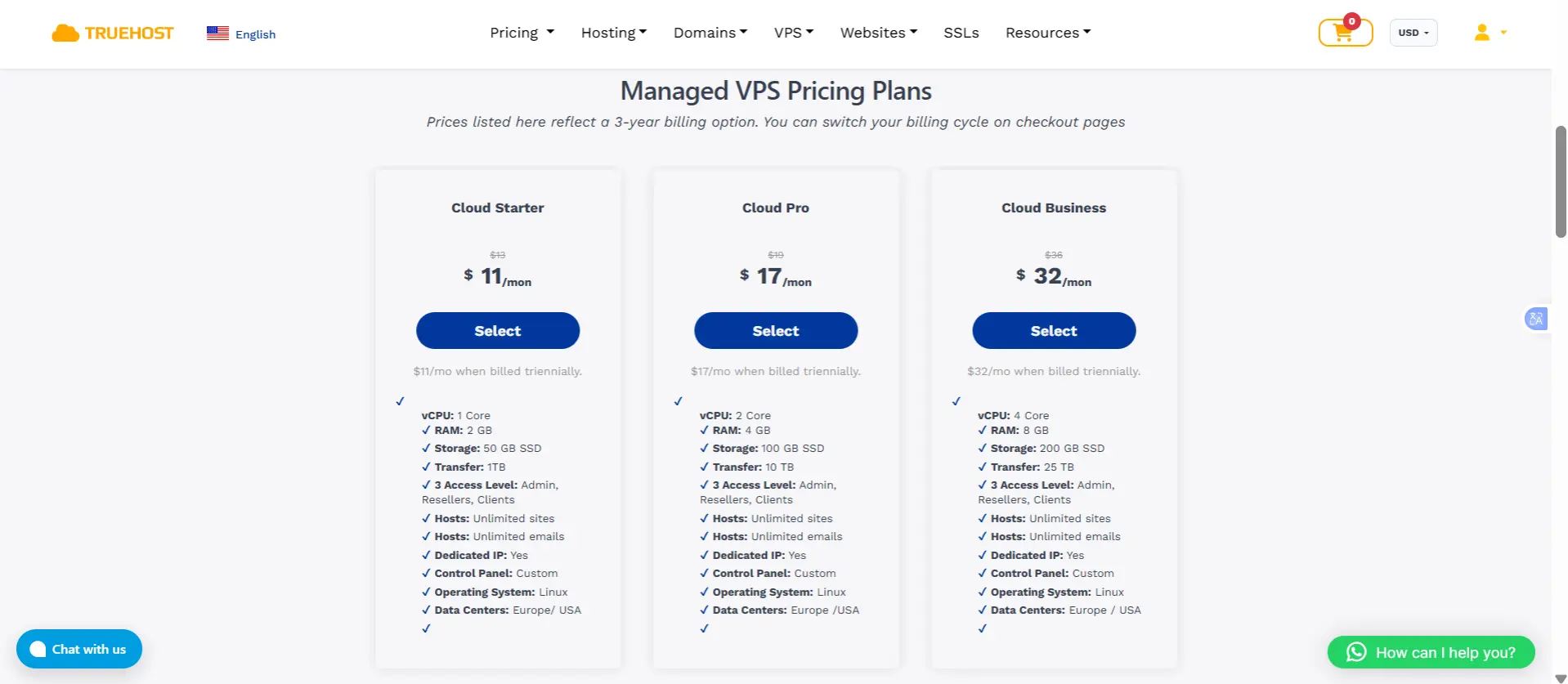
Providers such as Truehost offer VPS options to compare. Check the management services, licence fees, and available resources before ordering.
When You Should Not Upgrade Yet
A VPS is not always necessary. Try these cheaper options first:
- Only one or two websites are slow. Compress images, remove heavy plugins, enable caching, and update PHP. Check the site’s speed after each change.
- You need slightly more resources. Upgrade to a higher reseller plan if it offers more CPU, RAM, or storage at a lower cost than a VPS.
- Only one client needs more power. Move that client to a VPS or a separate hosting plan while keeping the other websites on reseller hosting.
- You do not want to manage a server. Stay on reseller hosting or choose a managed VPS. Managing updates, security, and backups yourself takes time.
Before upgrading, ask your provider:
- Which resource limit is my account reaching, and when?
- Can the limit be increased, and how much will it cost?
- Is there a higher reseller plan or a separate hosting option for a resource-heavy client?
How to Move from Reseller Hosting to a VPS
Follow these steps to move your clients’ websites safely. Change DNS only after you have migrated and tested every site.
- Choose a VPS plan. Match CPU, RAM, and storage to your websites’ needs, with room to grow. Check that the plan is managed or unmanaged as you intend, supports resizing, and includes root access. Compare providers such as Truehost, and confirm current prices and resources before you order.
- Set up the server. Install the operating system, control panel, security tools, and required services. For cPanel & WHM, start from a clean operating system and buy a valid licence. Configure a firewall, secure SSH access, and enable automatic security updates.
- Back up all client accounts. Save website files, databases, emails, and DNS records, and keep copies outside the old server. Record MX, SPF, DKIM, and DNS TTL values.
- Migrate the accounts. Use WHM’s Transfer Tool to move accounts from the old server, and transfer reseller accounts before their clients’ accounts to preserve ownership. If the tool is unavailable, restore account backups on the VPS. Reconfigure security settings and third-party licences that do not transfer automatically.
- Test every website. Preview each site on the new server before you change DNS. Test logins, forms, databases, and checkout. Check that email sends and receives and that SSL certificates work. Fix all errors before you continue.
- Update DNS records. At least 24 hours beforehand, lower the TTL of the records you will change to 300 seconds, and let the previous TTL expire. Switch DNS during a quiet period. Create mailboxes and copy existing emails before you change MX records. After the switch, sync emails again, update SPF and DKIM settings, and confirm every domain works.
- Monitor the VPS. For the first week, watch CPU, RAM, storage, error logs, backups, website speed, and email delivery. Restore one client account from backup to confirm you can recover it when needed.
- Keep the old hosting temporarily. Cancel the reseller plan only after every website and email service works on the VPS. Keep the old server available for at least 24 to 48 hours after the email switch, and confirm which licences and tools you must replace.
Done in this order, the move leaves clients with no visible change except better performance. If you have confirmed the signs above and measured your requirements, compare Truehost VPS plans and choose the one that fits your client portfolio, then resize it as the portfolio grows.
Reseller Upgrade to a VPS FAQs
How many client websites can a VPS host?
There is no fixed limit. It depends on your CPU, RAM, storage, and website traffic. A VPS can host hundreds of simple websites, while one busy website may need more resources than several small ones. Leave room for growth and remember that cPanel licence costs increase with the number of accounts.
Can I host reseller clients’ websites on a VPS?
Yes. Use a control panel such as cPanel & WHM to create separate client accounts with individual logins, email, and resource limits. For per-account CPU and RAM limits, you may also need a separately licensed solution such as CloudLinux.
Can I move from reseller hosting to a VPS without downtime?
You can minimize downtime, but you can guarantee none. Copy your files, databases, and emails to the VPS, then update DNS. Keep both servers running during propagation. For online stores and other sites that receive new data, schedule the switch during quiet hours and perform a final data sync to avoid losing updates.
Can I keep my brand and nameservers after moving?
Yes, if you use branded nameservers such as ns1.yourdomain.com and ns2.yourdomain.com. Before migrating:
- Copy all client DNS records to the VPS.
- Configure the nameservers in WHM.
- Update the nameserver glue records at your domain registrar to point to the new VPS IP addresses.
This requires root access. Existing clients can keep using your branded nameservers, but clients using your old provider’s nameservers will need to update their domain settings.
Will my billing software and licences carry over?
Not always. Check your licences and tools before migrating.
Security settings and third-party tools: These may need to be configured again because they do not always transfer with your accounts.
WHMCS: Direct licences may need to be reissued for the new server IP. Provider-supplied licences may require a new purchase.
cPanel & WHM: You need a valid licence for the new VPS.
