Your website is down; maybe it’s showing a blank white screen, or you’re getting a 500 error. Maybe it’s just crawling so slowly that visitors are bouncing before the page even loads.
Whatever the symptom, downtime costs you money. Every minute your site is unreachable, you’re losing sales, leads, and trust.
The faster you figure out what’s actually wrong, the faster you can fix it and get back to business.
The problem is that website downtime can mean a dozen different things. It could be your internet connection. It could be your hosting provider having a bad day, a plugin you updated last night, or could be someone attacking your server.
The only way to know is to run through the possibilities in a logical order.
This article explains the seven checks to run when your website goes down. Work through them one by one, and you’ll pinpoint the problem without wasting time on the wrong fixes.
7 Checks to Run During Website Downtime
1) Verify It’s Not Just You
Confirm the site is down for everyone and not just your connection.
Start with the obvious: try loading your site from a different device. Pick up your phone, turn off Wi-Fi, and use mobile data.
If the site loads on your phone but not your laptop, the problem is on your end, your router, your ISP, or your local network. If it fails on both, keep going.
Next, try a different browser. Open Chrome if you normally use Firefox, or vice versa. Try incognito or private browsing mode to rule out a cached version of the page or a cookie issue.
Sometimes your browser holds onto a broken version of the site and refuses to let go.
If those steps don’t settle it, use a third-party tool to check from outside your network.
Services like “Is It Down Right Now” or similar uptime checkers will tell you whether the site is reachable from servers located elsewhere.
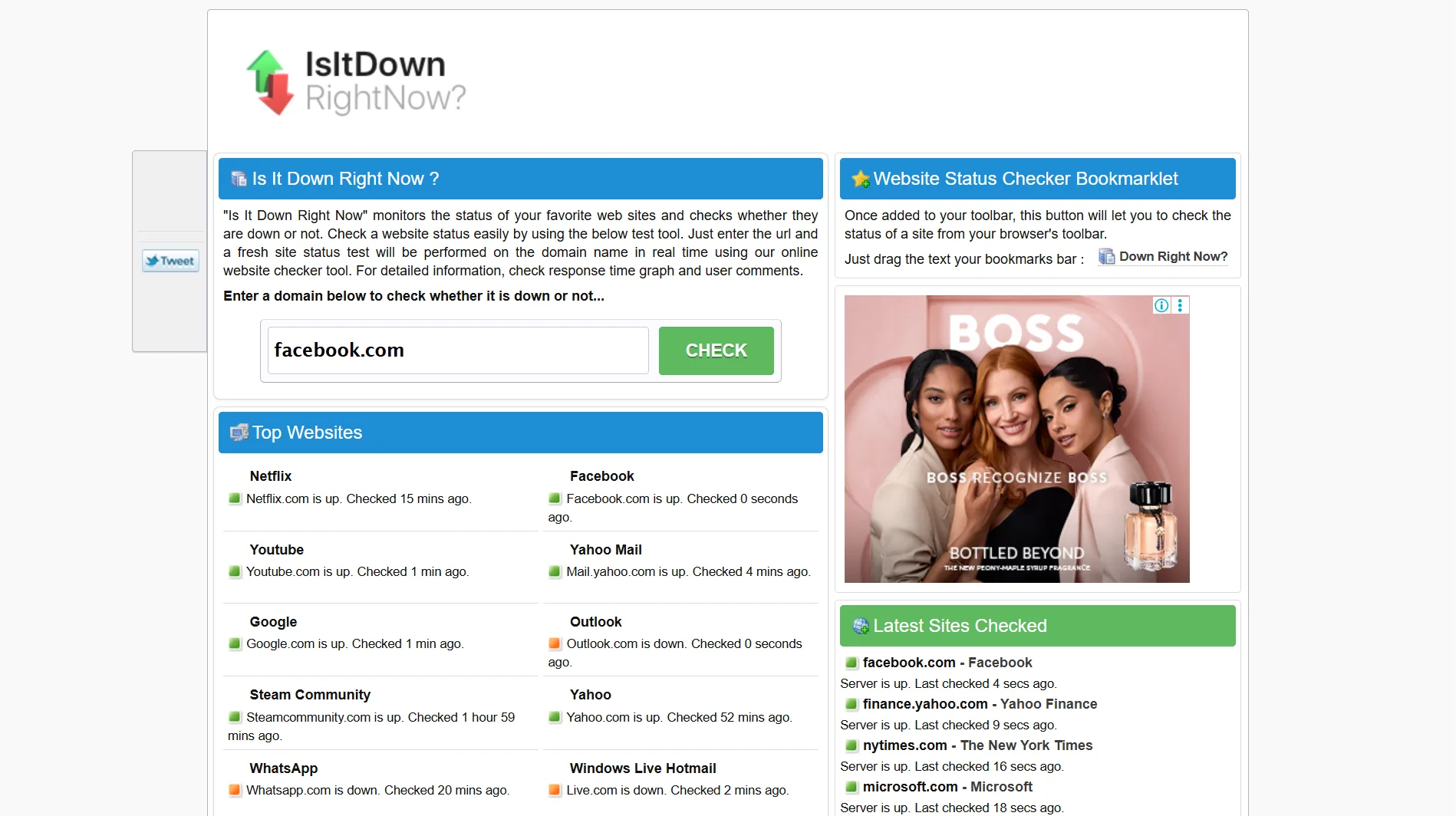
This is the definitive answer to the “is it me or them” question. If the tool says the site is up, your local connection is the culprit.
If it says down, you’ve got a problem on the server side.
2) Check Your Hosting Provider’s Status
Once you’ve confirmed the issue isn’t local, the next question is whether your hosting provider is having its own problems.
Every reputable host has a status page. Find yours and look at it. The page will tell you if there’s scheduled maintenance, a widespread outage, or degraded performance in your region.
Don’t just check once; refresh it. Outages evolve, and a status page that said operational ten minutes ago might have been updated since.
While you’re at it, check the provider’s social media accounts. Hosts often post real-time updates on Twitter or Facebook before their status page catches up.
If other customers are complaining about the same problem, you’ll know it’s not just you.
One more thing to rule out on your end: your account status. Log into your hosting dashboard and confirm there’s no billing issue, no suspension notice, and no overdue invoice sitting there.
It sounds obvious, but a surprising number of outages turn out to be a failed payment that triggered an automatic suspension.
Make sure your account is in good standing before you spend hours chasing a technical ghost.
3) Inspect DNS and Domain Settings
If your host is fine and your account is clean, the next place to look is your domain and DNS configuration.
First, check your domain registration. Has it expired? Domains expire silently, and when they do, your site vanishes from the internet entirely.
Log in to your registrar and confirm your domain is active and paid up.
If it’s expired, renew it immediately, though be aware that restoration can take 24 to 48 hours even after you pay.
Next, verify your DNS records. Your nameservers need to point to the right hosting provider.
If you recently switched hosts or changed your DNS settings, those changes take time to propagate across the internet; anywhere from a few minutes to 48 hours depending on the TTL settings.
If you made DNS changes right before the site went down, propagation is your likely culprit. Wait it out.
Also, check that your A record is pointing to your server’s actual IP address. If the IP changed and the record didn’t update, visitors are being sent to a dead end.
And while you’re in there, look at your SSL certificate.
An expired or misconfigured certificate will trigger browser warnings that scare visitors away, even if the site is technically loading.
4) Review Recent Changes
If your site was working fine yesterday and it’s broken today, something happened in between. Maybe you updated a plugin, a theme got a new version, someone on your team deployed code changes, or you edited your server configuration.
Start by rolling back anything you updated in the last 24 to 48 hours. For WordPress sites, plugins and themes are the usual suspects.
One incompatible update can white-screen your entire site. Deactivate the most recently updated plugin by renaming its folder via file manager or FTP, and see if the site comes back.
If it does, you’ve found your problem.
Don’t forget to check with anyone else who might have access to your site. A developer, a freelancer, a colleague; someone might have pushed a change without telling you.
Ask before you spend hours debugging something that was a deliberate (but broken) modification.
If the timing lines up, the change is almost certainly the cause.
5) Check Server Resources
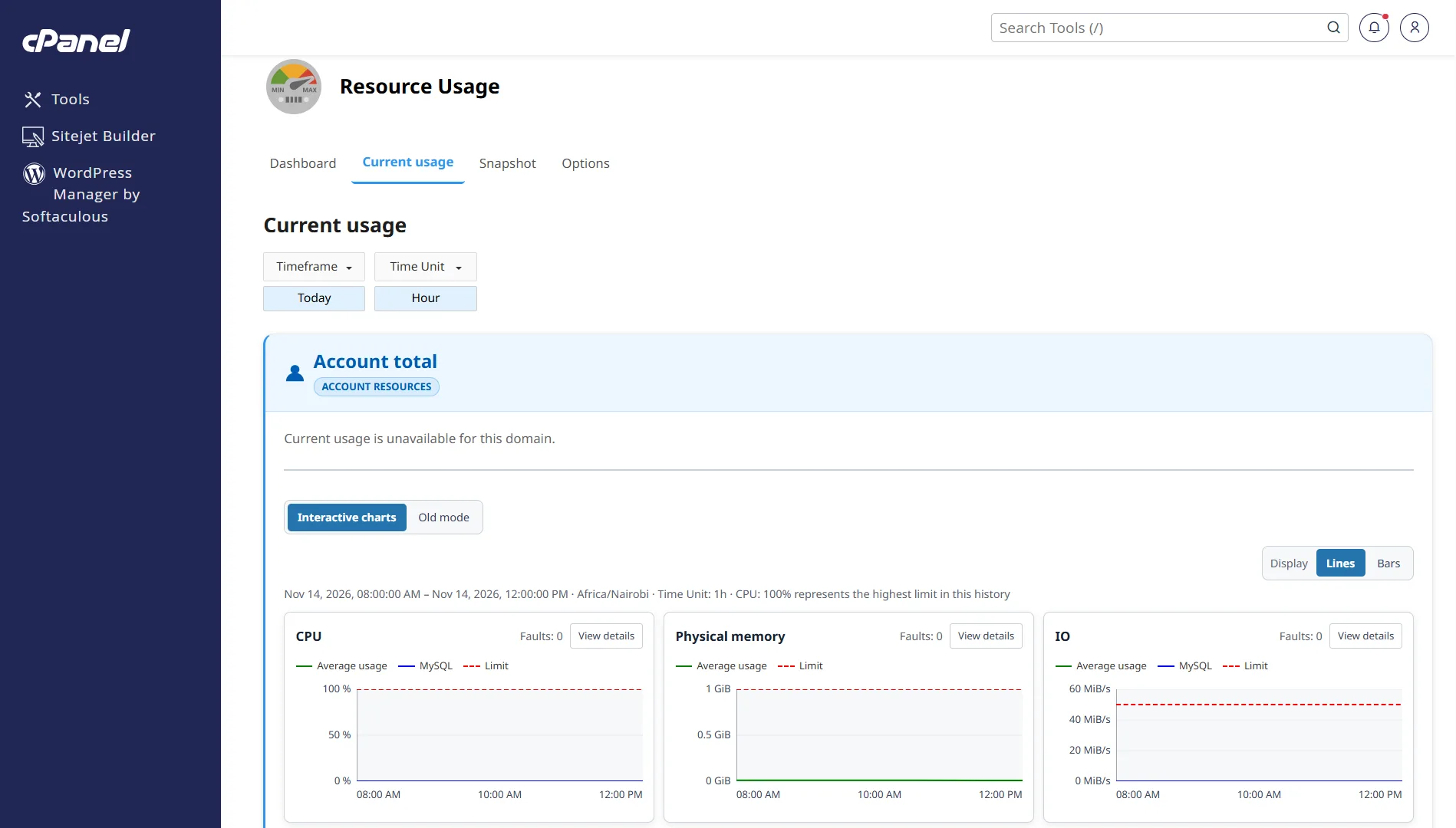
If nothing changed and your host is operational, your server might be running out of resources.
Log into your hosting control panel (cPanel, Plesk, or whatever your host uses) and look at your resource usage.
You want to see CPU usage, RAM consumption, and disk space.
If any of these are maxed out or consistently hitting 90 to 100 percent, your server is struggling to keep up.
That’s when pages stop loading, scripts time out, and databases lock up.
Look at your bandwidth usage too. A sudden traffic spike can overwhelm a plan that normally handles your load just fine.
If you’re on a shared hosting plan with limited resources, you might be hitting the ceiling of what your account allows.
Don’t forget the database. A locked, corrupted, or unresponsive database will take your entire site down, even if the web server itself is fine.
Check whether you can connect to the database through phpMyAdmin or your host’s database tool. If queries hang or return errors, that’s your problem.
6) Scan for Security Breaches
If your resources look normal but the site is still broken or behaving strangely, consider the possibility that you’ve been hacked or attacked.
Start by looking for obvious signs: strange redirects sending visitors to unfamiliar sites, admin accounts you didn’t create. Have files been modified or added that you don’t recognize?
Check your firewall and WAF logs if your host provides them. A DDoS attack will show up as a massive volume of traffic from many sources, often hammering a single page or endpoint.
A brute force attack will show as repeated login attempts from the same IP or a small range of IPs.
If you see patterns like this, you’re under attack, and you need to block the offending traffic immediately.
Malware is another possibility. Hackers can inject malicious code that breaks your site, steals visitor data, or uses your server to send spam.
Run a malware scan using a tool like Wordfence or Sucuri if you have one installed. If not, install one now and let it check your files.

In the worst case, your site has been compromised and is now serving malicious content to your visitors.
If you suspect this, take the site offline temporarily while you clean it. It’s better to be down for a few hours than to infect your customers’ devices.
7) Analyze Error Logs
Your server and application logs record errors, warnings, and failures with timestamps and specific details.
For a WordPress site, the PHP error log is usually most useful; it points to the exact file and line number where something broke. A “PHP Fatal error” entry will tell you which plugin or theme crashed the site.
Look at the specific error codes you’re seeing. A 500 Internal Server Error means something on the server side is broken, often a PHP issue, a bad .htaccess rule, or a resource limit being hit.
A 502 Bad Gateway usually means your web server can’t communicate with the application server behind it. A 503 Service Unavailable indicates the server is temporarily overloaded or in maintenance mode.
Correlate the timestamps. When exactly did the first error appear? Does it line up with a deployment, a traffic spike, or a plugin update? That correlation will point you toward the cause.
Look for repeated patterns. If you see the same error over and over, that’s your smoking gun.
If you see a sudden burst of different errors, something fundamental changed on the server. Either way, the logs are your most direct evidence.
Quick Checklist: Downtime Issue + What to Check
| Symptom | What to Check |
| Site won’t load at all | Local connectivity, hosting status, DNS/domain expiry |
| Blank page / white screen | Recent code or plugin changes, error logs |
| Error 500 / 502 / 503 | Server resources (CPU/RAM/disk), error logs |
| Site loads but very slow | Server resources, traffic spikes, database responsiveness |
| Partial pages or broken features | Recent changes, third-party dependencies (APIs, CDNs) |
| Redirects to unknown site / odd behavior | Security scan, unauthorized file changes, firewall logs |
| SSL warning / certificate error | SSL certificate expiry, DNS configuration |
Still Down? Let Truehost Get You Back Online
You’ve run the checks. You’ve ruled out the obvious. Maybe you’ve found the problem but can’t fix it yourself. Or maybe you’re still staring at a blank screen with no idea what went wrong.
That’s where we come in. At Truehost, we’ve built our hosting around the reality that things break.
Our plans come with cPanel, the control panel that makes it easy to check resource usage, review error logs, and manage your files without needing to be a server expert.
You get free daily backups, so if the worst happens and you need to restore, you’re covered. Free SSL certificates come standard, so you never have to worry about browser warnings scaring visitors away.
And our support team is here around the clock, ready to step in when self-troubleshooting hits a wall.
If you’re on a Starter plan, you’re looking at USh 8,905.00 per month. The Pro plan runs USh 3,740.10 monthly, and the Unlimited plan built for agencies and busy online shops is USh 52,296.10 per month.
We’ve been doing this long enough to know that downtime isn’t just an inconvenience. It’s your reputation taking a hit every minute the site stays broken.
If you’re tired of fighting with hosting that leaves you guessing, we’re here. Let us handle the infrastructure so you can focus on running your business.
