Email remains an important communication tool for businesses, supporting conversations with customers, employees, suppliers, and business partners. However, managing multiple email accounts, organising incoming messages, and keeping track of important conversations can become challenging without the right email application. Choosing a suitable email client can make everyday communication more organised and efficient.
An email client is an application or software program that allows users to send, receive, organise, and manage email messages. It connects to an email service through protocols such as IMAP, POP3, or Exchange, allowing users to access their mailboxes from desktop computers, mobile devices, or web browsers. Different email clients offer features such as calendar integration, contact management, task organisation, and advanced inbox management.
An email client is not the same as email hosting. The email client manages access to your accounts, while the email hosting provider stores your mailboxes and handles email delivery. A custom address such as [email protected] needs both, and our guide explains what email hosting is.
This article explores five of the best email clients for business email, comparing their features, advantages, and limitations. It also explains how to choose the right email client, configure a business email account, and manage business communication more effectively.
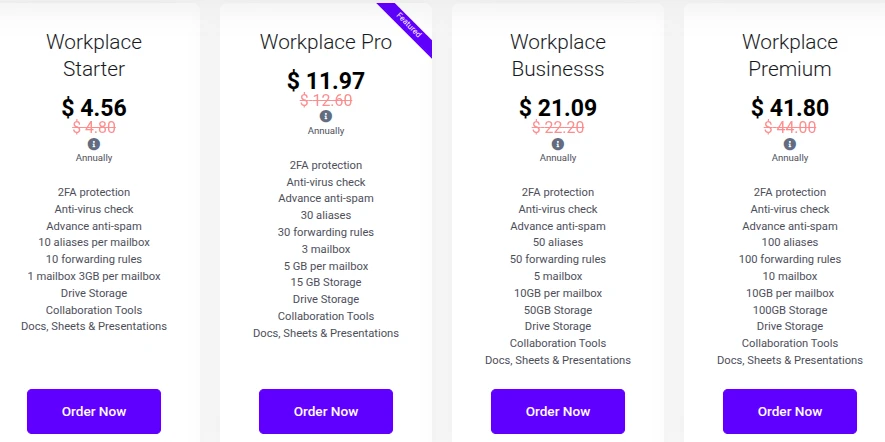
Need a mailbox to use with your email client? Get professional business email hosting and start sending from your own domain today.
Quick Comparison of the 5 Best Email Clients for Business Email
| Email Client | Main Strength | Best For |
|---|---|---|
| Microsoft Outlook | Integration with Microsoft 365 | Businesses using Microsoft services |
| Gmail | Google Workspace integration | Businesses using Google’s productivity tools |
| Mozilla Thunderbird | Customisation and open-source flexibility | Individuals and businesses seeking a flexible desktop client |
| Apple Mail | Integration with Apple devices | Businesses using macOS, iPhones, and iPads |
| eM Client | Email and productivity management | Professionals managing multiple email accounts |
5 Best Email Clients for Business Email
Features, pricing, and plan limits change from time to time, so confirm current details on each vendor’s official website before you commit.
1) Microsoft Outlook
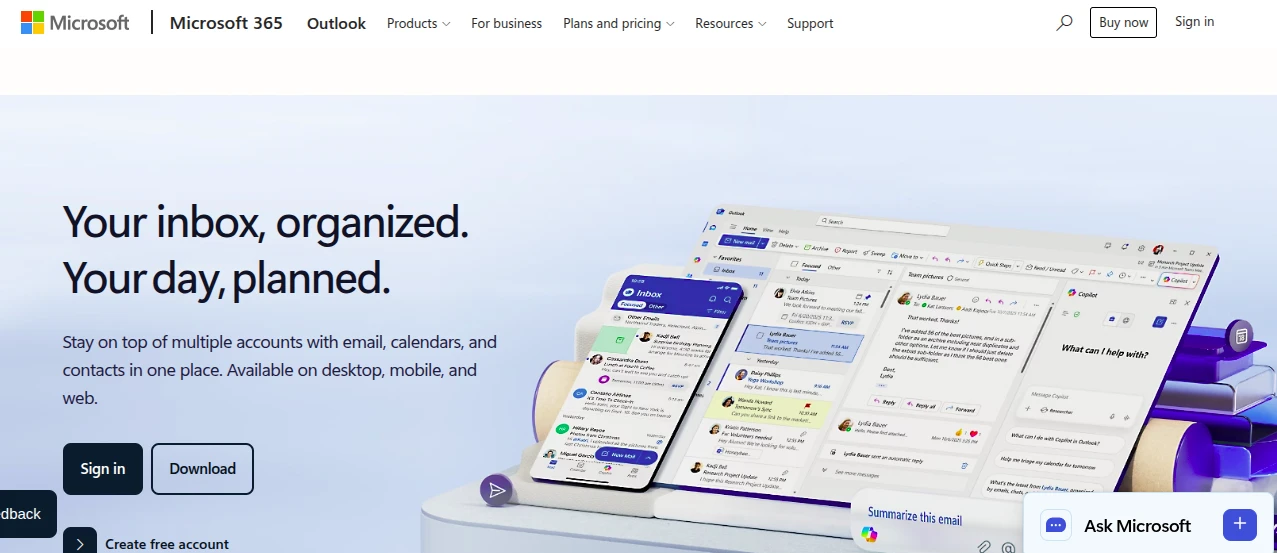
Outlook is a widely used email client available on desktop (Windows and Mac), web, and mobile platforms, and the official Microsoft Outlook page lists the current versions and licensing. The desktop, web, and mobile versions do not always offer identical features, so check what your version includes.
It integrates with Microsoft 365 applications, including Word, Excel, Teams, and OneDrive. You can attach a OneDrive file as a link, start a Teams meeting from a calendar invite, and open an Excel attachment without leaving your workflow. Calendar, contacts, tasks, and meeting management sit alongside your inbox, which suits teams that book client calls often.
Outlook supports multiple email accounts and different email services, so a custom-domain mailbox can sit next to other accounts. Folders, rules, categories, and a focused inbox keep priority messages visible.
The main advantages of using Microsoft Outlook for business email are its deep integration with Microsoft tools, strong calendar features, and wide familiarity among staff and clients. The potential limitations involve subscription requirements: the fullest desktop features usually depend on a Microsoft 365 subscription or a separate licence, and the desktop app can use more system resources on older computers. Some features also differ between the desktop, web, and mobile versions. Outlook is best suited for businesses already using Microsoft 365.
2) Gmail
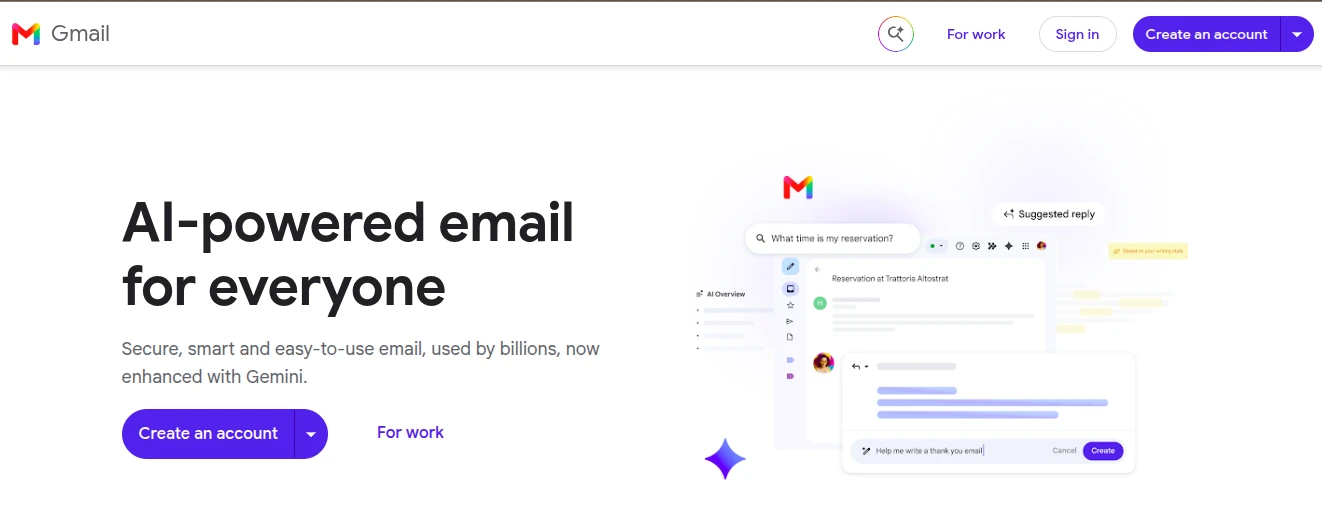
Gmail is Google’s email platform, available on the web and through mobile apps for Android and iOS. It is primarily a web-based service rather than a traditional desktop program, and business accounts run on Google Workspace, where the current plans and features are listed.
It integrates with Google Workspace tools such as Google Drive, Calendar, Meet, and Docs. A client can receive a Meet invitation, and you can share a Drive file without sending a large attachment. Labels, filters, categories, and powerful search help you find old messages quickly, while built-in spam filtering and security features help manage incoming messages.
A custom business email address through Gmail requires Google Workspace. A free personal Gmail account uses an address ending in gmail.com.
The advantages of using Gmail for business communication include fast search, a simple interface, and smooth collaboration between team members using Google tools. The potential limitations involve paid business plans, account management by an administrator, and dependence on Google’s ecosystem. Offline use needs to be enabled and works best in supported browsers. Gmail is best suited for businesses that rely on Google Workspace.
3) Mozilla Thunderbird
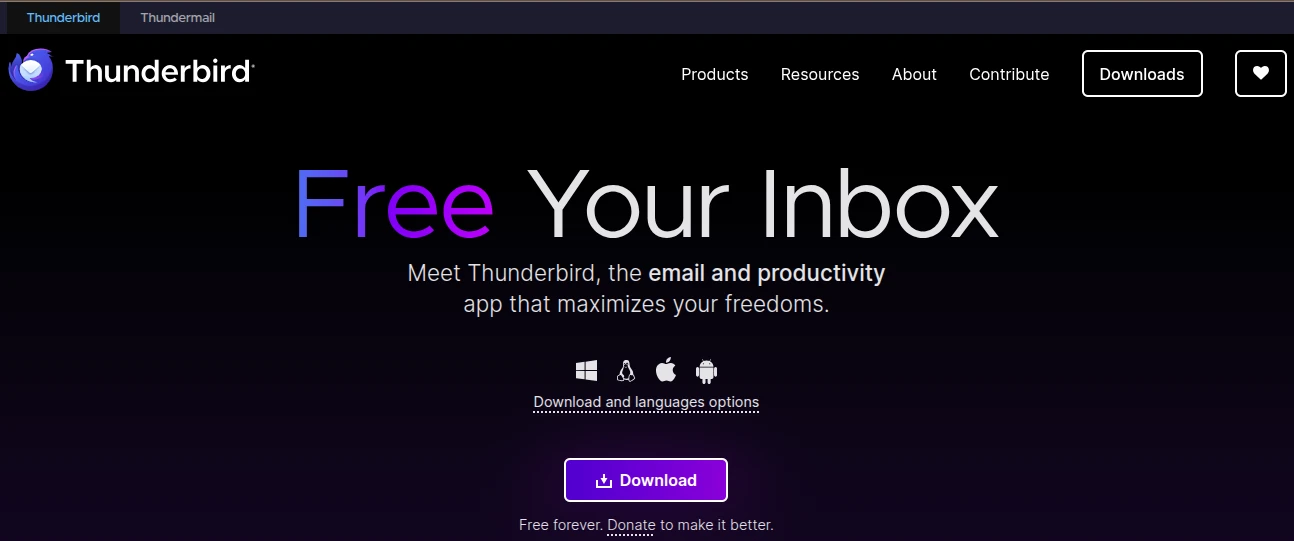
Thunderbird is a free and open-source desktop email client for Windows, macOS, and Linux, and you can download it from the official Thunderbird website. A separate mobile app is available for Android.
It supports IMAP, POP3, and multiple email accounts, which makes it a good match for custom-domain mailboxes from a hosting provider. Folders, filters, tags, and search tools help sort messages. Calendar, address book, and task management are available through built-in and supported features, and extensions add more. Themes and add-ons let you tailor the layout and functions.
The advantages of using Thunderbird for business email are the absence of a licence fee, a strong privacy reputation, and flexibility for staff who prefer a desktop application. The potential limitations involve setup and maintenance, which fall on you or your IT person, and some advanced business collaboration features, such as shared team calendars, are less polished than in larger suites. Thunderbird is best suited for businesses and professionals who prefer a flexible desktop email application.
4) Apple Mail
Apple Mail is Apple’s built-in email application for macOS, iOS, and iPadOS, and the features it supports are described in Apple’s Mail user guide. There is no Windows or Android version.
It works with Contacts, Calendar, and other Apple services on your devices, and it supports multiple email accounts and common protocols, so a hosted business mailbox can be added next to personal accounts. Inbox organisation, search, message filtering, and email privacy features are included, and accounts and settings can synchronise across supported Apple devices.
The advantages of using Apple Mail for business email are that it is already installed on Apple devices, needs no extra licence, and feels consistent across iPhone, iPad, and Mac. The potential limitations involve platform compatibility, since mixed-device teams with Windows or Android users cannot standardise on it, and fewer advanced business management tools than some competitors. Apple Mail is best suited for businesses and professionals working primarily within the Apple ecosystem.
5) eM Client
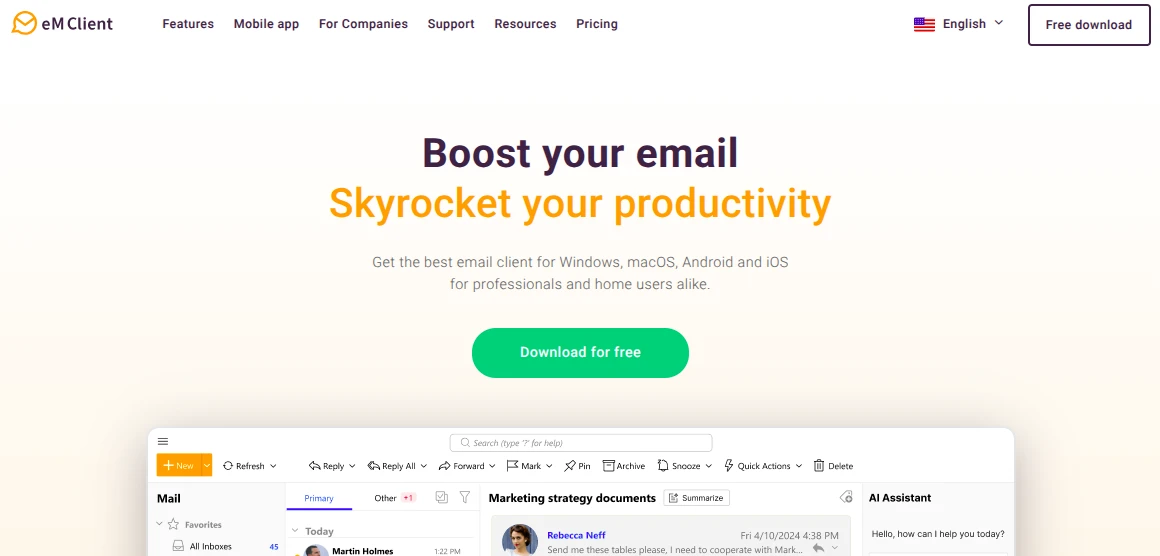
eM Client is a desktop email application designed for managing multiple communication accounts, with current editions and licence terms listed on its official website. It is available for Windows and Mac, though platform support can change.
It supports major email services and standard email protocols, including custom-domain mailboxes, and it has an integrated calendar, contacts, tasks, and notes. Folders, rules, templates, and search keep messages in order, and templates help with repeated replies such as quotation follow-ups. You can handle conversations and daily productivity tasks from one application.
The advantages of using eM Client for business email are that everything sits in one window and setup for several accounts is straightforward. The potential limitations involve paid licensing, platform support limited to desktop systems, and feature availability and account limits that can differ between the free and paid versions. eM Client is best suited for professionals and small businesses managing several email accounts.
Key Features to Look for in a Business Email Client
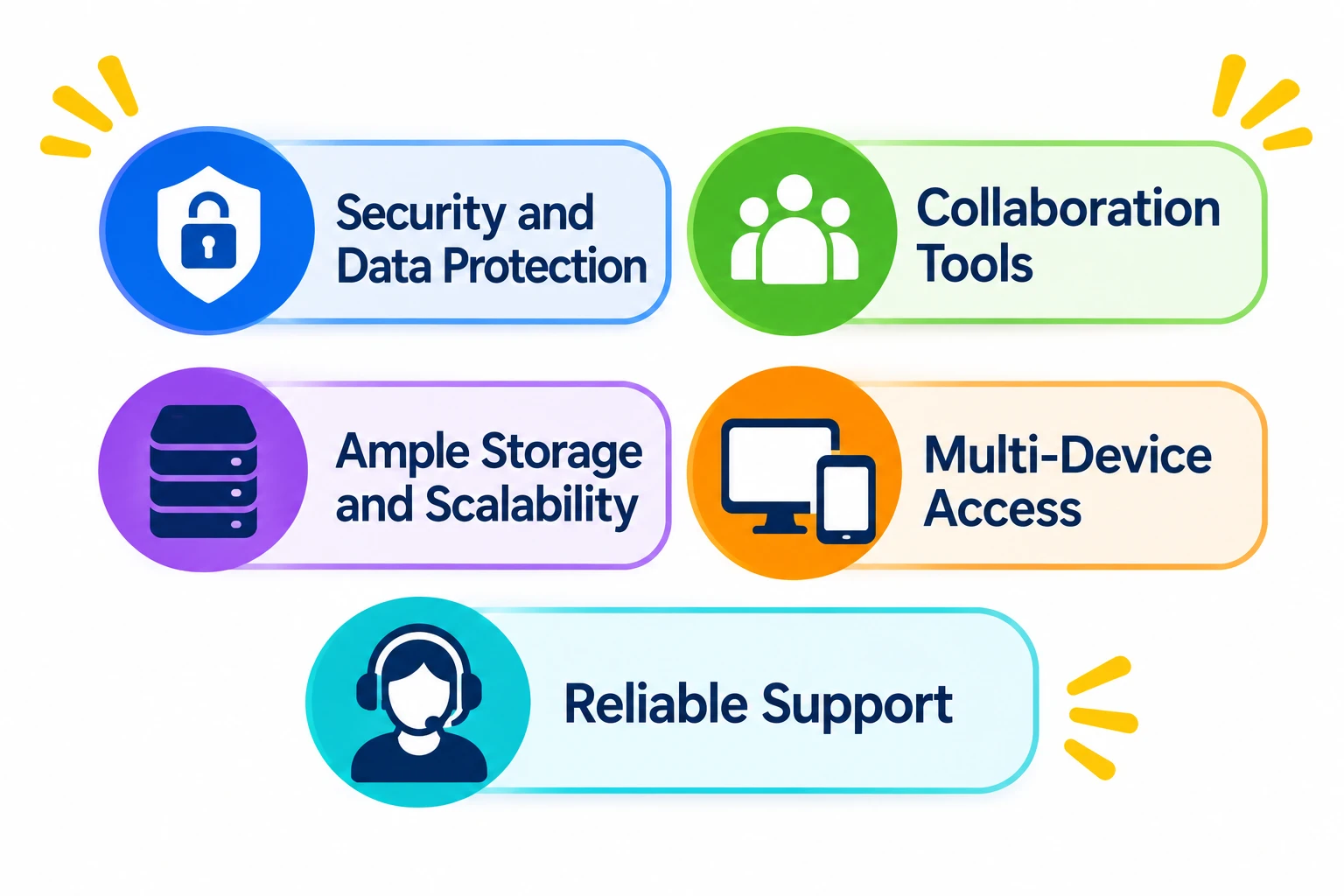
The same few capabilities decide whether a client saves time or adds friction. Use this list when comparing options.
1) Multiple Account Support
A good client lets you connect multiple business email addresses, such as info@ and accounts@ on one domain, and supports different email providers and domains. Centralised inbox management means you check one place instead of several, and easy switching between personal and business accounts reduces the chance of replying from the wrong address.
2) Email Organisation and Search
Folders, labels, tags, and categories keep messages sorted, while automatic filtering and inbox rules do the sorting for you. For example, a rule can move supplier invoices into a dedicated folder. Search tools help you locate old messages and attachments, and options for prioritising let important business conversations stay visible.
3) Calendar and Contact Management
An integrated calendar and scheduling features keep meetings and deadlines next to your messages. Contact organisation and synchronisation save retyping details, meeting invitations and reminders reduce missed appointments, and compatibility with other business productivity tools keeps your workflow connected.
4) Security and Privacy Features
Look for spam and phishing protection, encryption support where available, and compatibility with multi-factor authentication. Secure connections through supported email protocols protect your login details, and privacy controls help guard against suspicious messages.
The client is only one layer. Your hosting provider’s spam filtering and secure connections matter just as much, which is one reason a business email address from a dedicated provider is safer than a free account.
5) Cross-Device Accessibility
A client that is available on desktop, mobile, and web platforms lets staff work from the office or on the move. Synchronisation across devices gives consistent access to email folders and contacts, and support for different operating systems matters if your team uses a mix of computers and phones.
6) Integration With Business Tools
Compatibility with office productivity applications saves switching between tools. Integration with calendars, task managers, and file-sharing platforms, along with support for collaboration and communication tools, keeps work in one flow, and options for connecting third-party applications and extensions let the client grow with your business.
How to Choose the Best Email Client for Your Business
1) Consider Your Business Communication Needs
Start with the number of employees and email accounts, and whether staff need shared calendars and contact management. Think about the volume of daily business correspondence, and about your requirements for managing customer and supplier communication.
A freelancer with one mailbox has very different needs from a ten-person sales team sharing calendars.
2) Check Compatibility With Your Email Hosting Provider
Confirm that the client supports IMAP, POP3, and Exchange where applicable, and that you can enter SMTP settings for outgoing messages. It must also work with custom domain email addresses, and it helps if your email provider offers specific configuration instructions.
Any client that supports standard IMAP and SMTP can usually connect to a hosted mailbox.
3) Compare Pricing and Licensing
Find out which versions are free and which are paid, and what the subscription and licensing costs are. Check how many accounts or devices a licence covers, and whether advanced features and business integrations carry additional charges.
Check pricing on each vendor’s official site, as plans and limits change.
4) Evaluate Security and Administration
Review the authentication and encryption options available, and whether the client supports your business security policies. Consider account management and access controls, and make sure the client fits the organisation’s existing security requirements.
5) Test Ease of Use and Productivity Features
Notice how easy it is to set up and manage accounts, and how well inbox organisation and search work. Shortcuts and automation features save time every day, and the client should suit your employees’ preferred devices and working styles.
Try a client with a real mailbox for a week before rolling it out to the whole team.
How to Set Up a Business Email Account in an Email Client
The steps below apply to most clients. Menu names differ between applications, and server details differ between email hosting providers, so always take the correct settings from your provider rather than guessing them.
Step 1: Get Your Business Email Account Details
Confirm that your business email address is active, then collect the details you need from your email hosting provider. These are the incoming mail server details, the outgoing SMTP server address, the required ports and SSL/TLS encryption settings, and your login credentials or an app-specific password where required.
Here is what each setting does. The incoming server retrieves your mail. IMAP keeps messages on the server and synchronises changes, so reading, deleting, or filing a message on your laptop also shows on your phone. POP3 normally downloads messages to one device, and depending on settings may remove them from the server, so messages stored only on that device are not automatically available on your other devices.
The outgoing server (SMTP) sends your mail. Each server connection uses a specific port number, which your provider specifies. SSL/TLS encryption protects your login details and messages while they travel between your client and the server.
Step 2: Open Your Preferred Email Client
Download and install the selected email application if necessary, then open the account settings or the add account section and choose to configure a new email account. Pick automatic setup or manual configuration, depending on what your provider supports.
Step 3: Enter Your Business Email Details
Enter your full business email address and your account password or approved authentication method. Then add the incoming IMAP or POP3 server information and the outgoing SMTP server details, and select the correct ports and encryption settings from your provider’s instructions.
Step 4: Verify the Account Configuration
Complete the account authentication process and confirm that incoming messages are loading correctly. Send a test email to verify outgoing mail, and check that folders, contacts, and other supported information synchronise correctly.
Step 5: Organise Your Business Inbox
Create folders or labels for different business activities and configure filters for recurring messages. Set up a professional email signature, enable notifications and calendar features where needed, and review your security and privacy settings.
Common Mistakes to Avoid When Choosing a Business Email Client
1) Choosing an email client without checking compatibility with the email hosting provider. A client that cannot use your provider’s protocols or authentication will not connect. Check IMAP, SMTP, and authentication support first.
2) Confusing an email client with an email hosting service. The client does not store your mailbox on its own or deliver your mail, so without hosting there is nothing to connect to.
3) Ignoring security and authentication requirements. Weak passwords and unencrypted connections expose business data. Use strong passwords, multi-factor authentication where available, and SSL/TLS connections.
4) Selecting software that does not support the business’s devices. If half your team uses Windows and Apple Mail is the standard, those staff are left out. List your devices before you choose.
5) Paying for features that the business does not need. Extra licences add up quickly. Match the plan to real needs and review it each year.
6) Using multiple email applications without a clear management approach. Different tools across a team lead to missed messages and inconsistent settings. Agree on a standard client or a short list of approved ones.
7) Failing to configure inbox rules and security settings. Without filters and a security review, important messages get buried and risks go unnoticed. Set these up on day one.
8) Overlooking backup and email data migration requirements. Messages stored only on a local computer can be lost if the device fails. Plan exports, backups, and migration before switching clients or providers.
FAQs
What is the difference between an email client and an email hosting service?
An email client is the application used to access and manage email messages, while an email hosting service provides the infrastructure that stores mailboxes and handles email delivery. For example, Outlook can connect to an email account hosted by a separate provider
Can I use a business email address with a free email client?
Yes. Many free email clients support custom domain email addresses, provided your email hosting provider supports compatible connection protocols and authentication methods.
Can I use the same business email account on multiple devices?
Yes. You can usually access the same business email account on multiple devices using IMAP or a supported synchronisation service. Changes such as reading, deleting, or organising messages can then synchronise across connected devices.
Can I switch from one email client to another without losing my emails?
Yes, in most cases. If your messages are stored on the email server through IMAP or a similar synchronised service, they can usually be accessed from another compatible email client. Locally stored messages may require export and import before switching.
Is it better to use a webmail service or a desktop email client?
It depends on how you work. Webmail provides access through a browser without installing software, while desktop email clients offer dedicated applications and may provide additional organisation and offline access features. Some businesses use both.
Do email clients work without an internet connection?
Some desktop email clients allow users to read previously downloaded messages, draft emails, and organise certain mailbox content offline. However, sending and receiving new messages generally requires an internet connection.
Ready to Choose the Right Email Client for Your Business?
The right email client can make business communication easier to manage by bringing messages, contacts, calendars, and other productivity tools into one place. Microsoft Outlook, Gmail, Thunderbird, Apple Mail, and eM Client offer different features and levels of integration, making them suitable for different business environments.
Before choosing an email client, consider your existing email hosting provider, number of accounts, preferred devices, security requirements, and budget. Check whether the application supports the protocols and integrations your business needs, and test its features before making it your primary communication tool.
A good email client works alongside reliable business email hosting. Choose a hosting service that supports your domain, provides adequate mailbox storage, and offers dependable email delivery and security. This gives your business a more organised and professional way to communicate with customers, employees, and partners.
Get started today: Set up professional business email with Truehost Uganda and connect it to Outlook, Gmail, Thunderbird, Apple Mail, or eM Client.
