You bought an SSL certificate. Now the checkout asks for a “CSR.” That’s the step where most people stall.
If you’re asking what is a CSR, the short answer is this: it’s the file that starts your certificate order. It’s easy to create once you know the parts.
This guide shows you what a CSR holds and how to generate one. You’ll also learn how to fix the errors that trip people up.
We’ll cover:
- What a CSR contains
- Four ways to generate one
- Common errors and fixes
A CSR (Certificate Signing Request) is an encoded block of text. It holds your public key and your identity details.
You send it to a Certificate Authority (CA). The CA uses it to issue your SSL/TLS certificate.
Here is what one looks like:
-----BEGIN CERTIFICATE REQUEST-----
MIICvDCCAaQCAQAwdzELMAkGA1UEBhMCVUcx
EDAOBgNVBAgMB0thbXBhbGExEDAOBgNVBAcM
... (truncated sample) ...
-----END CERTIFICATE REQUEST-----
Don’t skip the header and footer lines. Always copy them with the text between.
You’ll hear three terms together. They are not the same thing:
- CSR: The request you submit to the CA.
- Private key: The secret key that must stay secure.
- SSL certificate: The CA-issued file you install on your server.
How Does a CSR Work?
The process has four steps. Each one builds on the last.
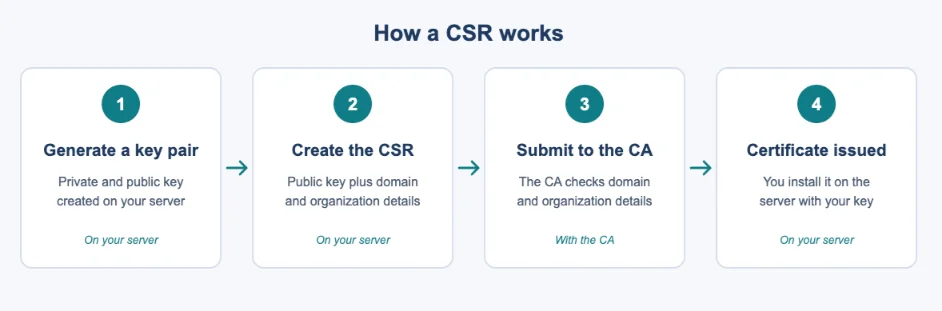
- Generate a private key and its matching public key in your hosting environment.
- Create the CSR using the public key and your domain and organization details.
- Submit the CSR to the CA. The CA checks domain ownership and any organization details.
- After validation, the CA issues your SSL/TLS certificate. You install it on your server.
The private key never leaves your server. Only the public key travels inside the CSR.
What Information Does a CSR Contain?
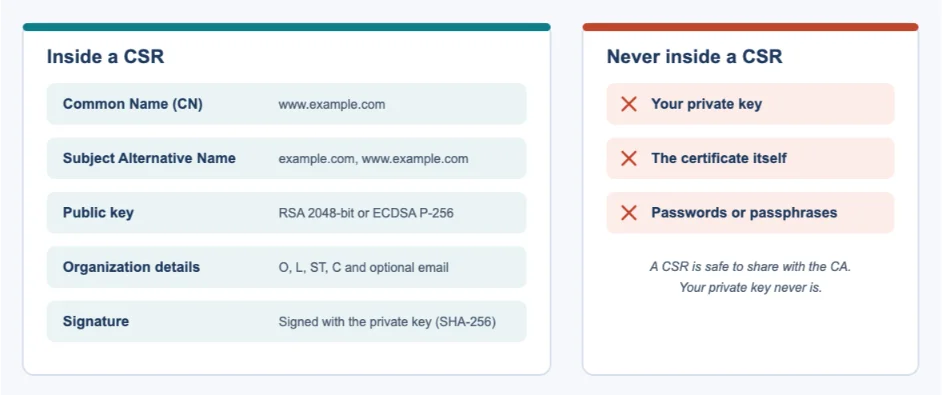
A CSR carries a few fixed fields. Let’s go through them.
Common Name (CN)
The Common Name is your primary domain or hostname. An example is www.example.com.
For a wildcard certificate, it looks like *.example.com.
Modern browsers don’t rely on the CN alone. They check the certificate’s SAN entries to confirm hostname coverage.
Subject Alternative Name (SAN)
The SAN lists extra hostnames the certificate should cover. For example:
example.comwww.example.comapi.example.com
Include both the www and non-www versions when you need them. A visitor typing either one should not see a warning.
Public Key
The public key is half of your key pair. The CA places it inside your certificate.
Two key types are common:
- RSA: Widely supported. Larger keys, slightly slower.
- ECDSA: Smaller keys with strong security. Faster handshakes.
We recommend RSA 2048-bit or stronger, or ECDSA P-256. Check your CA’s supported list first.
Organization Details
These fields describe who you are:
- Organization (O)
- City (L)
- State (ST)
- Country (C)
- Email (optional)
Some tools still show an Organizational Unit or Department box. Public CAs stopped putting that value in certificates in 2022, so it has no effect on your certificate.
The details you need depend on the certificate type. Here is a quick comparison:
| Detail | DV | OV | EV |
|---|---|---|---|
| Domain name (CN/SAN) | Required | Required | Required |
| Organization name | Not shown | Verified | Verified |
| City, state, country | Not shown | Verified | Verified |
| Business checks by CA | None | Standard | Strictest |
DV proves you control the domain. OV and EV also prove your organization is real.
CSR Signature
Your private key signs the CSR. This proves you hold the matching key.
SHA-256 is the commonly used signature hash.
What a CSR Does Not Contain
A CSR is safe to share with the CA. It never includes:
- Your private key
- The certificate itself
- Passwords or private-key passphrases
How to Generate a CSR
The steps are similar on every platform. Only the tool changes.
- Identify the domain names and subdomains that need SSL coverage.
- Choose the hosting panel or server where the private key will be stored.
- Generate the private key and CSR.
- Enter the domain, SAN, and organization details accurately.
- Copy the complete CSR, including its header and footer.
- Submit the CSR to the certificate provider and complete validation.
Now let’s look at four methods.
Generate a CSR Through the TrueHost CSR Generator
This is the easiest route if you buy your certificate from us. We at Truehost offer a free CSR Generator at tools.truehost.com.
- Open the tool and enter your domain.
- Fill in the required certificate details, such as your organisation name.
- Click to generate. The tool creates your CSR and private key.
- Save the private key somewhere secure. Copy the CSR.
- Paste the CSR when you order your certificate with us.
Important: Store the private key before you close the page. Nobody can recover it for you later.
Need a certificate to go with it? You can open an SSL order with us and paste your CSR at checkout.
Generate a CSR Using cPanel
Most shared hosting plans include cPanel. The steps below match most versions.
- Log in to cPanel.
- Open Security → SSL/TLS.
- Select the CSR generation option.
- Enter your domain and required organization details.
- Select or generate a private key, if prompted.
- Generate the CSR and copy the complete request.
- Submit it to your SSL certificate provider.
The exact screens may vary by cPanel version and hosting provider.
Generate a CSR Using OpenSSL
OpenSSL suits users with terminal access or server administration experience. It’s common on a VPS or dedicated server, where you control the environment.
This command creates an RSA 2048-bit private key and a CSR with SAN entries:
openssl req -new -newkey rsa:2048 -nodes \
  -keyout private.key -out example.csr \
  -subj "/C=UG/ST=Kampala/L=Kampala/O=Example Ltd/CN=example.com" \
  -addext "subjectAltName=DNS:example.com,DNS:www.example.com"
It creates two files:
- private.key: Your secret private key.
- example.csr: The request you submit to the CA.
To use it, replace example.com with your domain. Update the country, state, city, and organization too.
Older OpenSSL versions may not support the -addext option. In that case, put the SAN entries in a configuration file and point to it with -config.
If you run your own server, our VPS and dedicated servers give you full root access. You can generate keys right where you’ll install the certificate.
Generate a CSR Using Windows IIS
Windows servers use IIS Manager.
- Open IIS Manager.
- Select the server name.
- Open Server Certificates.
- Click Create Certificate Request.
- Enter the organization and location details.
- Choose the supported cryptographic provider and key length.
- Save the generated CSR.
- Submit it to the CA and complete validation.
Some Windows environments use a NEW CERTIFICATE REQUEST header. Handle it according to the format your CA accepts.
Which CSR Generation Method Should You Choose?
Pick the method that fits your setup and skill level.
| Method | Best for | Skill level |
|---|---|---|
| TrueHost CSR Generator | Customers using the online CSR tool | Beginner |
| cPanel | Website owners using cPanel hosting | Beginner |
| OpenSSL | Developers and server administrators | Intermediate |
| Windows IIS | Windows web server administrators | Beginner to intermediate |
One rule applies to all four. Your private key must stay secure, whichever method you use.
Generating a CSR for Wildcard or Multiple Domains
You can cover more than one hostname with a single certificate.
Wildcard: Enter the hostname as *.example.com. It covers subdomains at that level, such as blog.example.com. It does not cover the bare example.com, so add that as a SAN.
Multiple domains: Add each domain as a SAN entry. For example, example.com, example.org, and shop.example.net.
One catch applies to both. The certificate you buy must support the coverage you request. A single-domain certificate cannot cover a wildcard or multi-domain CSR.
Common CSR Errors and How to Fix Them
| CSR error | Possible cause | How to fix it |
|---|---|---|
| Missing or damaged CSR header or footer | The CSR was copied incompletely, or some characters were altered. | Copy the entire CSR, including —–BEGIN CERTIFICATE REQUEST—– and —–END CERTIFICATE REQUEST—–. |
| Incorrect domain name | The Common Name (CN) contains a typo or does not match the intended hostname. | Generate a new CSR with the correct domain name. |
| Missing SAN entries | One or more required domains or subdomains were omitted from the Subject Alternative Name (SAN) field. | Update the SAN configuration and generate a new CSR containing all required hostnames. |
| Incorrect organization details | The organization name, location, or other identifying information is inaccurate or does not match the certificate application. | Correct the details and generate a new CSR if necessary, particularly for OV or EV certificates. |
| Unsupported key type or size | The CSR uses a key algorithm or size that the CA or hosting platform does not support. | Generate a new key pair and CSR using a supported option, such as RSA 2048-bit or ECDSA P-256, subject to the CA’s requirements. |
| Incompatible CSR format or header | The CSR uses an unsupported encoding or a header variant that the provider’s system does not accept. | Export the CSR in the PEM format requested by the CA, and confirm whether its platform supports the header variant used. |
| Lost private key | The private key matching the CSR or issued certificate has been deleted or cannot be accessed. | Generate a new private key and CSR, request a certificate reissue, and install the new certificate with its matching private key. |
| CSR generated on the wrong server | The private key was created in a different environment from the one where the certificate will be installed. | Transfer the key securely if appropriate and supported, or generate a new key pair and CSR on the intended server or hosting panel. |
Most errors have one root cause: a mismatch between what you typed and what you need. Check the CSR before you submit it.
Renewals are getting more frequent, so accuracy counts for more each year. The CA/Browser Forum’s maximum certificate validity dropped from 398 days to 200 days on March 15, 2026.
It falls to 100 days on March 15, 2027, and 47 days from March 15, 2029.
That means more CSRs and more reissues over time. Keep your private keys organized and your hostname list accurate.
If you automate renewals, a tool like n8n can help with reminders and workflows. We at Truehost offer n8n hosting for that kind of setup.
What Is a CSR FAQs
What is a CSR used for?
It requests an SSL/TLS certificate from a CA. It carries your public key and identity details.
How do I generate a CSR for my domain?
Use our CSR Generator, cPanel, OpenSSL, or Windows IIS. Pick the method that matches your hosting setup.
Does a CSR contain a private key?
No. The private key stays on your server or in your saved file. Never send it to anyone.
Can I generate a CSR from cPanel?
Yes. Go to Security → SSL/TLS and select the CSR option. The layout may vary by version.
What information do I need to generate a CSR?
You need your domain name and any SAN hostnames. For OV or EV, you also need your organization name and location.
Can one CSR cover multiple domains?
Yes, through SAN entries. Your certificate must support multiple domains.
Can I reuse an existing CSR?
Technically, sometimes. We advise generating a fresh CSR and key pair for each new certificate or renewal. It’s cleaner and safer.
Get an SSL Certificate from Truehost
Let’s recap. A CSR holds your public key and the identity details used to request an SSL/TLS certificate.
Generate it in the right environment. Enter your domain details carefully. Keep the private key safe.
Ready to start? Order an SSL certificate from Truehost and generate your CSR to begin the issuance process. If you need a server to host your site, our VPS and dedicated servers are built for this.
