Moving a WordPress website to a new hosting provider, domain, or server can be challenging, especially when you need to preserve your website files, databases, themes, plugins, and settings. A poorly handled migration can lead to broken links, missing content, database errors, or website downtime. Using the right migration plugin can make the process easier and reduce the risk of losing important website data.
WordPress migration plugins are tools that help website owners transfer their websites from one location to another. They automate tasks such as backing up website files, exporting databases, transferring content, and updating configuration settings. Different plugins offer different migration methods, backup options, storage integrations, and website transfer limits.
This article explores five of the best WordPress migration plugins, comparing their features, advantages, and potential limitations. It also explains how to choose a suitable plugin, migrate a WordPress website, and avoid common mistakes during the process. If you still need a destination, compare web hosting plans first.
Plugin features and limits change, so check each plugin’s official page before you start.
Quick Comparison
| Plugin | Main Strength | Best For |
|---|---|---|
| Duplicator | Website packaging and migration | Users moving WordPress websites between hosting environments |
| All-in-One WP Migration | Simple website export and import | Beginners and small website owners |
| UpdraftPlus | Backup and restoration features | Website owners who need migration and backup tools |
| Migrate Guru | Automated website migration | Users moving larger WordPress websites |
| WP Migrate | Database and website migration control | Developers and users managing complex WordPress migrations |
5 Best WordPress Migration Plugins
No single plugin suits every website. The right choice depends on your site size, what you need to move, your technical skill, and your budget.
1) Duplicator
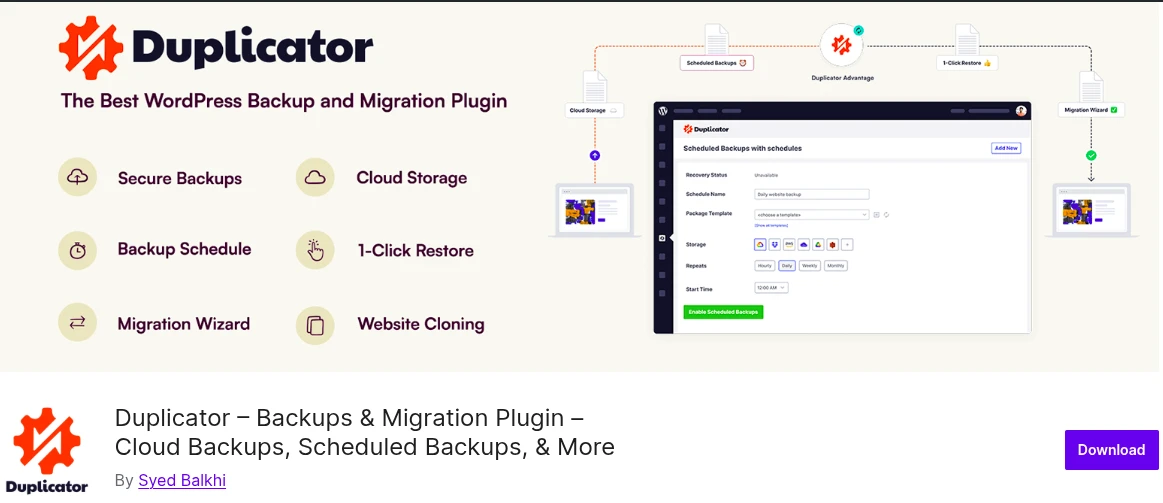
Duplicator packages your website files and database into a backup that you can restore on another host or domain. A migration wizard guides the import, and because the backup is a file you hold, you do not depend on a live connection between two servers.
The free version covers backups, restoration, and local storage. Scheduled backups, more cloud storage options, multisite support, and staging sites come with Duplicator Pro.
Its main advantage is control over what goes into the package. The limitations are server requirements and package size, since large sites can hit host limits on memory or execution time, plus paid advanced features. It is best suited for website owners and developers who want control over the migration.
2) All-in-One WP Migration
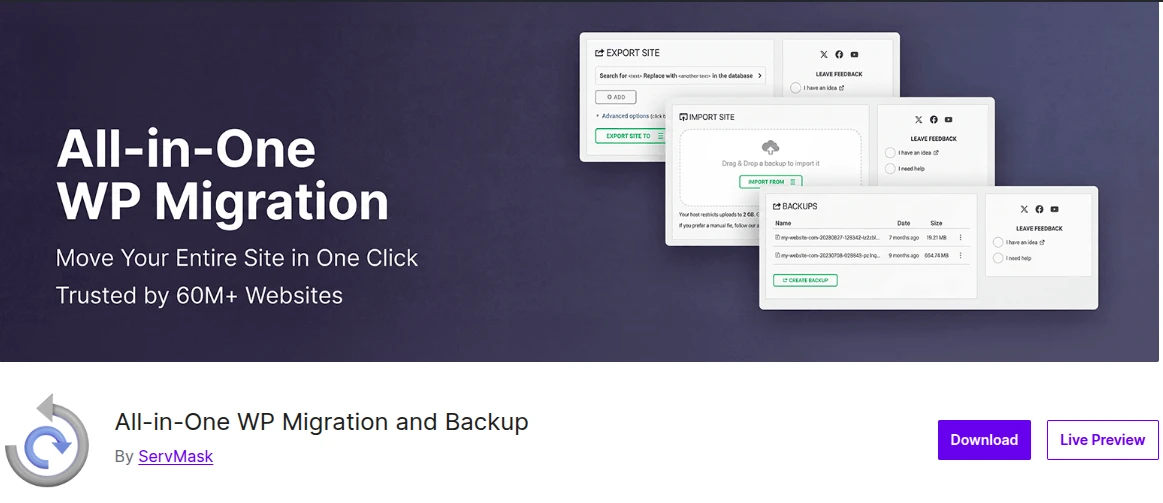
All-in-One WP Migration exports your content, themes, plugins, and database into one migration file that you import on another WordPress site. The interface is beginner-friendly, and extensions add storage and migration options.
Its main advantage is how simple it is: export, upload, import. The limitations are upload size and hosting setup. The import size depends on the plugin version and your host’s upload settings, and lifting the limit usually needs the paid Unlimited extension, as do some storage options. It is best suited for beginners and small website owners.
3) UpdraftPlus
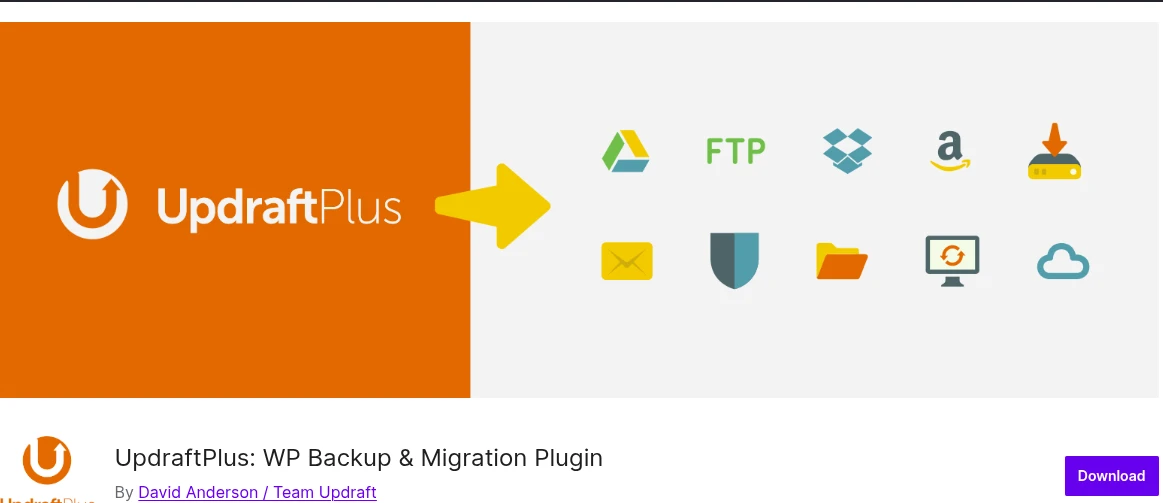
UpdraftPlus is a backup plugin that also handles migration and restoration. It backs up files and databases to remote storage such as Google Drive or Dropbox, and you can restore a backup on the same site or another WordPress installation.
The free version can move a site by restoring a backup on the new installation. Direct site-to-site migration, table-by-table selection, and search-and-replace during restore come with the paid Migrator add-on, which is also part of UpdraftPlus Premium.
The advantage is that you keep a backup tool after the move. The limitation is that the easier migration tools need a premium licence. It is best suited for owners who want migration alongside regular backups.
4) Migrate Guru
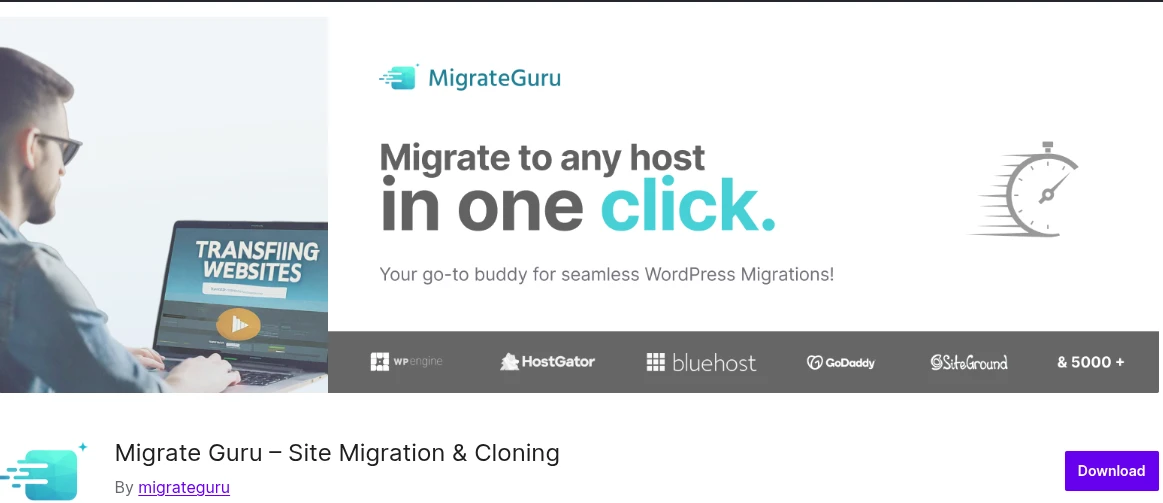
Migrate Guru from BlogVault copies your site to its own servers and sends it to the new host, so your hosting does less work and timeouts are less likely. You install it on the source site, enter the destination details, and follow the progress.
The plugin is free, and its developer states that it supports thousands of hosts and sites up to 200 GB, so check current limits for your destination host. The advantage is a mostly hands-off move for bigger sites. The limitations are supported hosts, compatibility, and fewer manual controls, and your data passes through an outside service that, according to the developer, erases it after the migration. It is best suited for users who want an automated migration.
5) WP Migrate

WP Migrate focuses on the database. The free Lite version exports your database, lets you pick tables, and runs search-and-replace, including serialized data. It can also export a full-site ZIP with media, themes, and plugins for import on the new site.
Paid plans add push and pull migrations between connected sites, media and file sync, WP-CLI, and multisite tools, which suit moves between development, staging, and live sites. What you get depends on the licence tier. Its advantage is fine control over the database. The limitations are advanced setup, paid features, and the technical skill complex moves need. It is best suited for developers and owners managing several environments.
Key Features to Look for in a WordPress Migration Plugin
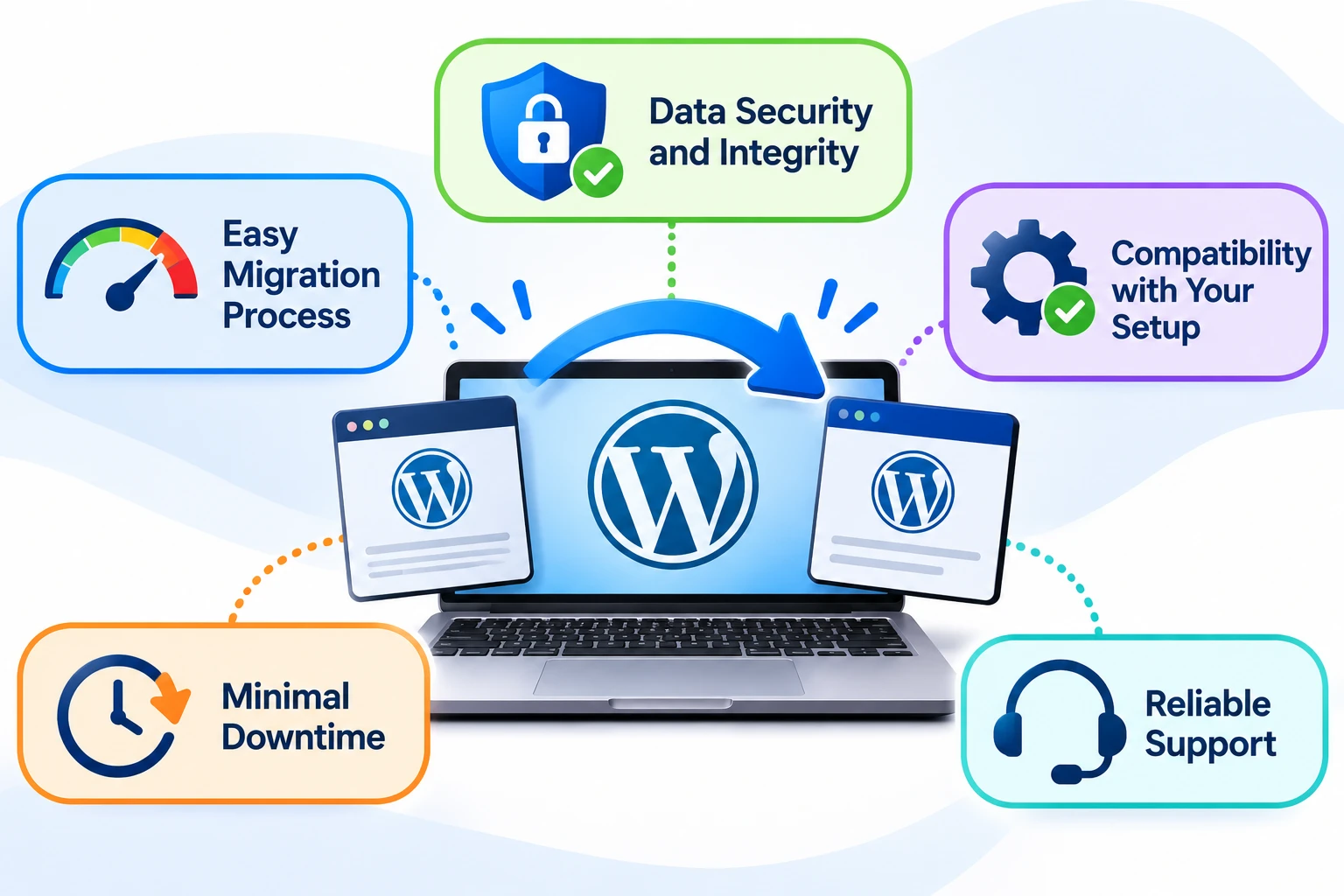
Each feature below affects a different stage of the move.
1) Complete Website Migration Support
The plugin should move files and the database, including themes, plugins, media, and settings, and work across hosts and domain names. Some tools move only the database, which leaves you to copy files by hand.
2) Backup and Restoration Features
Look for a backup before migration, restore tools, and ideally scheduled backups. A backup kept only on the site’s own server is lost if that server fails, so remote storage matters. If a move fails halfway, the stored backup is how you recover.
3) Ease of Use
Clear instructions, visible progress, and little manual setup lower the chance of mistakes. A plugin that asks you to edit server files is a poor fit for a first migration.
4) Website Size and Server Compatibility
Site size is the most common reason migrations fail. A large media library or database can exceed your host’s upload limit, memory, or execution time, and the import stops partway. Check the plugin’s limits and your new host’s settings first.
5) Search and Replace Functionality
WordPress stores your old URL in the database, so a changed address needs updating. Search-and-replace does this, and it must handle serialized data, which stores text with its length. A plain find-and-replace can corrupt it, causing broken widgets, menus, or theme settings.
6) Security and Migration Reliability
A migration file holds your content and database, so store it safely and delete it from public folders afterwards. Reliable restore tools and a support channel save time when something fails.
How to Choose the Best WordPress Migration Plugin
1) Determine Your Migration Requirements
Decide whether you are changing hosts, domains, or servers, whether you need the whole site or selected data, how large your files and database are, and whether the site is live or in staging.
2) Check Compatibility With Your Hosting Environment
Check your PHP and WordPress versions, server memory, execution time, and upload and database limits, and confirm the destination host allows migrations. Your host’s support team can tell you the limits.
3) Compare Free and Paid Features
Free versions often cover small sites, but limits show up as sites grow. Compare what the free version allows, what premium adds, what extensions cost, and whether updates and support are included.
4) Evaluate Backup and Recovery Options
Check for a pre-migration backup, restore tools, external storage, and a way to recover if the move fails. Even if the plugin has none of these, take your own backup first.
5) Review User Support and Documentation
Look for setup guides, troubleshooting help, support channels, and regular updates that list compatibility with your WordPress version.
How to Migrate a WordPress Website Using a Migration Plugin
The steps below fit most plugins. Screens differ, so follow your plugin’s documentation where it differs.
Step 1: Prepare Your Website for Migration
Make a complete backup of files and database first. Check file and database size and free space on the new host, and update WordPress, themes, and plugins where suitable. Do not continue until the backup is complete and stored away from the site.
Also record your DNS records, which point your domain to a server and route email, and your email settings. If your email uses the domain, see our overview of web hosting with email so mail keeps working after the move.
Step 2: Choose and Install a Migration Plugin
Pick the plugin that fits your needs, then in the dashboard go to Plugins, add it, and activate it. Check whether you need extensions or premium features for your site size. It is better to find that out now than mid-migration.
Step 3: Create a Website Backup or Migration Package
Open the plugin settings and choose to export, package, or back up the site, including files and database. A website archive is one file that bundles both so they move together. Confirm the plugin reports it as complete and the file size looks right, since a very small file often means the process stopped early.
Step 4: Prepare the Destination WordPress Installation
Set up the new hosting account and create a database and database user if the plugin needs them. The database holds your posts, pages, users, and settings, and the user is the account WordPress uses to reach it. Install a fresh WordPress if your plugin requires one. With cPanel hosting, a one-click installer handles this. Confirm the destination meets the plugin’s requirements.
Step 5: Import the Website to the New Location
Upload the package or connect the destination through the plugin, then follow the import steps and enter the database and destination details. Let it finish without closing the browser. The import overwrites the destination site, so make sure you are on the right installation. If your address changed, search-and-replace runs here.
Step 6: Test the Migrated Website
Open the site at its new location or a temporary URL, without changing DNS. Check pages, images, menus, and links, test forms, logins, and plugins, and look for dashboard errors. Problems found now do not affect visitors, because the live site still runs on the old server.
Step 7: Complete the Domain and DNS Changes
When testing passes, point your domain’s DNS records to the new server. Changes can take time to spread, so some visitors may see the old site for a while. Pick a quiet period. If you need help pointing a domain, see what to do after buying a domain name. Then install or verify the SSL certificate, which enables HTTPS, and check the site loads securely. Keep the old account until everything works, and watch the site for a few days.
FAQs
Can I migrate a WordPress website without a plugin?
Yes. You can migrate a WordPress website manually by transferring its files through FTP or a file manager, exporting and importing the database, and updating the necessary configuration settings. However, this process requires more technical knowledge than using a migration plugin.
Will migrating my WordPress website affect my SEO rankings?
A properly managed migration should minimise the risk of SEO problems. However, changing domains, URLs, or website structures can affect search visibility if redirects, internal links, canonical tags, and indexing settings are not handled correctly.
Can I migrate a WordPress website to another domain?
Yes. Most WordPress migration tools support transfers to a different domain, although the exact process depends on the plugin. You may also need to update website URLs, configure redirects, and verify your SSL certificate. If you need a new domain first, you can register a domain name before you start.
How long does a WordPress website migration take?
Migration time depends on website size, database complexity, internet speed, server performance, and the plugin’s migration method. A small website may take only a few minutes, while larger websites can require considerably more time.
Will my website experience downtime during migration?
Not necessarily. You can reduce downtime by preparing the destination website, testing it before changing DNS records, and scheduling the final switch during a period of low traffic. Some migration methods may still require a short maintenance window.
Can I use a migration plugin to move a WordPress multisite network?
Some migration tools offer support for WordPress multisite networks, but compatibility varies between plugins and plans. Check the plugin’s documentation and hosting requirements before attempting to migrate a multisite installation.
Ready to Choose the Right WordPress Migration Plugin?
WordPress migration plugins make it easier to move websites between hosting providers, domains, and server environments. Duplicator, All-in-One WP Migration, UpdraftPlus, Migrate Guru, and WP Migrate offer different approaches to transferring website files and databases, making them suitable for different migration requirements.
Before choosing a plugin, consider your website’s size, hosting environment, migration needs, and budget. Review the plugin’s backup options, compatibility requirements, and available support. Always create a complete backup and test the migrated website before making the new installation publicly accessible.
A successful migration also depends on the hosting environment receiving your website. Choose a reliable WordPress hosting solution that provides sufficient resources, security, and support for your website’s needs. This helps ensure that your website continues running smoothly after the migration is complete.
Get started today: Move your WordPress website to reliable hosting with Truehost Uganda and migrate with confidence.
