A web server stores your website’s files and delivers them to visitors’ browsers when they request a page. It makes your website accessible whenever someone enters your domain.
The term web server refers to both the physical computer and the software running on it. You need both to deliver a working website.
Think of a web server as a librarian. You request a particular book, and the librarian finds and delivers it. A web server does something similar with website files.
This guide explains what is a web server, how it works, the popular server software, and how to choose the right hosting setup for your website.
The Two Main Components of a Web Server
A web server runs software that receives browser requests and sends back website content.
However, the term has two meanings. It can describe the physical machine or the software that handles requests.
Hardware
The hardware is the physical computer that stores your website. It contains several important components:
- CPU: Processes instructions and handles website requests.
- RAM: Holds data that the server needs quickly.
- Storage: Keeps website files, databases and other information. Modern servers commonly use SSDs.
- Network connection: Connects the server to the internet.
Web servers usually operate around the clock. They sit in data centres with cooling, backup power and reliable network connections.
These facilities help keep websites accessible during normal operating conditions. They also support multiple visitors requesting pages simultaneously.
Software
The software handles communication between your website and visitors’ browsers. It listens for requests and decides how to respond.
Popular examples include:
- Apache
- Nginx
- LiteSpeed
- Microsoft IIS
The hardware is similar to an ordinary computer. However, server software makes it capable of handling website requests.
For example, installing Apache on a suitable Linux machine allows it to serve website files over HTTP.
| Component | What it does | Example |
|---|---|---|
| Hardware | Stores files and processes requests | Dell PowerEdge server |
| Software | Receives requests and delivers website content | Apache or Nginx |
You need both components for a functioning web server. The hardware provides computing resources, while software manages website delivery.
How Does a Web Server Work?
A web server works through a request-and-response process. Your browser requests a resource, and the server responds with the requested content.
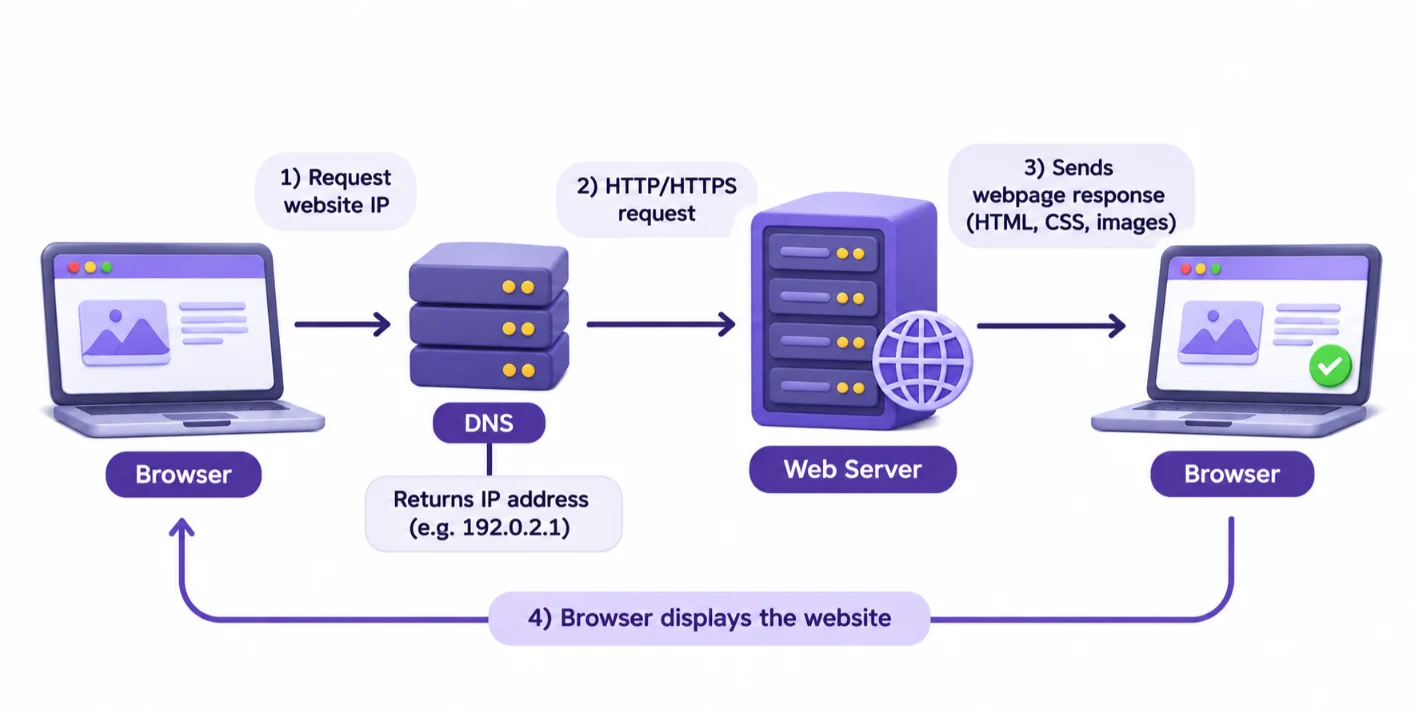
Here is what happens when you visit a website.
- You type a web address (URL) into your browser. For example, you enter
truehost.uginto Chrome. - The browser asks DNS for the website’s IP address. DNS translates the domain name into an address that identifies the server.
- The browser sends an HTTP or HTTPS request to that IP address. The request tells the server which page or resource you want.
- The web server software receives the request and finds the requested file. If the page contains dynamic content, the server processes the required application code first.
- The server sends back a response with a status code and page content. The response tells your browser whether the request succeeded.
- The browser reads the HTML and requests the other files it needs. These include CSS, images and JavaScript. It then combines the resources and displays the page.
This process happens whenever you open a webpage or request another resource.
HTTP vs HTTPS
HTTP stands for Hypertext Transfer Protocol. It defines how browsers and servers exchange information.
HTTPS adds encryption through TLS (Transport Layer Security). This protects information travelling between your browser and the website.
An SSL/TLS certificate helps your browser verify the website’s identity. It also enables an encrypted connection.
Common Web Server Status Codes
Servers use HTTP status codes to communicate the results of requests.
| Status code | Meaning | What you see |
|---|---|---|
| 200 OK | Request succeeded | The webpage loads normally |
| 301 Redirect | Resource permanently moved | Your browser opens another URL |
| 404 Not Found | Requested resource doesn’t exist | You see a missing-page message |
| 500 Internal Server Error | Server encountered an unexpected problem | The webpage fails to load |
These codes also help website owners troubleshoot problems.
For example, repeated 404 errors may indicate broken links. A 500 error may point to an application problem or incorrect server configuration.
Web Server Request Diagram
Browser → DNS → Web Server → Browser
- Your browser requests a domain’s IP address.
- DNS returns the corresponding IP address.
- Your browser sends a request to the web server.
- The web server processes the request and returns the response.
- Your browser displays the website.
This entire process often takes less than a second for a responsive website. However, server distance, network conditions, page size and application performance affect the actual time.
Static vs Dynamic Web Servers
Static
A static website contains pre-built HTML, CSS and JavaScript files. The server delivers these files without generating new page content for each request.
Every visitor receives the same stored page unless the files change.
Advantages:
- Fast delivery because pages are already built.
- Lower server resource requirements.
- Simple deployment and maintenance.
- Fewer application components to manage.
Limitations:
- Personalised content requires additional tools.
- User interactions may need external services or scripts.
- Updating content can require rebuilding or editing files.
Static websites work well for portfolios, landing pages and simple business websites.
For example, a designer’s portfolio can display services, previous projects and contact information using pre-built files.
Dynamic
Dynamic websites generate content when visitors request it. They commonly use programming languages and databases.
PHP is widely used for dynamic websites. MySQL and MariaDB are common database options.
Consider what happens when someone opens a WordPress blog post:
- The visitor requests a blog post.
- PHP processes the request.
- The database retrieves the post content and relevant settings.
- WordPress assembles the webpage.
- The web server sends the generated page to the browser.
This approach supports features such as:
- Customer accounts and logins.
- Blog comments.
- Personalised recommendations.
- Shopping carts and online payments.
- Content management dashboards.
WordPress is a practical example of a dynamic website. It stores posts, pages, users and settings in a database.
You can publish new content without manually creating an HTML file for every post.
What Is a Web Server Stack?
A web stack is the combination of technologies that work together to run a website. Each component performs a different task.
One common example is LAMP:
- L: Linux operating system.
- A: Apache web server.
- M: MySQL database.
- P: PHP programming language.
Together, these technologies provide the environment needed to run many PHP websites, including WordPress installations.
| Feature | Static | Dynamic |
|---|---|---|
| Speed | Generally faster to serve | Depends on application processing and caching |
| Flexibility | Limited built-in personalisation | Supports complex interactions |
| Resources needed | Usually fewer | Usually more |
| Best use | Portfolios and simple websites | WordPress, stores and membership sites |
Your choice depends on the features your website needs. A simple company profile may work well with static files. An online shop needs dynamic functionality.
Popular Web Server Software
Four popular web server options include Apache, Nginx, LiteSpeed and Microsoft IIS.
a) Apache
Apache HTTP Server is an open-source web server. It has a long history in web hosting and supports extensive configuration options.
One useful feature is .htaccess. It allows directory-level configuration without editing the main server configuration.
This makes Apache useful in shared hosting environments. Website owners can manage certain settings within their hosting accounts.
Advantages:
- Open-source and free to use.
- Flexible configuration options.
- Broad compatibility with hosting tools.
- Supports
.htaccessconfiguration.
Limitation: Its resource usage can vary with configuration and workload. Heavy traffic may require careful tuning.
b) Nginx
Nginx is a web server known for its event-driven architecture. It handles many simultaneous connections efficiently.
It is particularly useful for serving static files. It can also work as a reverse proxy in front of application servers or other web servers.
For example, a website might use Nginx to receive incoming requests. It can then forward dynamic requests to an application running separately.
Advantages:
- Efficient handling of simultaneous connections.
- Good performance when serving static files.
- Useful reverse proxy capabilities.
- Flexible configuration.
Limitation: Its configuration approach differs from Apache. It does not support Apache’s .htaccess files directly.
c) LiteSpeed
LiteSpeed is a commercial web server designed as an Apache replacement. It supports Apache configuration files and .htaccess.
It also includes server-level caching capabilities. Its LiteSpeed Cache plugin connects WordPress to those caching features.
This combination can reduce repeated processing and improve page delivery. However, results depend on your website and configuration.
Advantages:
- Apache configuration compatibility.
- Built-in caching capabilities.
- Efficient event-driven architecture.
- WordPress caching integration.
Limitation: Commercial LiteSpeed editions require a paid licence.
d) Microsoft IIS
Microsoft Internet Information Services (IIS) is Microsoft’s web server software. It runs on Windows Server.
IIS supports websites and web applications built with Microsoft’s technology stack. This includes ASP.NET applications.
It is common in organisations already using Windows infrastructure.
Advantages:
- Integration with Windows Server.
- Support for ASP.NET applications.
- Graphical administration tools.
- Configurable security and application modules.
Limitation: It is less suitable when your application specifically requires a Linux-based environment.
Web Server Software Comparison
| Software | Cost | Performance | Best for | Operating system |
|---|---|---|---|---|
| Apache | Free | Good; configuration dependent | Shared hosting and general websites | Mainly Linux, also Windows and others |
| Nginx | Free core software | Efficient with many connections | Static files and reverse proxying | Linux, Windows and others |
| LiteSpeed | Free and commercial editions | High-performance architecture | WordPress and hosting environments | Mainly Linux |
| IIS | Included with Windows Server licensing | Strong Windows integration | ASP.NET applications | Windows Server |
There is no single best web server for every website. Your application requirements, hosting environment and technical skills should guide your decision.
Types of Web Servers by Hosting Plan
1) Shared hosting
Shared hosting places multiple websites on one physical server. These websites share the server’s available resources.

This makes shared hosting an affordable starting point.
Who it suits:
- Personal blogs.
- Small business websites.
- Portfolio websites.
- New websites with modest traffic.
Main limitation: Heavy activity on another website can affect available resources. You also have limited control over server configurations.
You can view Truehost web hosting plans and compare the available options.
2) VPS hosting
VPS stands for Virtual Private Server. It divides one physical server into separate virtual environments.
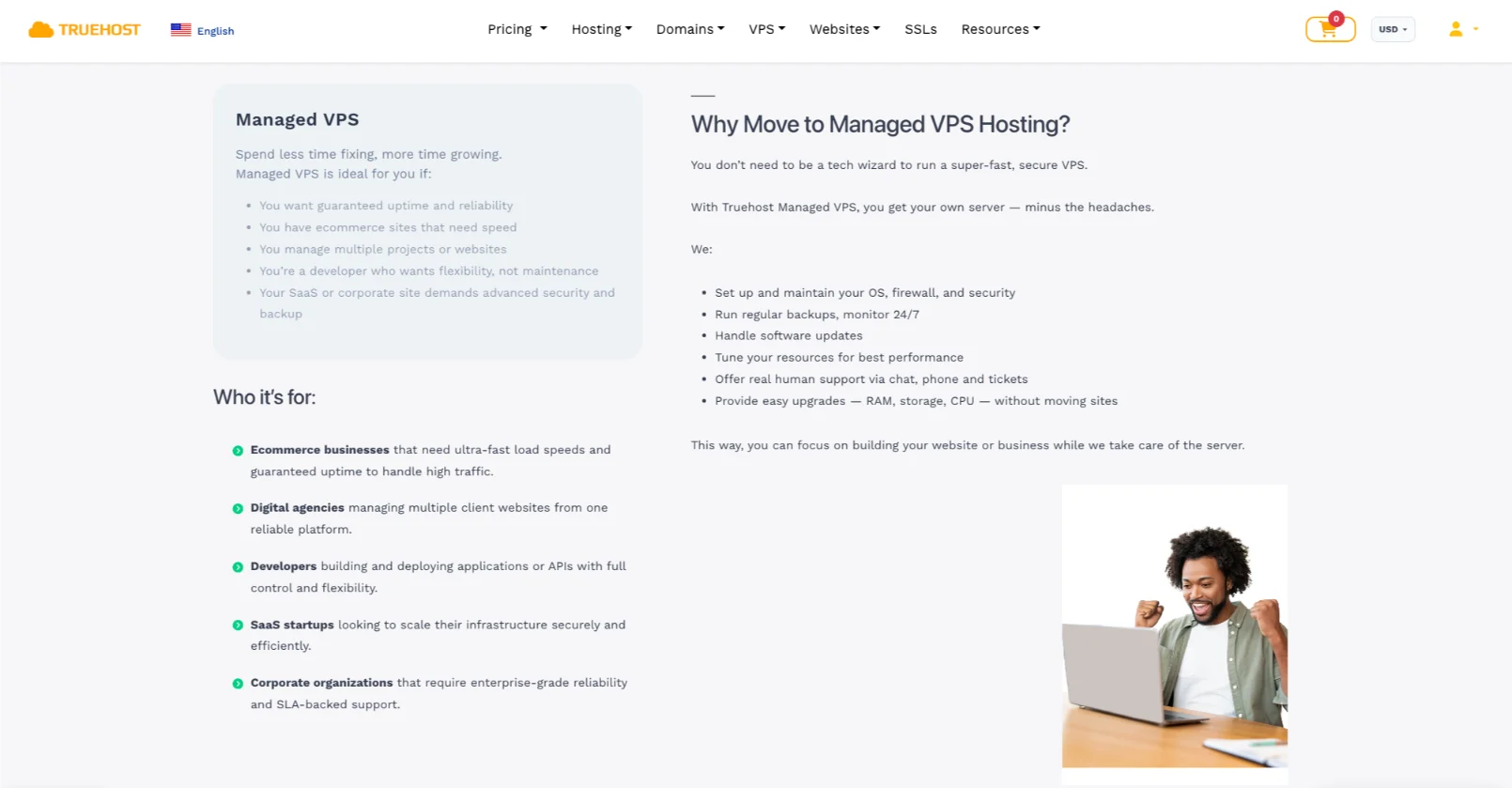
Each VPS receives allocated computing resources. These include CPU, RAM and storage.
You get more control than shared hosting. You can also install compatible software and configure your environment.
Who it suits:
- Growing business websites.
- Developers running custom applications.
- Growing WordPress websites.
- Businesses needing more server control.
Main limitation: VPS hosting costs more than basic shared hosting. Unmanaged VPS plans also require technical knowledge.
You can compare Truehost VPS hosting plans to find suitable resources.
3) Dedicated server
A dedicated server gives one customer access to an entire physical server. You don’t share its main computing resources with other hosting customers.
This provides greater control over server configurations. You can also choose resources suited to demanding applications.
Who it suits:
- High-traffic websites.
- Large online stores.
- Resource-intensive applications.
- Businesses with specialised server requirements.
Main limitation: Dedicated servers usually cost more. You may also need experienced administrators to maintain the environment.
If your business needs dedicated infrastructure, consider our Europe Dedicated Servers. Review the available configurations, locations and pricing before choosing.
4) Cloud hosting
Cloud hosting uses connected computing resources to run websites and applications. Depending on the provider, your workload can use resources across multiple servers.
This arrangement can make scaling easier. You can increase resources as your requirements change.
Who it suits:
- Growing online businesses.
- Websites with changing traffic levels.
- Applications that need flexible resources.
- Businesses planning for expansion.
Main limitation: Costs can change with resource consumption. Poor monitoring can lead to unexpected bills.
We at Truehost provide managed cloud hosting options for businesses needing additional hosting capacity. Check the service specifications to understand the available resources and management arrangements.
Hosting Plan Comparison
| Hosting type | Price | Performance | Control | Scalability |
|---|---|---|---|---|
| Shared | Low | Depends on shared resources | Limited | Limited |
| VPS | Medium | More predictable allocated resources | High | Upgrade available |
| Dedicated | High | Full server resources | Very high | Hardware upgrades |
| Cloud | Varies by usage | Depends on allocated resources | Varies by service | Often flexible |
Your hosting choice should reflect your actual business needs. Don’t pay for resources you won’t use.
Start with Truehost hosting options if you’re launching in Uganda. Compare shared hosting, VPS and other available services before committing.
Why Web Server Security is Important
Your web server stores important business information. This may include customer details, login credentials and payment-related data.
That makes it an attractive target for attackers.
Common security risks include:
- Data breaches: Attackers gain unauthorised access to customer information.
- DDoS attacks: Attackers overwhelm your server with traffic, disrupting website access.
- Malware infections: Malicious software compromises your website or server.
- Misconfiguration: Incorrect settings expose sensitive files or create security weaknesses.
The scale of DDoS activity makes this risk worth taking seriously. Cloudflare reported 47.1 million DDoS attacks across its network during 2025. This was more than double its 2024 total.
You can reduce risks through several basic protections:
- Install SSL/TLS certificates to encrypt website connections.
- Use firewalls to filter unwanted traffic.
- Update server software and applications regularly.
- Create strong passwords and restrict administrator access.
- Maintain automatic backups for recovery.
No hosting provider can guarantee complete protection against every attack. You should still monitor your website and maintain secure configurations.
How to Choose the Right Web Server Setup
Your ideal server setup depends on your website, business goals and technical requirements.
Before purchasing hosting, answer these questions:
- How much traffic do you expect? A new website may need fewer resources than an established online store.
- What is your budget? Consider initial prices, renewal costs and additional services.
- Is your site static or dynamic? Dynamic websites often require application processing and database resources.
- Which platform or software does your site need? WordPress, ASP.NET and custom applications have different requirements.
- How comfortable are you managing a server yourself? Choose managed hosting if you need help with server administration.
Your answers will help narrow down the available options.
Which Hosting Plan Should You Choose?
Use this quick guide to match your website with a suitable hosting environment.
| Your situation | Recommended hosting | Why |
|---|---|---|
| Small blog | Shared hosting | Affordable and simple to manage |
| Personal portfolio | Shared hosting | Usually needs fewer resources |
| Growing business website | VPS hosting | More control and allocated resources |
| Busy online store | Cloud or dedicated | Supports more demanding workloads |
| Custom application | VPS or dedicated | Greater configuration control |
| Website with changing traffic | Cloud hosting | Flexible resource allocation |
Remember that these are starting recommendations, not fixed rules.
Your website’s resource consumption is more useful than its category alone. Monitor CPU usage, memory, storage and traffic before upgrading.
If you run WordPress, check your hosting environment too. WordPress currently recommends PHP 8.3 or later, MariaDB 10.11 or later, or MySQL 8.4 or later. It also requires HTTPS support.
These requirements help you check if a hosting plan supports a modern WordPress installation.
What Is a Web Server FAQs
Is a web server hardware or software?
A web server can mean hardware, software or both working together.
The hardware is the physical computer that stores website files. The software receives browser requests and delivers website content.
You need both to host and serve a website.
What is the difference between a web server and a web browser?
A web server stores and delivers website content. A web browser requests that content and displays it to visitors.
Examples of browsers include Chrome, Firefox, Safari and Edge.
For example, when you open a website in Chrome, Chrome requests its pages from the web server.
What is the difference between a web server and a database server?
A web server handles requests from browsers and delivers website content. A database server stores and retrieves organised information.
They often work together on dynamic websites.
For example, WordPress uses a database to store blog posts. The web server delivers those posts when visitors request them.
What are examples of web server software?
Popular web server software includes:
- Apache HTTP Server.
- Nginx.
- LiteSpeed.
- Microsoft IIS.
Each option has different features and compatibility requirements.
Can I run a web server on my own computer?
Yes. You can install web server software on your personal computer.
For example, you can install Apache or Nginx and serve a website locally.
However, making that website publicly accessible requires additional configuration. You need a suitable internet connection, network settings and security controls.
Your computer must also remain available whenever visitors need your website.
For a business website, professional hosting is usually more practical.
What does a 500 Internal Server Error mean?
A 500 Internal Server Error means the server encountered an unexpected problem. It couldn’t complete your request.
Possible causes include:
- Incorrect server configuration.
- PHP application errors.
- Faulty plugins or themes.
- Database connection problems.
- Server resource limitations.
If you own the website, check your server and application error logs. You can also disable recently installed plugins to identify possible conflicts.
Which web server is best for WordPress?
Apache, Nginx and LiteSpeed can all run WordPress.
WordPress recommends Apache or Nginx as reliable server options. However, other compatible servers can also work.
LiteSpeed is another popular choice. Its caching technology can help improve WordPress performance.
Your final choice should consider:
- PHP and database compatibility.
- Available server resources.
- Caching support.
- Security configuration.
- Your hosting provider’s technical support.
WordPress performance depends on more than the web server alone. Your theme, plugins, database and caching configuration also affect results.
Start With the Right Web Server
Your choice should reflect your current needs and future plans.
At Truehost, we offer hosting options for different website requirements.
Our Uganda hosting services include:
- Shared hosting for individuals and small businesses.
- VPS hosting for businesses needing more control.
- Managed cloud hosting for applications needing additional resources.
- Dedicated server options for demanding workloads.
We also advertise features such as free SSL, daily backups on qualifying plans and customer support. Check the individual product pages for current availability and terms.
Choose your plan today and get your website live on a server you can rely on.
