A favicon is the small icon that represents your website in browser tabs, bookmarks, history lists, mobile home screens, and, when Google chooses to show it, search results. WordPress calls it a Site Icon; the two terms mean the same thing.
A recognizable icon does three practical jobs. It helps visitors find your tab among a dozen others, it makes the site look finished and trustworthy, and it ties the site to your brand everywhere the icon appears. A site without an icon shows a generic placeholder, which often reads as unfinished.
WordPress gives you a built-in way to set one, so most sites never need code or a plugin. This guide covers four methods for adding a favicon to WordPress.
Favicon Requirements for WordPress
Prepare one square image of at least 512 × 512 pixels and upload it as a PNG. WordPress’s own documentation gives exactly those requirements: square, at least 512 pixels on each side, and PNG as the recommended format. WordPress then generates the smaller icon sizes that browsers and devices ask for, so you manage a single file.
- Image dimensions: Use at least 512 × 512 pixels. A larger square image such as 1024 × 1024 is fine. Starting big counts because WordPress scales the image down, and an enlarged small image looks soft.
- Image format: PNG is the safest choice, and the one WordPress recommends. JPEG and GIF also work. You do not need to create a traditional favicon.ico file, because the Site Icon feature handles that for you.
- Image shape: Use a perfectly square image. A non-square image has to be cropped, and the crop can cut off part of your logo.
- Background: Choose based on your logo. A transparent PNG sits cleanly on light and dark browser themes, but a dark mark can vanish on a dark tab bar. A solid background color keeps the icon visible everywhere.
- Design: Keep it simple. A favicon is shown at roughly 16 to 32 pixels in a tab, so a single letter, a symbol, or a bold simplified logo works better than a full logo with text. Leave some padding around the mark so nothing is cut at the edges.
- File size: Compress the image before uploading. A 512 × 512 PNG with a simple design is usually small, but an unoptimized export can be many times larger than it needs to be.
If you want the icon in Google Search
Google shows favicons next to results for some sites, and its favicon guidelines set the minimum bar. The icon must be square and at least 8 × 8 pixels, though Google recommends going larger than 48 × 48. Googlebot must be able to crawl your home page, and Googlebot-Image must be able to fetch the icon file. Google supports one favicon per hostname, so a subdirectory such as example.com/blog uses the icon of example.com. A 512 × 512 Site Icon comfortably clears these requirements.
Methods to Add a Favicon to WordPress
This is the fastest route and works on any site running WordPress 6.5 or later, whatever theme is active.
Method 1: Add a Favicon Through WordPress General Settings
WordPress 6.5 moved the Site Icon control to the General Settings screen, so you no longer need the Customizer or a block theme to find it.
i) Log in to your WordPress dashboard.
ii) Go to Settings → General.
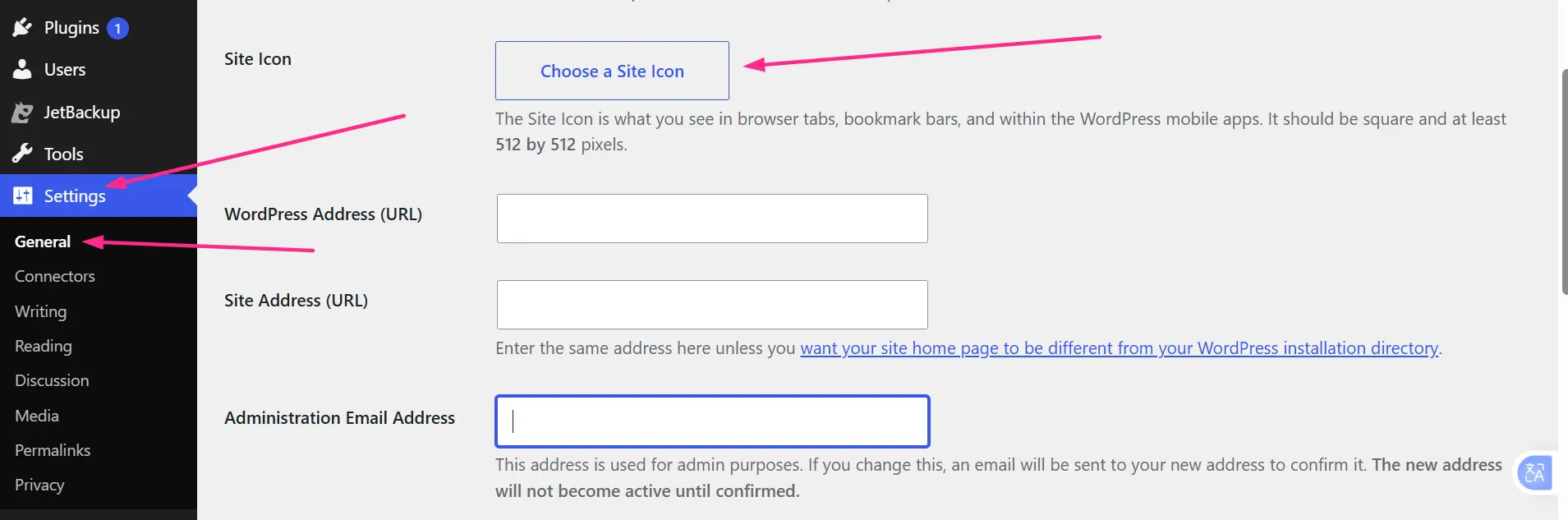
iii) Find the Site Icon section.
iv) Click Choose a Site Icon.
v) Upload your favicon or select an image from the Media Library, then click Set as Site Icon. If WordPress offers a crop, keep the whole square visible.
vi) Click Save Changes.
Open your site in a new tab to check the result. If you uploaded the image to the Media Library beforehand, you can pick it there without uploading it twice. To replace the icon later, return to the same section, choose a new image, and save again.
Method 2: Add a Favicon Through the Site Editor
Use this method if your site runs a block theme, such as Twenty Twenty-Five. The Site Editor only exists when a block theme is active, so if Appearance → Editor is missing from your dashboard, you are on a classic theme and should use Method 1 or Method 3 instead.
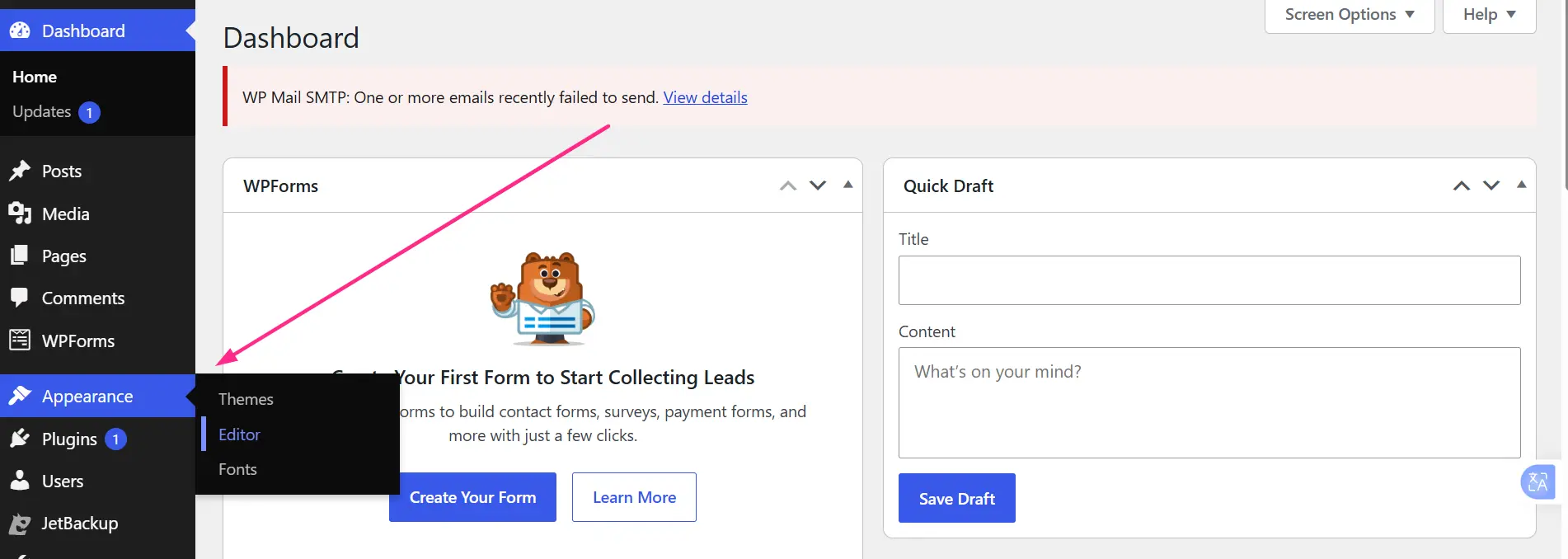
- Go to Appearance → Editor.
- Open Identity from the Site Editor menu.
- Select Site Icon.
- Upload a new image or select one from the Media Library.
- Click Save.
The menu labels in the Site Editor change between WordPress releases. If you cannot find the Identity option, use Settings → General instead, which controls the same icon.
Method 3: Add a Favicon Through the Customizer
This is the original location of the Site Icon setting, introduced in WordPress 4.3. It is the path to use on WordPress 6.4 or earlier, or on a classic theme where the Customizer still shows the option.
i) Go to Appearance → Customize.
ii) Open Site Identity.
iii) Scroll to the Site Icon section.
iv) Click Select Site Icon (labeled Select Image in some versions).
v) Upload your image from the Upload Files tab, or pick one from the Media Library, and crop it if WordPress asks.
vi) Click Publish.
The Customizer is gradually giving way to the Site Editor, and some themes hide or replace it. If Customize is missing from your Appearance menu, your theme probably uses the Site Editor, so switch to Method 2 or Method 1. Whichever screen you use, you are editing the same Site Icon, so a change made in one place shows up in the others.
Method 4: Add a Favicon Using Favicon by RealFaviconGenerator
WordPress’s built-in Site Icon works well for browser tabs and basic app icons. However, if you want more control over how your favicon appears on different devices, a plugin can help.
Favicon by RealFaviconGenerator lets you preview and customize your icon for different browsers and platforms. For example, you can add a background to your iOS icon.
The plugin is also regularly maintained and tested with newer WordPress versions.
i) In your WordPress dashboard, go to Plugins → Add New Plugin.
ii) Search for Favicon by RealFaviconGenerator.
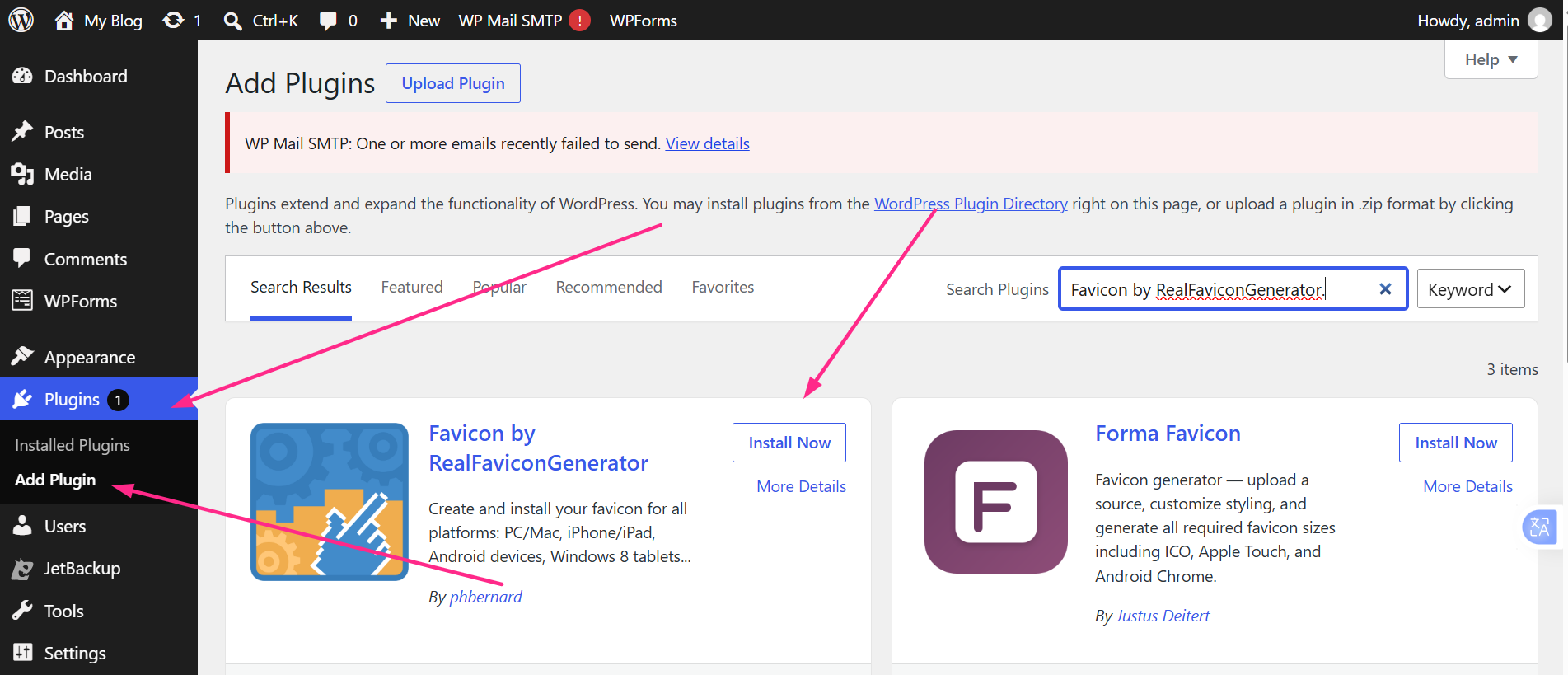
iii) Click Install Now, then Activate.
iv) Go to Appearance → Favicon.
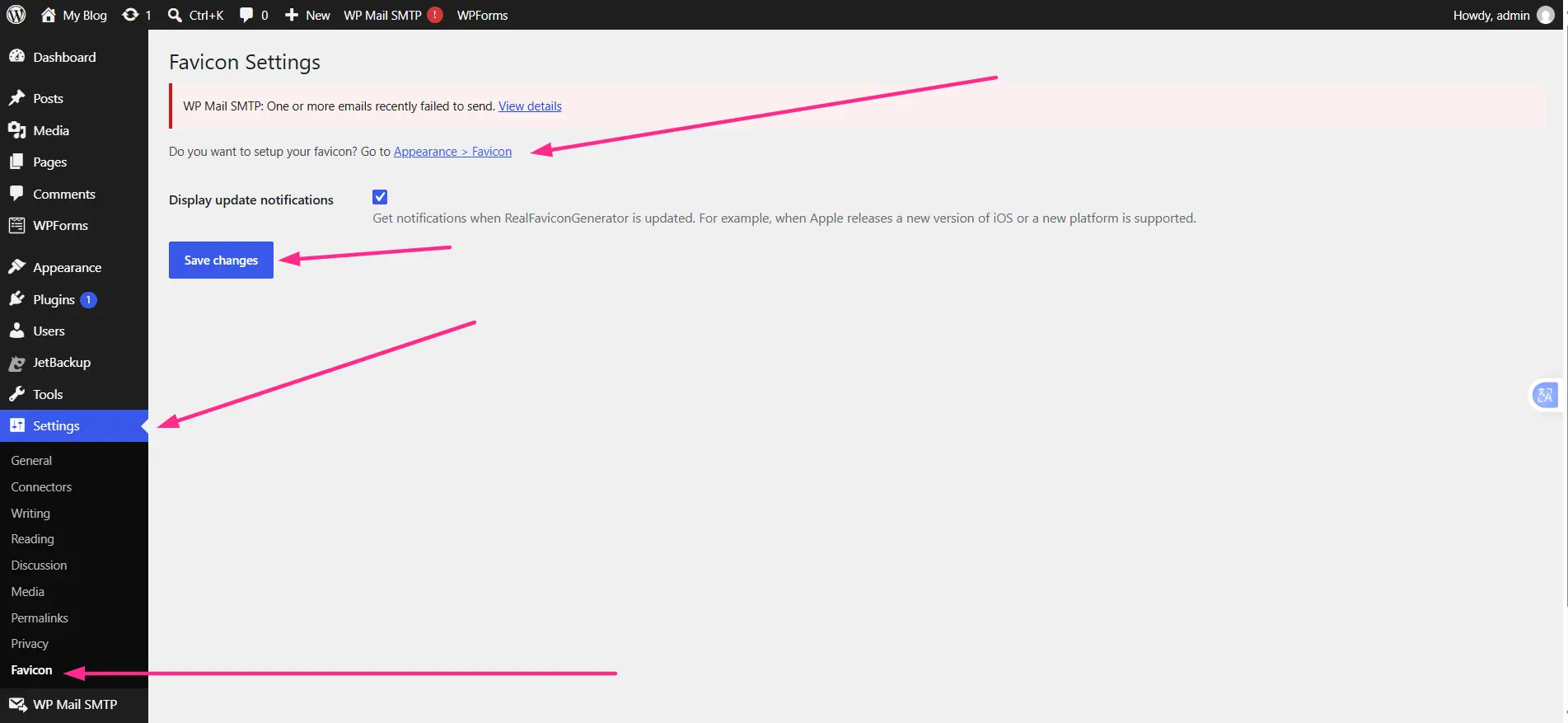
v) Click Select from the Media Library or upload your favicon image.
vi) Configure the favicon settings and preview how it will appear on different devices.
vii) Click Generate your Favicons and HTML Code to apply the changes.
viii) Visit your website to confirm that the favicon displays correctly.
There are two things to know before using this plugin.
First, you create your favicon on the RealFaviconGenerator website. The plugin takes you there to design the icon, then installs it automatically in your WordPress dashboard. Since it uses this service, its terms and privacy policy also apply.
Second, the plugin adds favicon code to every page without changing your theme files. This means your favicon stays in place even when you change themes. However, if you have also set a Site Icon in WordPress, both methods may add icon tags. If you notice conflicting icons, remove one method and keep the other.
For most websites, Methods 1 to 3 are enough. Use the plugin if you need more control over how your favicon appears on different platforms or want to check that it is set up correctly.
Troubleshooting Common Issues
Most favicon problems come down to caching, a duplicate icon source, or a low-quality image. Work through the table from the symptom you see.
| Problem | Cause | Solution |
| Favicon not appearing | Browser or website cache, or the upload did not complete. | Clear your browser cache and any caching plugin or host cache. Confirm in Settings → General that the Site Icon preview shows your image. Reload the site in a private window. |
| Old favicon still showing | Your browser or a CDN is serving a cached copy. | Purge the site and CDN cache, then reload in a private window. Browsers store favicons separately from page cache, so you may need to close and reopen the tab or clear the browser’s site data. |
| Site Icon option missing | The setting lives in a different place depending on WordPress version and theme. | Check Settings → General (WordPress 6.5 and later), Appearance → Editor → Identity (block themes), and Appearance → Customize → Site Identity (older versions and classic themes). |
| Theme or plugin conflicts | Another theme, page builder, or SEO plugin adds its own favicon markup. | Deactivate suspect plugins one at a time and recheck. Look in your theme’s own settings for a separate favicon field and clear it. |
| Google not displaying the favicon | Google has not recrawled the home page, cannot fetch the icon, or chooses not to show one. | Check that robots.txt allows Googlebot and Googlebot-Image, keep the icon URL stable, and request indexing of your home page with the URL Inspection tool in Google Search Console. Updates can take days to weeks, and a favicon is never guaranteed to appear. |
| Favicon looks blurry or unclear | Low-resolution image or too much detail. | Use a simple, square, high-resolution image of at least 512 × 512 pixels with padding around the mark. |
| Multiple favicons appearing | WordPress and custom code or a plugin are each adding an icon. | Use one favicon method and remove the other, including any hard-coded <link rel=”icon”> line in your theme’s header. |
Two extra checks help when nothing above fixes it. Open your home page, view the page source, and search for rel=”icon”. You should see one set of icon tags pointing to an image on your site. If you see none, the setting did not save. If you see several pointing to different files, you have found your duplicate. Then open the icon’s URL directly in the browser to confirm it loads without an error or redirect.
For search results specifically, remember that Google’s guidelines allow one favicon per hostname, require the icon to be crawlable, and replace icons with inappropriate imagery with a default one.
Give Your WordPress Website a Recognizable Identity
A favicon takes only minutes to add, yet it appears in every browser tab, bookmark, and phone home screen where your site shows up. Start with a simple, square image of at least 512 × 512 pixels and set it under Settings → General → Site Icon. Then open your site in a private window to confirm it displays.
If your theme calls for a different route, the Site Editor, the Customizer, or the RealFaviconGenerator plugin all get you to the same result.
An icon only helps if people can reach your site, and that starts with reliable hosting. If you’re building for an audience in Uganda, Truehost offers WordPress hosting and domain registration, so you can get your domain, your site, and your favicon all set up in one place. Visit truehost.ug to get started, then upload your icon and give your website the recognizable identity it deserves.
