An email alias is an additional email address that delivers messages to an existing inbox. For example, you can use [email protected], [email protected] and [email protected] to receive messages in one mailbox.
Aliases help organize emails, protect your personal address and give your business a professional image without creating multiple mailboxes.
Email Alias vs. Other Email Options
| Option | How it works | Best for |
| Email alias | Delivers mail to an existing inbox | One person managing several addresses |
| Separate email account | Has its own inbox, password and storage | People who need independent accounts |
| Email forwarding | Sends incoming mail to another address | Redirecting messages |
| Distribution list | Sends messages to multiple recipients | Group communication |
| Shared mailbox | Allows several people to access one mailbox | Sales and support teams |
An alias usually has no separate inbox, password, or storage. If several employees need to manage and reply to messages from one address, a shared mailbox is a better option.
Some hosting providers create aliases using email forwarders. These route incoming messages to another mailbox but may cause email authentication problems when forwarding between providers.
How Does an Email Alias Work?
An alias works by directing incoming messages to an existing mailbox.
Receiving emails: When someone sends a message to [email protected], it arrives in the mailbox linked to that address.
Sending emails: Replying from the alias may require additional setup. Without it, your reply might show your primary email address instead.
The setup depends on your provider:
- Gmail and Google Workspace: Add the address under the Send mail as settings if supported.
- Microsoft 365: An administrator may need to enable sending from aliases.
- cPanel hosting: Forwarders handle incoming messages. Sending from the alias may require separate configuration.
Always send a test message and reply to confirm that the correct address appears.
Types of Email Aliases
There are four common types of email aliases.
1) Provider-Based Aliases
These are additional addresses linked to an existing email account. For example, an Outlook.com user can add another address to the same Microsoft account without creating a separate account.
The addresses share the same inbox, contacts and account settings. The number you can add depends on the provider.
2) Custom-Domain Aliases
These use your own domain, such as [email protected] or [email protected].
They help businesses manage different types of enquiries through one mailbox. Many hosting providers support them through their email management tools.
Google Workspace allows up to 30 aliases per user at no extra cost. Microsoft 365 also supports aliases for users with a verified domain.
3) Plus Addressing
Plus addressing adds a tag to your existing email address. For example, [email protected] delivers messages to [email protected].
You can use different tags for shopping, newsletters and online accounts, then create filters to organize incoming messages.
However, the full address remains visible to recipients, and some websites do not accept plus signs.
4) Masked Email Aliases
A masked alias uses a random address that forwards messages to your real inbox. This helps protect your primary address when signing up for websites and online services.
Examples include:
- Apple Hide My Email: Creates random addresses that forward to your personal inbox. Creating addresses manually requires an iCloud+ subscription.
- Firefox Relay: Provides email masks, with a free plan offering up to 50 masks and paid options offering additional features.
You can disable a mask if it starts receiving unwanted messages. Availability and features vary by service.
Why Use an Email Alias?
Email aliases are useful for several reasons.
- Protect your privacy: Use a masked address instead of sharing your personal email with every website.
- Reduce unwanted mail: Disable an alias that starts receiving spam.
- Organize messages: Use addresses such as sales@ and billing@, and create separate filters or folders.
- Look professional: Use an address linked to your business domain without paying for a separate mailbox for every role.
- Manage address changes: Replace an old address while keeping incoming messages directed to an active mailbox, where supported.
Limitations of Email Aliases
Aliases are convenient, but there are a few things to consider.
- Provider limits: The number of aliases you can create depends on your email service and plan.
- No separate storage: Messages are stored in the destination mailbox, not the alias.
- Sending restrictions: Receiving mail at an alias does not automatically allow you to send or reply from it.
- Website restrictions: Some websites block plus addresses or masked email addresses.
- Privacy limitations: A regular business alias does not necessarily hide your primary address when sending replies.
- Email delivery issues: Forwarding messages between providers can affect authentication and cause some emails to be rejected or marked as spam.
- Account recovery risks: Deleting an alias used for account registration may prevent you from receiving password resets and important notifications.
Before deleting an alias, check which accounts use it. For business domains, configure SPF, DKIM and DMARC correctly to help authenticate outgoing email.
How to Set Up an Email Alias
Setting up an email alias depends on your email provider. Some services let you add another address to an existing account, while others use forwarding to deliver messages to your main inbox.
Truehost Email Using cPanel
If your web hosting plan includes cPanel, you can create an email forwarder to direct messages from an additional address to your existing mailbox.
Follow these steps:
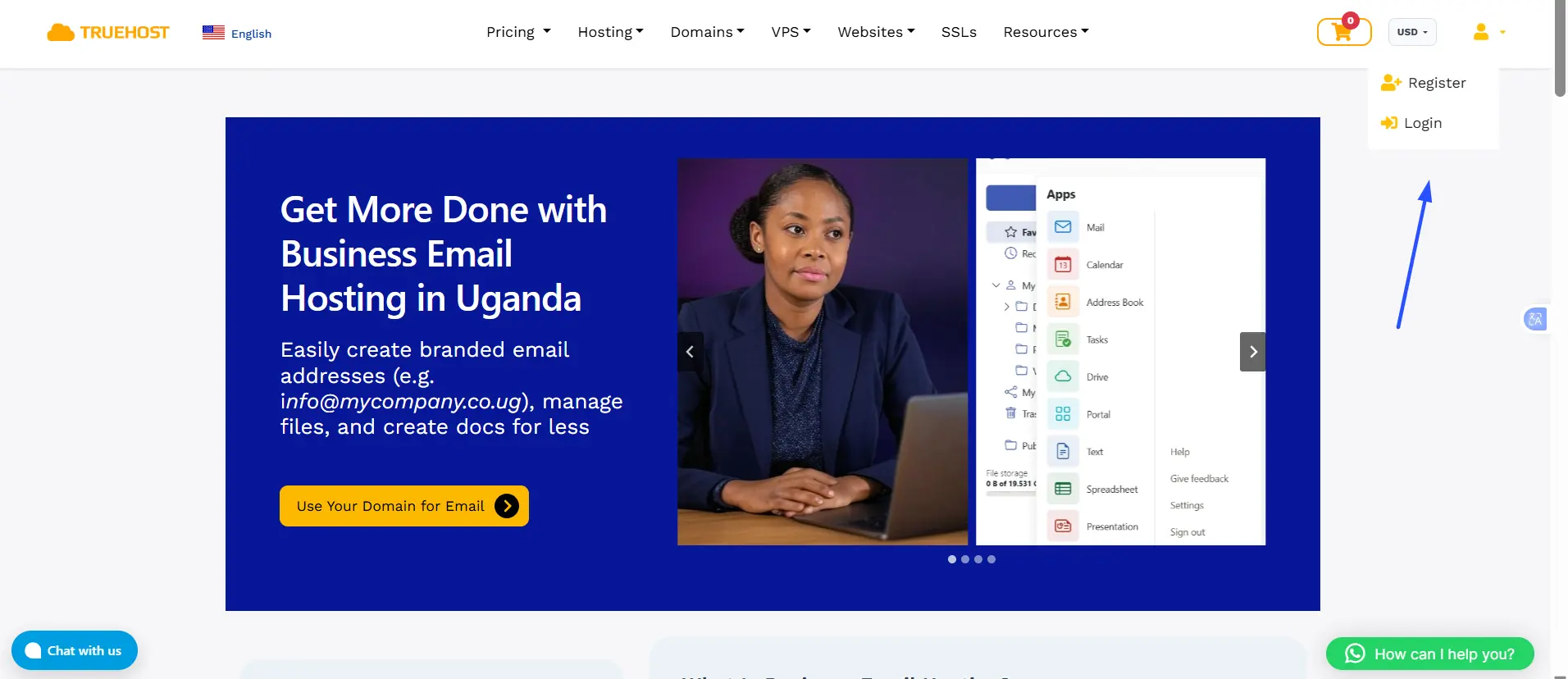
- Log in to your Truehost client area and open cPanel.
- Under Email, select Forwarders.
- Click Add Forwarder.
- Enter the address you want to use, such as
[email protected]. - Select your domain and enter the destination email address that will receive the messages.
- Save the settings and send a test email to confirm that forwarding works.
Note: A cPanel forwarder directs incoming messages to another mailbox but does not create a separate inbox. If you want to reply using the alias, you may need to configure your email application to send from that address. The available options depend on your email service.
If you need a business email address linked to your domain, visit Truehost email hosting to view the available options.
Gmail
Gmail supports plus addressing, which lets you add a tag to your existing address without creating another account.
For example, if your address is [email protected], you can use [email protected] for online purchases.
To organize messages sent to this address:
i) Give the tagged address to the relevant website or sender.
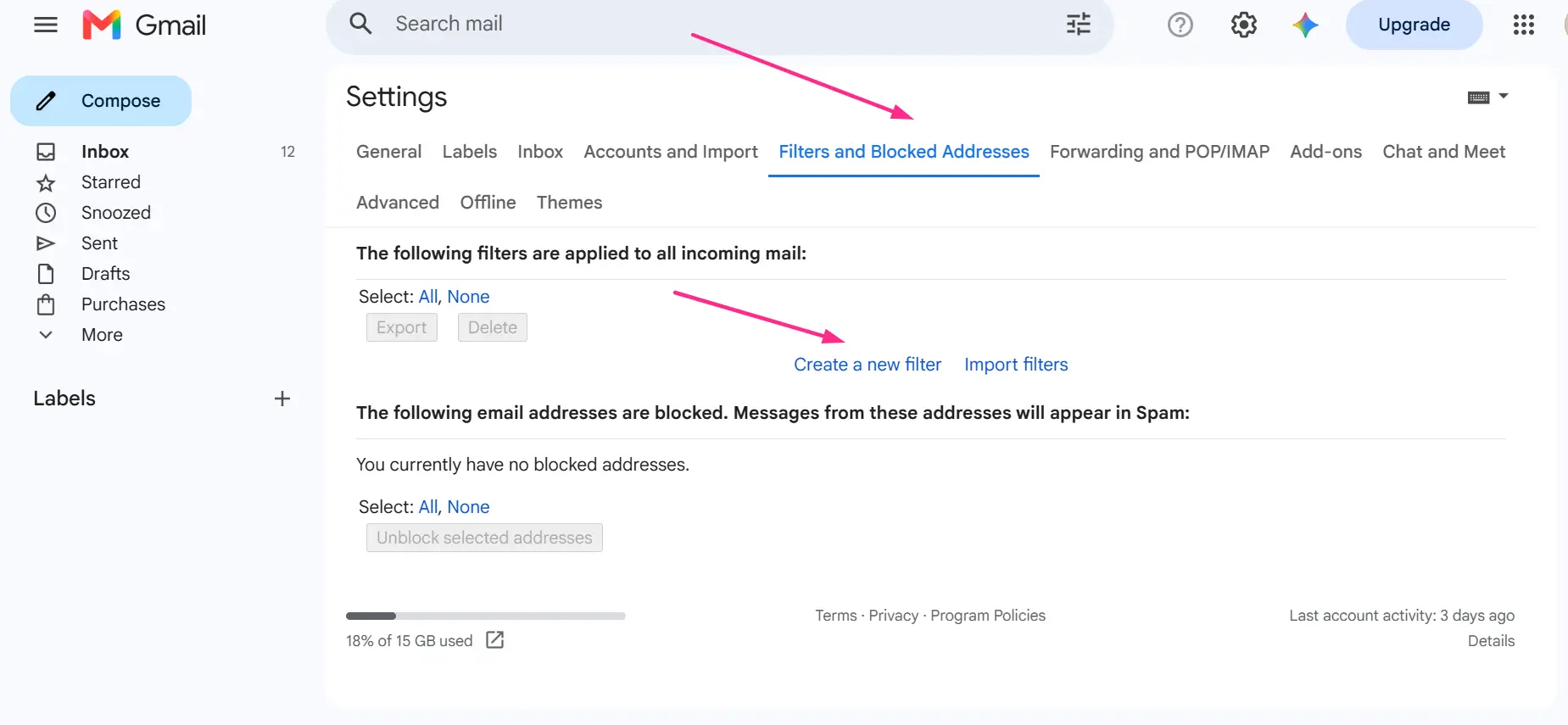
ii) Open Gmail and go to Settings → See all settings → Filters and Blocked Addresses.
iii) Select Create a new filter.
iv) Enter the tagged address in the To field.
v) Choose Create filter, select an action such as applying a label, and save it.
Messages sent to the tagged address will still arrive in your main inbox, where the filter can help you organize them.
If you want to send emails from a different address, check Gmail’s Send mail as settings. You may need to verify the address and configure the relevant mail server.
Google Workspace
Google Workspace allows administrators to add an alternate email address to an existing user’s account.
To create an alias:
- Sign in to the Google Admin console.
- Go to Directory → Users.
- Select the user who needs the alias.
- Open the option to add alternate email addresses.
- Enter the new address and save the changes.
Messages sent to the alias will arrive in the user’s existing inbox. If the user also needs to send emails from that address, they may need to add it under Gmail’s Send mail as settings.
Microsoft 365
In Microsoft 365, an administrator can add an alias to an existing user’s account.
Follow these steps:
- Sign in to the Microsoft 365 admin center.
- Go to Users → Active users.
- Select the user who needs the alias.
- Open Manage username and email.
- Add the new email address and save the changes.
The domain must be added and verified in Microsoft 365 before you can use an address linked to it. If users need to send emails from the alias, the administrator may also need to enable sending from aliases in Exchange Online.
Outlook.com
Outlook.com lets you add another email address to your Microsoft account and use it to receive messages through the same account.
To add an alias:
- Sign in to your Microsoft account.
- Open the page for managing how you sign in.
- Select Add email.
- Choose to create a new Outlook.com address or add an eligible existing address.
- Follow the instructions to complete the setup.
Your aliases share the same account, inbox, contacts and settings. Check Microsoft’s current requirements before removing an address, as deleting certain Microsoft-domain aliases can be permanent.
Masked Email Services
Masked email services create alternative addresses that forward messages to your real inbox. They are useful when you want to sign up for websites without sharing your primary email address.
Apple Hide My Email
- Open your Apple account settings.
- Go to iCloud → Hide My Email.
- Select the option to create a new address.
- Follow the prompts to generate and use the address.
Creating addresses manually requires an iCloud+ subscription, although Hide My Email is also available when using Sign in with Apple on supported services.
Firefox Relay
i) Visit the Firefox Relay website or open its browser extension.
ii) Sign in or create an account.
iii) Select the option to generate a new email mask.
iv) Use the generated address when signing up for a website.
The service forwards messages to your real inbox. Available features and limits depend on your plan.
Test Your Email Alias
After setting up an alias, send a test message to confirm that it reaches the correct inbox. If you intend to reply using the alias, send a test reply and check the address displayed to the recipient. This helps you catch configuration problems before using the address for business or important accounts.
Manage Your Emails More Easily with Truehost
Email aliases let you manage several addresses through one mailbox, helping you organize messages and maintain a professional business image.
If you need a branded email address for your business, Truehost email hosting offers custom-domain email and collaboration tools. You can also use cPanel forwarders on compatible web hosting plans to direct incoming messages to an existing inbox.
Create a professional business email with Truehost .
Email Alias FAQs
Is an email alias the same as forwarding?
Not exactly. An alias is an additional address linked to an existing mailbox, while forwarding routes incoming messages to another address. Some hosting providers use forwarders to create aliases.
Can I reply from an email alias?
Yes, if your provider supports it and the necessary settings are enabled. A basic cPanel forwarder only handles incoming mail, so sending may require additional configuration.
Can someone tell that an email address is an alias?
Recipients can see the address you send from. Depending on your email service, your primary address may also appear. Plus-addressing tags are visible, while masked aliases offer better privacy.
Does an alias have its own password or storage?
No. An alias uses an existing mailbox and does not have separate storage or login details.
How many email aliases can I create?
The limit depends on your provider and plan. Google Workspace allows up to 30 aliases per user, while Outlook.com and masked email services have their own limits. Check your provider’s current terms.
Is an email alias the same as a disposable email?
No. An alias usually forwards messages to your regular inbox and can remain active for as long as you need it. A disposable email is generally intended for short-term use.
What happens when I delete an alias?
Messages sent to the deleted address may bounce or stop reaching you. You could also lose password reset emails and account notifications if the address is still registered with other services.
